Microsoft Activates a Controversial Windows 11 Feature That Clutters Storage and Drags Down Performance

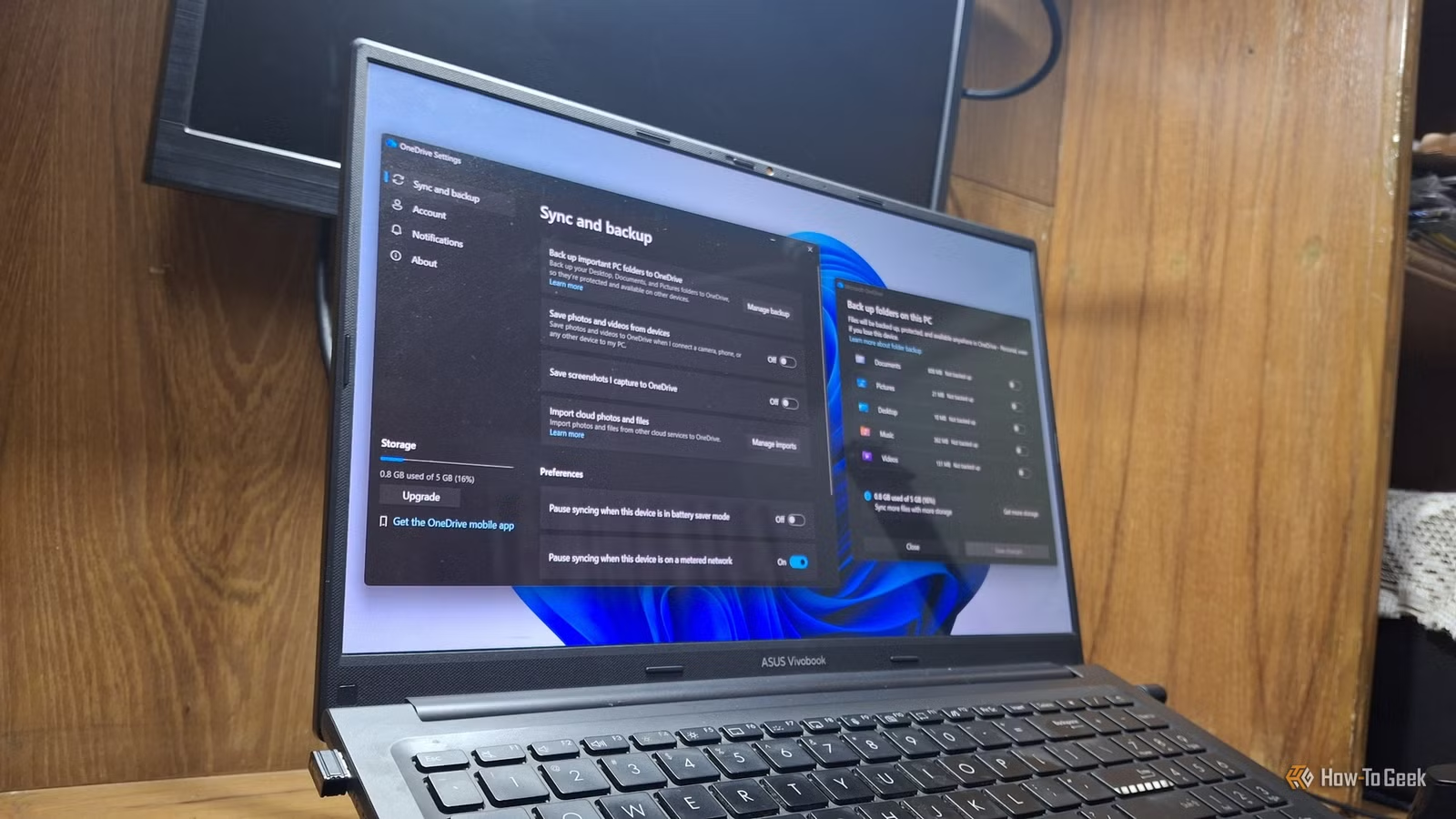
Microsoft has loaded Windows with numerous features, many of which I find unnecessary. While some might be useful, others consume resources on my PC and can even compromise my privacy. A recent discovery of mine is the OneDrive Folder Backup feature.
Similar to other settings, Windows enables this option by default during the initial setup of your system. Unfortunately, this service can hinder the performance of your Windows PC, making it essential to adjust these settings for a smoother experience.
Your Folders May Be Stored Differently Than You Think
Activation of OneDrive Folder Backup During Setup
Initially, having a Folder Backup could seem beneficial. It relocates your Desktop, Documents, and Pictures folders into the OneDrive folder, allowing their content to synchronize with your cloud storage. Consequently, any files you save in those locations are automatically uploaded.
However, the situation worsens with Windows 11 version 25H2, which activates the OneDrive folder backup without seeking your consent during setup, especially when using a Microsoft account.
To verify this, simply right-click on your Documents folder, select Properties, and check if the OneDrive path appears under the General tab in Location. If not, you can find this information in the Location tab.
Why Microsoft Prefers Your Folders in Its Cloud
Advertised as Protection, Yet Limited Storage
Microsoft promotes these features as protective measures that keep your data synchronized across devices, ensuring that crucial files are safe in the cloud even if your device is lost. At first glance, this seems advantageous.
However, the free storage offered is limited to just 5GB, which can fill up rapidly, especially with photos and videos. For instance, my Documents folder takes up over 800MB, while my Pictures and Desktop folders combined add about 30MB. I was surprised by the size of my Documents folder.
To access additional storage, you must subscribe to either a Microsoft 365 Basic or Personal plan, which provides 100GB and 1TB of space respectively. This may be a clever tactic by Microsoft to encourage users to upgrade their plans, which is likely why the backup option is set to active by default.
Disabling Folder Backup Without Losing Files
A Misclick Can Be Costly
Disabling this feature is relatively straightforward. However, before you proceed, ensure there are no cloud-only files in these folders, as OneDrive can’t transfer them back without you selecting Always keep on this device.
- Click the OneDrive cloud icon in your system tray.
- Select the Help & Settings gear icon, then choose Settings.
- Go to the Sync and backup tab and click Manage backup.
- Disable the toggle for Documents, Pictures, or Desktop.
- When prompted, choose to stop the backup and decide where to store your files.
- Select Only on my PC and click Continue.
- Repeat these steps for the remaining folders.
Be cautious on the last confirmation dialog. I discovered that Only in OneDrive is the default selection, which will delete files from your computer.
This procedure only disables Folder Backup; OneDrive remains installed on your PC. For further action, you can unlink OneDrive entirely and prevent it from launching at startup.
Microsoft Acknowledged Sync Slowing Down PCs
Then This Admission Disappeared from Their Performance Guide
Interestingly, back in 2025, Microsoft’s performance improvements guide included a recommendation to pause OneDrive for better speed, a fact reported by various tech news sources. However, this advice seems to have vanished from their current guidelines, which list twelve suggestions without mentioning OneDrive. Microsoft has not clarified why this tip was removed, but eliminating it does not lessen the impact of sync on device performance.
Considerable Privacy Implications with Cloud Storage
Folder Backup Exposes Local Files to Scanning
In July 2026, a new OneDrive Photos application was launched on Windows 11, prominently featuring face grouping. Microsoft claims this process analyzes only photos stored in OneDrive, leaving local files untouched, which initially appears to alleviate privacy concerns.
However, the Folder Backup functionality undermines this assurance by moving local files to OneDrive, potentially exposing them to facial recognition technology. Microsoft asserts that the facial data used for grouping is not employed for training its AI and is deleted after thirty days once the feature is disabled.
Your Files Should Remain Where You Store Them
I’m not arguing that OneDrive Folder Backup is entirely unnecessary. Yet, if you aren’t using it, as in my case, keeping it enabled creates no benefits. By disabling this and other Windows services, you might actually notice a performance improvement.