USB Docking Station vs. KVM Switch: Discover a Superior Solution for Enhancing Your PC’s Functionality

USB docks and KVM switches serve distinct roles in enhancing your workspace. Although both can elevate your desk organization, they do so in different manners. Let’s explore their disparities and assist you in identifying which option suits you best — spoiler: they can be used together.
USB Docks: Enhancing Connectivity
Ideal for Laptops and Portable Devices, but Usable with Desktops
USB docks, sometimes referred to as USB docking stations or hubs, feature various ports, including USB inputs, video outputs like HDMI and DisplayPort, Ethernet connections, audio ports, and SD card readers. They primarily connect to one of your computer’s USB ports and transform that single connection into a hub rich with options.
Typically, USB docks utilize USB-C connections and come in two varieties. Budget-friendly models operate with USB 3.2 Gen 1 and Gen 2 ports, offering speeds up to 5Gb/s and 10Gb/s, respectively. Conversely, premium versions leverage Thunderbolt or USB4 connections, which generally have more ports and superior video output capabilities, thanks to their ability to carry 40Gb/s or even 80Gb/s bandwidth in some high-end docks.
While many docks draw power from the connected PC, some are powered independently and plug into an outlet. These powered docks can charge not only your laptop or handheld device but also other devices connected to them. For example, my Thunderbolt 4 dock can charge my phone, mouse, and earbuds, delivering up to 90W to my laptop and an additional 15W through its Thunderbolt ports.
Though USB hubs are commonly matched with laptops and portable devices, there’s nothing preventing desktop users from using them. Personally, I employ a Thunderbolt docking station with my Mac mini and plan to acquire another USB-C dock — this time unpowered — to connect to my Windows desktop for additional USB ports and an accessible SD card slot.
Desktop PC Users Have More Options
If you own a laptop or compact PC, you typically rely on USB docks. However, desktop users with traditional tower systems can expand their USB capabilities via PCIe cards or USB adapters directly linked to internal motherboard headers. The PCIe cards install into the system’s slots, while internal adapters may fit either into rear panels or as front-panel options if supported by the casing. Although installation is less straightforward than with a USB dock, these options are beneficial for expanding connectivity without tying up existing ports.
A Different Function: KVM Switches
Unified Control for Multiple Computers
KVM switches serve a unique purpose compared to USB docks. Instead of augmenting your system’s connectivity, KVM switches allow you to control several computers using one keyboard, mouse, and monitor. KVM stands for Keyboard, Video, and Mouse, which highlights its primary function.
Typically equipped with multiple input sets for each PC and a single output set for the peripherals, a KVM switch enables seamless switching between computers at the touch of a button.
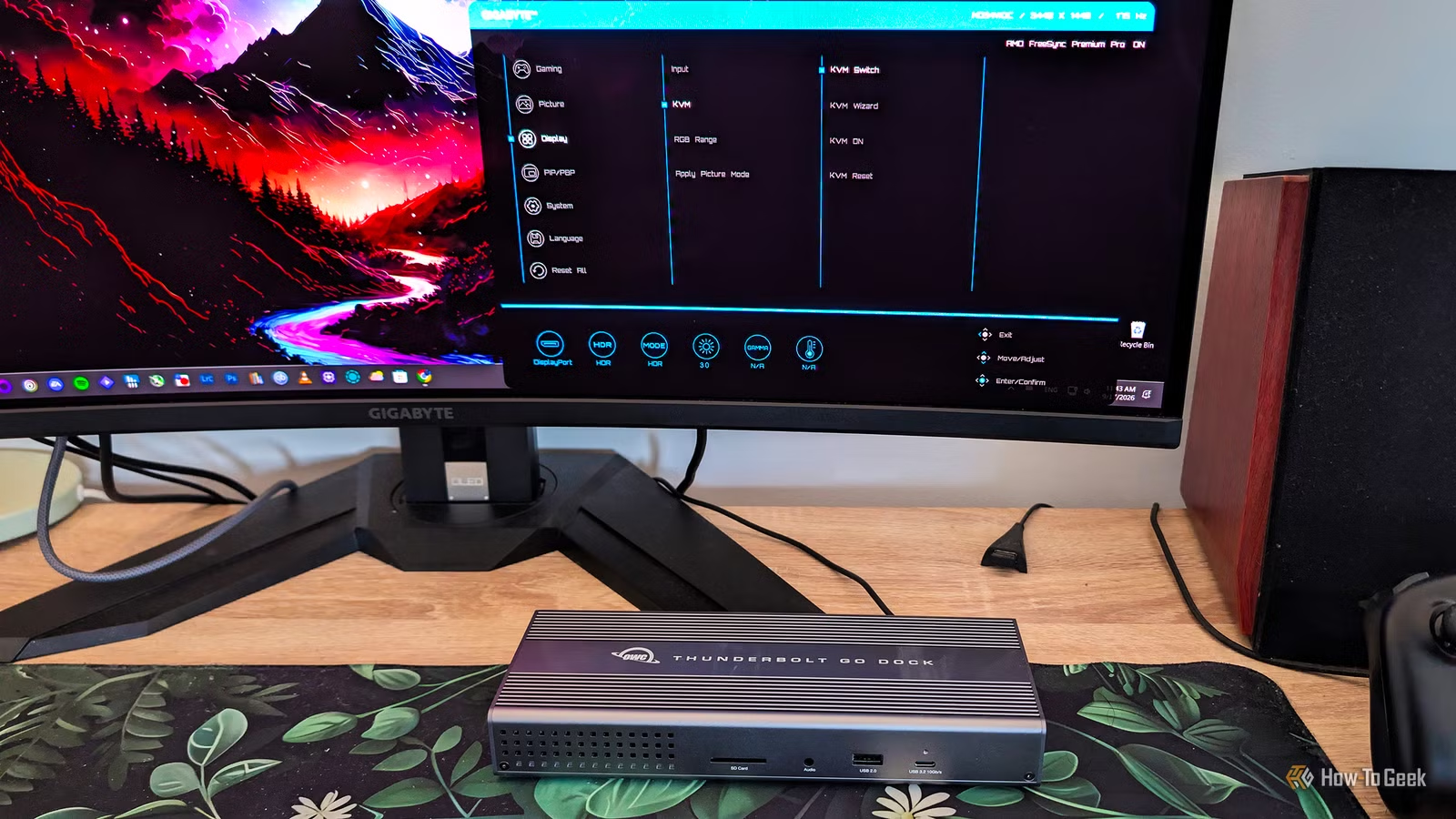
While standalone KVM switches were once the norm, many modern monitors now feature built-in KVM functionality. A common setup involves connecting a PC via HDMI or DisplayPort for video and using a USB upstream cable for peripheral control.
The secondary PC can connect through the monitor’s USB-C port, which consolidates video and USB data transmission. Thus, if your monitor includes a built-in KVM switch, one PC will use the traditional video input while the other connects through USB-C, necessitating a compatible port on at least one device.
Comparing USB Docks and KVM Switches
Complementary Devices that Serve Different Needs
While some KVM switches may have additional USB ports and audio inputs, they do not replace the need for USB docks. Even an enhanced KVM switch with extra ports merely adds limited functionality. Its core purpose is to facilitate control of multiple systems using shared peripherals.
USB docks convert a single USB port into a versatile hub loaded with various additional options. Most modern laptops possess USB-C output for video, which complicates direct KVM switch connections without a dock or adapter, since most switches rely on HDMI or DisplayPort inputs. A dock bridges that gap, allowing you to connect your laptop to any KVM switch or monitor while still providing access to additional ports for peripherals and other devices.
| USB Dock | KVM Switch | |
|---|---|---|
| Function | Adds ports | Shares peripherals |
| Connects To | One computer | Two or more computers |
| Connections | Monitors, Ethernet, SD cards, USB devices, etc. | Keyboard, mouse, monitor, sometimes audio and USB devices |
| Ideal For | Laptops and portable devices | Users with multiple PCs |
This means you don’t have to choose between them. If you utilize both, you gain the advantages of each. A dock allows connections to a KVM switch using HDMI or directly to a monitor with USB-C, while also offering extra ports for various devices.
My Dual Setup Experience
Although I previously managed to operate my Windows desktop and Mac mini using a single monitor without a KVM switch (thanks to Bluetooth peripherals), acquiring a monitor with built-in KVM capabilities streamlined my arrangement. My mouse and keyboard are now seamlessly connected to the monitor, enabling straightforward switching between systems. I only need to adjust my speakers when switching computers.
Moreover, I enjoy using a Thunderbolt docking station with my Mac mini. The dock enhances versatility, offering multiple Thunderbolt ports for charging various devices and an SD card slot. In my view, the combination of a USB dock and a KVM switch results in an optimal setup that I wouldn’t revert from.