Uncovering the BIOS Setting That’s Been Limiting Your RAM Performance from the Start

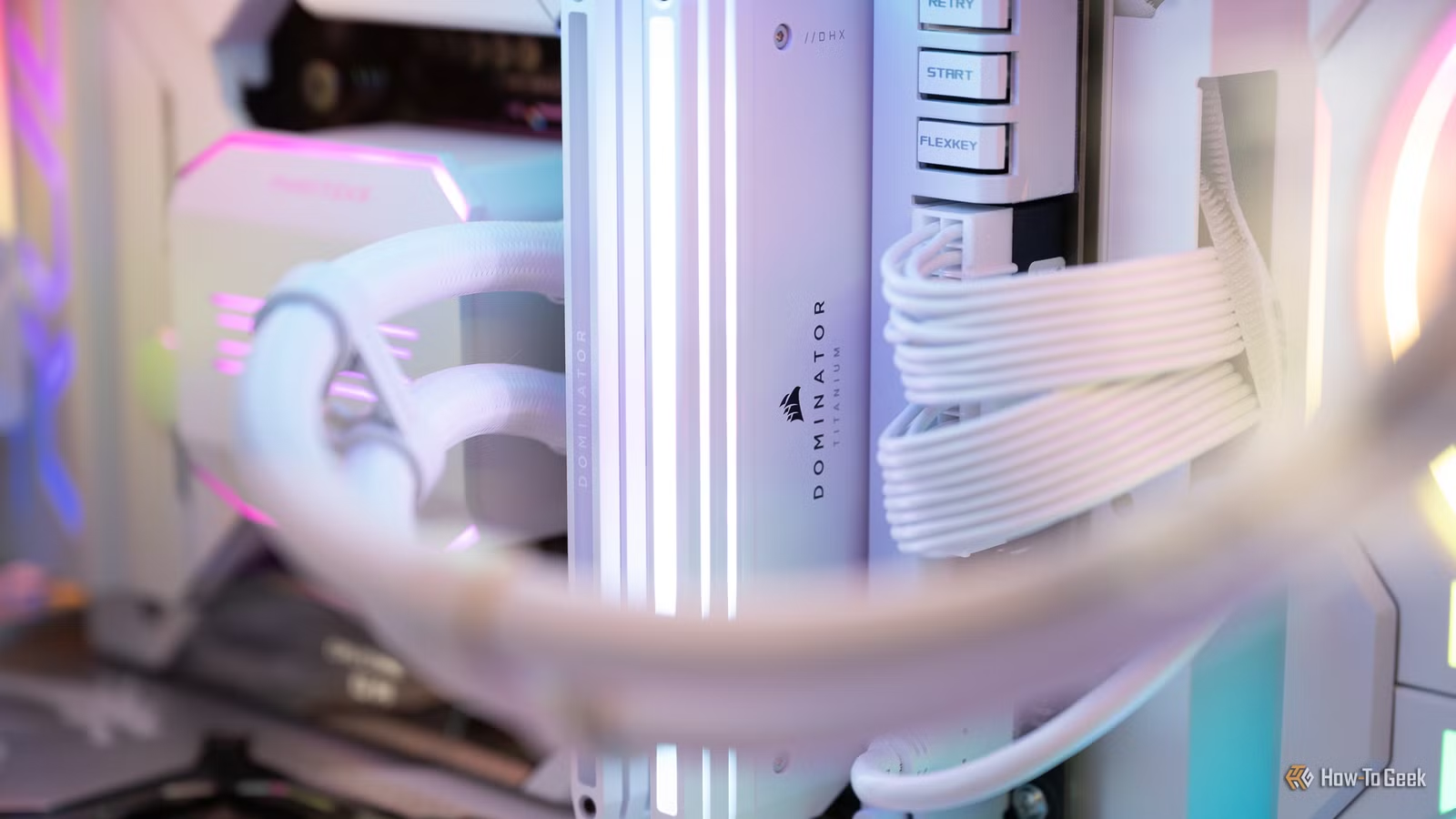
As we step into 2026, one might wonder who is still purchasing RAM. If your RAM isn’t performing as expected, you might think about buying more. However, it’s advisable to hold off for now. RAM prices are currently inflated, and chances are you can enhance your existing RAM’s performance with a few simple BIOS adjustments.
Your RAM Might Not Be Operating at Its Rated Speed
XMP and EXPO Profiles Are Essential
When RAM operates slowly, it can feel like your CPU is being held back. Unfortunately, many users often mistake this performance lag for an issue with their SSD or CPU, overlooking their RAM. Just because your RAM isn’t hitting the advertised frequencies doesn’t mean it’s faulty; it’s more likely that it needs to be overclocked.
Upon purchasing a DDR5-6000 kit, it’s reasonable to expect it to run at 6,000MT/s right away. However, that’s frequently not the case. Many RAM kits come with both standard JEDEC settings and faster profiles designed for overclocking. Not surprisingly, the fastest speed often appears on the packaging.
To reach those ambitious speeds, you need to enable the XMP (for Intel) or EXPO (for AMD) profiles. These profiles instruct compatible devices on how to achieve the advertised memory performance. If XMP or EXPO isn’t enabled, your RAM might be running at default speeds, which are often a fraction of its capabilities. Your motherboard typically prioritizes safe settings, making overclocking optional. However, given how RAM is marketed, we expect it to perform at peak levels, and anything below that is a missed opportunity for performance.
Profiles Adjust More Than RAM Frequency
Speed, Timing, and Voltage Work Together
Activating the correct XMP or EXPO profile tells your RAM to ramp up to the frequency you invested in. But the benefits aren’t just about speed; the profile also includes critical details like data rate, timings, and voltage. For example, selecting a DDR5-6000 CL30 profile means the motherboard will adjust not only the speed but also the necessary timings and voltage for optimal performance.
This is why tweaking settings manually in the BIOS can be unnecessary and cumbersome. While configuring each parameter yourself might sound appealing, employing the correct profile is generally the most effective approach. It could be fun if you’re into manual overclocking, but it can also be risky if you attempt to push beyond the manufacturer’s parameters.
Verify Your Memory Speed Before Adjusting BIOS
You Might Not Need Any Changes
Given my two decades of experience in PC optimization, I can say there’s no need to fix what isn’t broken. Before diving into the BIOS, first check whether your RAM truly requires overclocking. You can do this easily by opening Task Manager in Windows, selecting the Performance tab, and then Memory. There, you’ll see the actual speed of your RAM. If it’s significantly lower than the advertised speed, then it’s time to venture into the BIOS.
You can also confirm your speed directly in the BIOS or utilize utilities like HWiNFO or CPU-Z for more detailed information.
Enabling XMP or EXPO Is Typically Easy
No Manual Tuning Is Usually Necessary
Manufacturers designed XMP and EXPO profiles for simplicity, allowing users without overclocking knowledge to easily activate them. If you determine that your RAM needs adjustments, reboot and access your BIOS/UEFI. Find the memory profile setting, select the appropriate XMP or EXPO profile, save your changes, and restart.
Though the exact BIOS navigation may vary by motherboard brand, locating these RAM settings is usually straightforward. Don’t hesitate to explore; unless you alter other settings, there’s minimal risk in browsing around.
Once you restart your PC, check your memory speed again. If the profile has been activated successfully, you’re all set. Test your system with memory-intensive tasks, such as running multiple browser tabs alongside games or other applications to assess performance and stability.
The Advertised Speed Is Not Always Guaranteed
You’re Technically Overclocking Your RAM
Keep in mind that enabling these profiles still counts as overclocking your RAM, and there’s no absolute assurance that the speeds displayed on the box will always be achievable. Various factors—such as your CPU’s memory controller, motherboard, BIOS version, number of DIMMs, and the RAM itself—can impact performance. Remain vigilant for crashes or memory errors, as they may indicate that a lower setting is necessary.
You Invested in Faster RAM—Maximize Its Potential
I strongly advocate for making the most of what you own. Even older DDR4 RAM can serve most users well, but underutilizing it by running at lower speeds will undoubtedly yield a lackluster experience. Check your XMP/EXPO settings to see if they enhance your RAM’s performance.