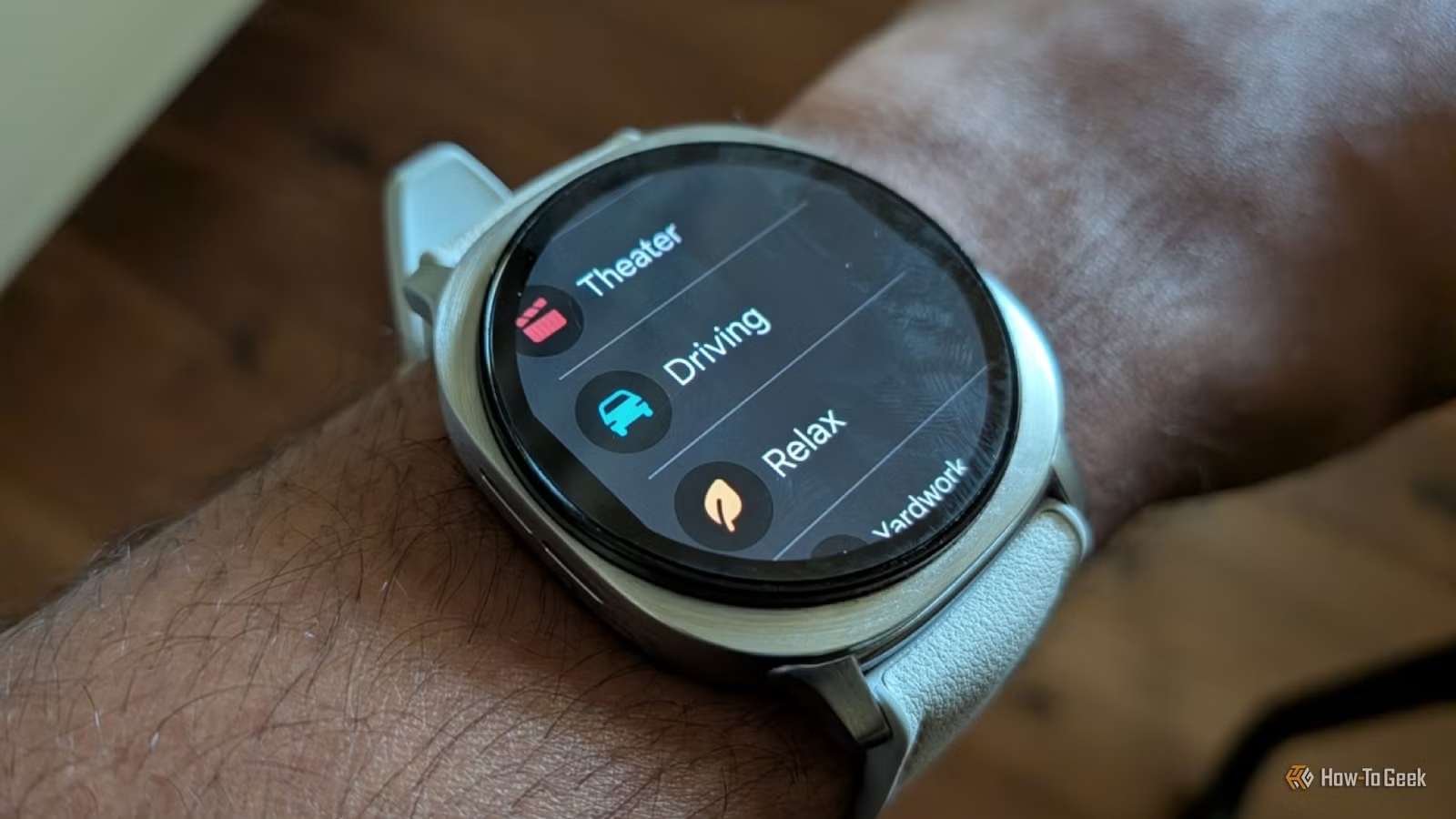
I use a smartwatch to minimize the need to constantly check my phone. It alerts me about calls, texts, and other notifications, while also knowing when not to interrupt me.
With a few simple adjustments, a smartwatch can enhance this functionality, making it even more enjoyable to wear. If you have a Galaxy Watch, be sure to explore the Samsung Modes feature.
Customize Your Watch for Any Situation
Setting Different Modes for Various Activities
Samsung Galaxy devices are equipped with a feature called Modes and Routines. Similar to IFTTT, Routines automate certain tasks, while Modes adjust your device’s settings based on the time, location, or activity. These Modes aren’t just for phones; you can also apply them to your Galaxy Watch!
To access Modes on your watch, swipe down from the top and tap the “Modes” icon, which resembles a pizza slice. The available modes on your watch will reflect those you have enabled on your phone.
Most modes are not activated by default, but Samsung offers various suggestions. For example, Theater Mode disables the always-on display and the raise-to-wake feature, dims the screen, and enables do-not-disturb. It even has the option to turn off automatically after a set duration.
Conversely, when I’m driving, I prefer my watch to function differently. While I generally keep the always-on display off, I find it necessary to have it on while driving. Additionally, a bright screen is crucial during the day, but I adjust it for nighttime driving. That’s where Driving Mode comes in.
Relax Mode is another useful option for quieter activities like reading. During such times, while I don’t need do-not-disturb, it’s helpful to lower the notification volume to minimize distractions.
A Universal Mode for Better Sleep
Sleep Mode for Undisturbed Rest
I am sensitive to noise while sleeping, and even minor disruptions can lead to a restless night and a sluggish day. I want to enable notifications only from a select few contacts at night.
Activating Sleep Mode on a Galaxy Watch efficiently silences unwanted notifications. When turned on, all alerts are muted except for a few chosen ones. This mode also disables the always-on display and wrist raise wake feature, conserves battery power, and transitions the display to Eye Comfort Mode.
Being paired with a Samsung Galaxy S24 FE allows me to customize Sleep Mode thoroughly, determining which settings to activate or deactivate. I’ve also set a schedule for it; for me, the default hours from 10 PM to 7 AM work perfectly. Sticking to a set bedtime helps improve my overall sleep quality.
Crucially, my morning alarm still functions while Sleep Mode is active, enabling me to start my day early.
Creating Custom Modes for Personal Use
Personalize Your Modes
I’ve developed a Yardwork Mode specifically to tackle some challenges I face while working outdoors. This mode maximizes screen brightness and volume.
You can create custom modes on a Galaxy phone through the Settings app by finding “Routines and Modes” and clicking “Add New.” I assigned a sun icon to my Yardwork Mode and colored it green. Samsung provides ample tools to tailor Modes and Routines to your preferences.
Optimal Pairing: Galaxy Watch and Galaxy Phone
As earlier mentioned, my Samsung Galaxy Watch 8 is paired with the Galaxy S24 FE. The modes I establish on my phone sync directly with my watch, allowing simultaneous activation without needing to manage both devices separately.
However, using a Galaxy Watch with non-Samsung smartphones limits some features. While not as restricted as an Apple Watch, switching to a different brand may compromise some of the integrated functionalities.