Discovering a Simple Solution to Ensure Windows Recalls the Exact Position of Every App Window

Each day, I find myself starting with the same set of apps, only to spend countless minutes adjusting their sizes and positions across my dual monitors. As the day progresses, these layouts inevitably shift yet again. Tired of continually reconstructing my desktop, I sought a more efficient solution. This led me to discover the user-friendly PowerToys feature: Workspaces.
Setting Up PowerToys Workspaces
Simple to Set Up
If you’re new to PowerToys, setting up Workspaces is a breeze and can be done in under a minute. Simply install PowerToys, then:
- Right-click the PowerToys icon in the system tray.
- Select Settings.
- Locate Workspaces in the menu.
- Ensure the toggle is set to on.
Once Workspaces is enabled, you can access the Editor. In my case, it appears in the Quick access area for easy navigation.
If it’s not visible there, navigate through Windowing & Layouts > Workspaces and choose Open editor.
Here, you can create and manage your preferred app layouts, allowing you to save your organized setups for future use.
Powerful App Management with PowerToys Workspaces
Distinct Setups for Different Days
Workspaces enables me to save a grouping of applications along with their window positions. When I later launch a workspace, PowerToys opens the apps and restores their designated positions. I’ve tailored separate workspaces for weekdays and weekends, reflecting how I use my computer differently depending on the day.
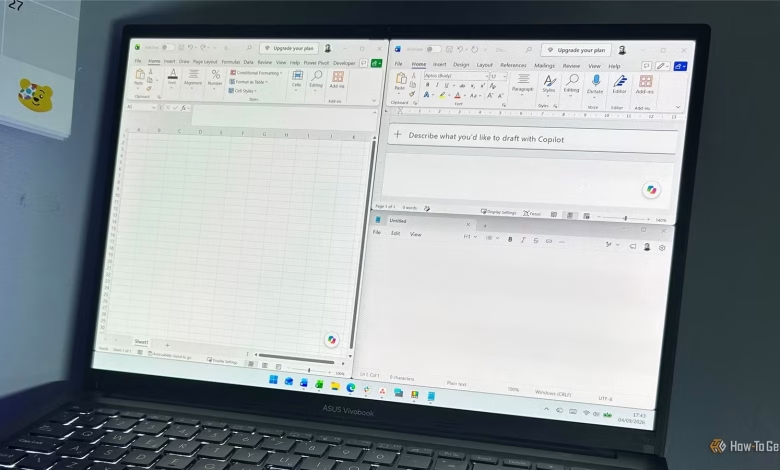
On weekdays, my workspace is tailored for work, featuring Word, Excel, and Notepad on my left monitor, while Slack, Asana, and Edge occupy the right. This specific layout is saved, eliminating the need to reconstruct it every morning.
My weekend workspace varies significantly, with Edge displaying my golf tracking site, Xbox, and a weather app on different monitors. Switching from work to my weekend layout is seamless; I simply activate the respective workspace and all applications are arranged as I prefer.
While there are alternative methods, such as using AutoHotkey or creating custom Windows shortcuts, those require more manual intervention. With Workspaces, I can simply arrange my desktop as desired and instruct PowerToys to remember the setup without needing complex scripts.
It’s important to note that Workspaces differs from FancyZones. While FancyZones provides reusable areas for window placement, Workspaces remembers which apps belong where. You can use Workspaces independently of FancyZones.
Quick and Easy Workspace Creation
Set Up Once, Save for Future Use
Creating a workspace is quite simple. In the Workspaces Editor, click Create Workspace, open your chosen apps, and arrange them as you wish. This feature works well with both multiple and single monitors.
After finalizing your layout, close any apps you don’t want in the workspace, click Capture, and name your workspace. You can also:
- Create desktop shortcut: This adds a quick-access shortcut on your desktop.
- Move existing windows: This option relocates currently open apps to their saved positions instead of opening new instances.
Don’t worry if any mistakes occur while capturing; you can easily remove any unwanted apps. Additionally, you have the option to modify saved window positions to Maximized, Minimized, or Custom, allowing further customization.
You can also launch apps with specific content by including CLI arguments—like having Excel open a specific file or a browser direct to a specific site—offering even more versatility.
Easily Adjust and Restore Layouts
Saved Workspace as a Reset Option
One of my favorite features of Workspaces is the ability to rearrange my layout without affecting the original workspace. If I choose to shift a window around or close an app, these alterations don’t impact my saved layout. When I reactivate the workspace, PowerToys will restore everything to its original captured state.
This functionality acts as a reset button for my desktop. I can modify my layout during the day without fear of losing my preferred arrangement. If I want to keep a new arrangement, I can simply edit the workspace and save the new layout.
A couple of key details to keep in mind: Workspaces adds arrangements to currently open windows rather than replacing them, and it remembers the monitors attached, so changes may occur if you connect or disconnect a display.
No More Rebuilding My Desktop
The appeal of PowerToys Workspaces for me is straightforward: I define where each application should be, save that layout, and can return to it whenever necessary. This is just one of many helpful features within the PowerToys suite, which also includes tools for extracting text from images, color picking from the screen, and batch-renaming files. If you haven’t explored PowerToys yet, now is an ideal time to start.