If you don’t have an Apple Watch, there’s an alternative way to snap photos with your iPhone’s camera.
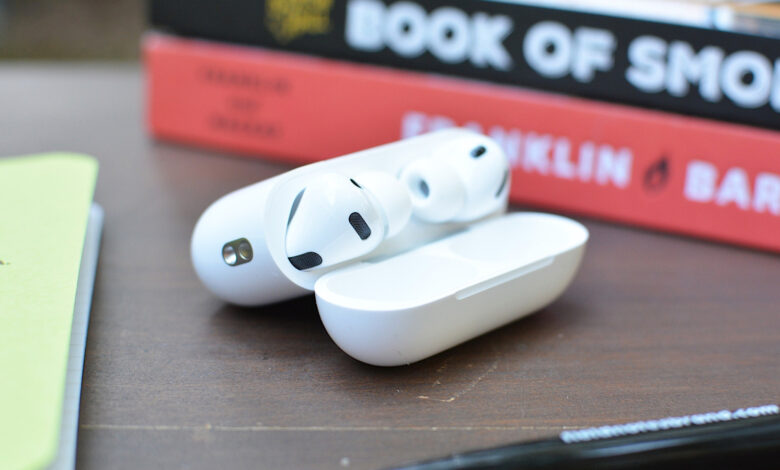
Last September, Apple introduced several new features for AirPods with the release of iOS 16. One of these innovations, known as Camera Remote, allows users to utilize their AirPods as a remote shutter for their iPhone’s camera.
This feature comes in handy for those who don’t have an Apple Watch to access its specific Camera Remote app. Instead of balancing your iPhone on a surface and setting a timer for a selfie, you can simply tap your AirPods to click the camera whenever you’re set. If this sounds appealing, here’s how to set up your AirPods for camera control.
Requirements for Controlling Your iPhone Camera with AirPods
Before proceeding with enabling the Camera Remote feature, it’s essential to outline the requirements.
Note that older AirPods models, specifically the original AirPods Pro, do not support this Camera Remote functionality.
Steps to Enable Camera Remote

By default, the Camera Remote feature is disabled. First, ensure your iPhone and AirPods are paired properly. Once you’re all set, follow these steps:
- Open the Settings app on your iPhone.
- Select your AirPods. If they don’t show up, make sure to open their case.
- Scroll to find the Camera Control section.
- Tap on the Camera Remote option and choose either Press Once or Press and Hold.
Once the Camera Remote is activated, you can take photos or start and stop video recordings by tapping the stem or Digital Crown of your AirPods or AirPods Max while the Camera app is open. Make sure at least one of your AirPods is in your ear for the feature to work; if they are just resting on a surface, camera controls will not be accessible.
Additionally, if you enable this feature, your AirPods won’t be able to wake Siri or switch listening modes while the Camera app is active. As mentioned in the Settings app, “When using AirPods for camera actions, if you select Press Once, media control gestures will be unavailable, and if you select Press and Hold, listening mode and Siri gestures will be unavailable.”