The app experience has seen significant improvements in recent years.
Sonos is renowned for producing some of the finest smart speakers available, but connecting these devices with their app hasn’t always been a seamless experience. Back in 2024, many users expressed frustration over the app’s issues. Fortunately, these problems have been addressed, and the app now offers a smoother setup process for new speakers.
In this guide, we’ll explain how to connect your Sonos speaker using the official “S2” app. The setup procedure remains largely consistent, whether you’re working with an older model or one of the latest Dolby Atmos-enabled speakers. Continue reading for tips on connecting, troubleshooting pairing issues, and enhancing your speakers’ audio quality using EQ settings and other in-app functionalities.
Setting Up Your Sonos Speaker for the First Time
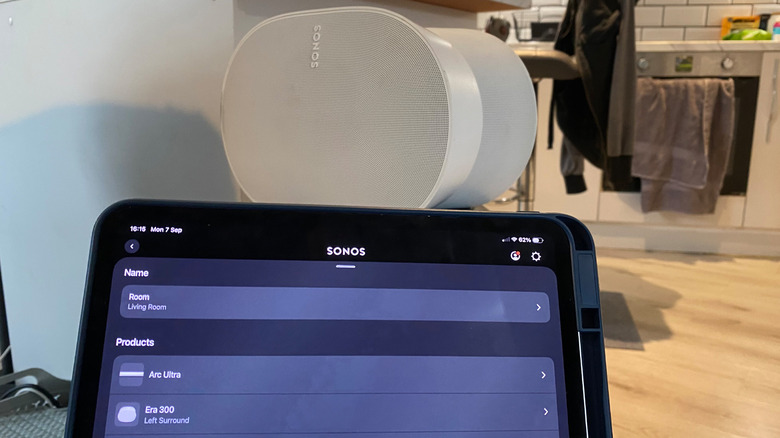
To set up your Sonos speaker initially, you’ll need to download the Sonos app on either your smartphone or tablet, available on the App Store or Google Play. Once the app is installed, create a Sonos account, ensuring that both your speaker and the app are connected to the same Wi-Fi network. The steps for setting up your speaker should be relatively simple from that point.
Whether you have an original Sonos One or a premium Sonos Era 300, the setup is quite similar. After powering your speaker, open the app, choose Start a new Sonos system, then select Add your speaker. The app should locate your Sonos device quickly and guide you in connecting it to your Wi-Fi network (keep your router’s password handy). You can also name your speaker according to the room it’s in, with preset options available or a custom name if you prefer.
For additional speakers, the process is even simpler. Navigate to Settings > Add Speaker or Component. However, if you’re trying to create a complete surround sound configuration, be aware that your surrounding speakers should generally be of the same model (e.g., a pair of Sonos Era 100s rather than mixing models). You can also integrate your speaker with services like Amazon Alexa through the Add a Voice Assistant option in the settings menu.
Troubleshooting Sonos App Connection Issues
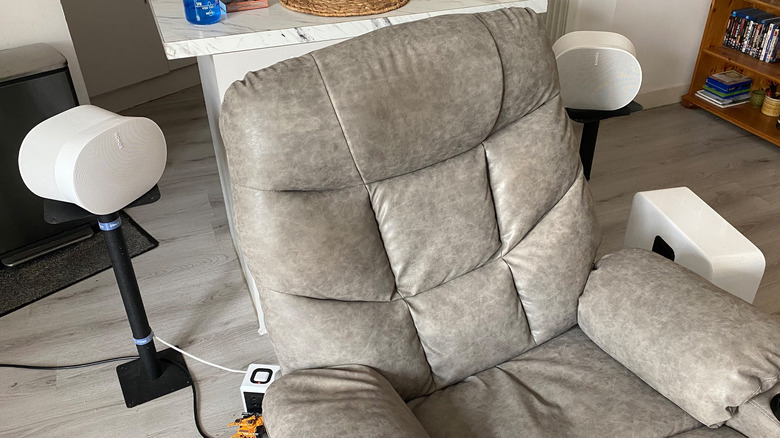
If you’re experiencing issues with your Sonos speakers connecting to the app, the problem could be related to your network. Ensure that both your speaker and the Sonos app are connected to the same Wi-Fi network, as using a guest network can disrupt communications. Additionally, if you’ve recently changed your router’s password, this could also hinder the pairing process.
Using a VPN can create further connectivity challenges, so consider disabling it temporarily if you’re having trouble. Regular software updates via the app will also help minimize future connectivity problems. For Apple users, make certain that you’ve given the Sonos app permission to access your network devices on your iPhone or iPad.
If the app still can’t detect your speaker, you may need to reset your Sonos equipment. Unplug it, wait ten seconds, then plug it back in and allow a minute before attempting to reconnect. If you are still receiving a “No products found” message, a factory reset may be necessary. This should be a last resort, as it will erase any saved EQ settings or configurations.
To perform a factory reset, unplug your speaker, hold the Bluetooth button while powering it back on, and retain pressure until the status light transitions between orange and white. Once it flashes green, the reset is complete, and you can try pairing the speaker to the app again. For older models, hold down the Join button, indicated by a small loop icon.
Enhancing the Sound Quality of Your Sonos Speakers
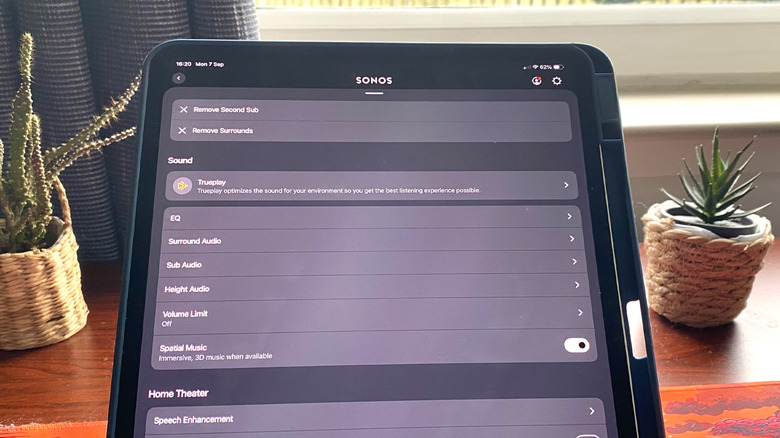
Modifying settings within the Sonos app can significantly enhance your speakers’ audio performance. If you’ve set up a home theater system, utilize the app’s TruePlay feature. This capability sends test tones from your speakers, which your smartphone analyzes through its microphone to assess the dimensions of your room.
As you walk around your entertainment area, TruePlay measures frequencies, making fine adjustments based on your speaker placements relative to walls and furniture. While it may not entirely transform the audio, it does help create a more balanced sound profile.
Adjusting the EQ settings for your Sonos speakers through the app can also yield favorable results. Within Settings > Your System > Speaker > Sound > EQ, you’ll discover various options to modify bass, treble levels, surround sound, and subwoofer output. If you possess a spatial audio soundbar, such as the Sonos Arc Ultra, you can optimize settings for Dolby Atmos and height audio.
Minor EQ adjustments, with sliders ranging from -15 to +15, can greatly affect clarity and bass output. For those using a Sonos sub, it’s advisable to keep the setting below +5 to avoid upsetting neighbors. Additional nuanced settings like Night Sound and Speech Enhancement can also help moderate noise levels and ensure that dialogue stands out, should you wish to be considerate in shared living spaces.