This Innovative Open-Source Windows Launcher Outshines Microsoft’s New Start Menu Design

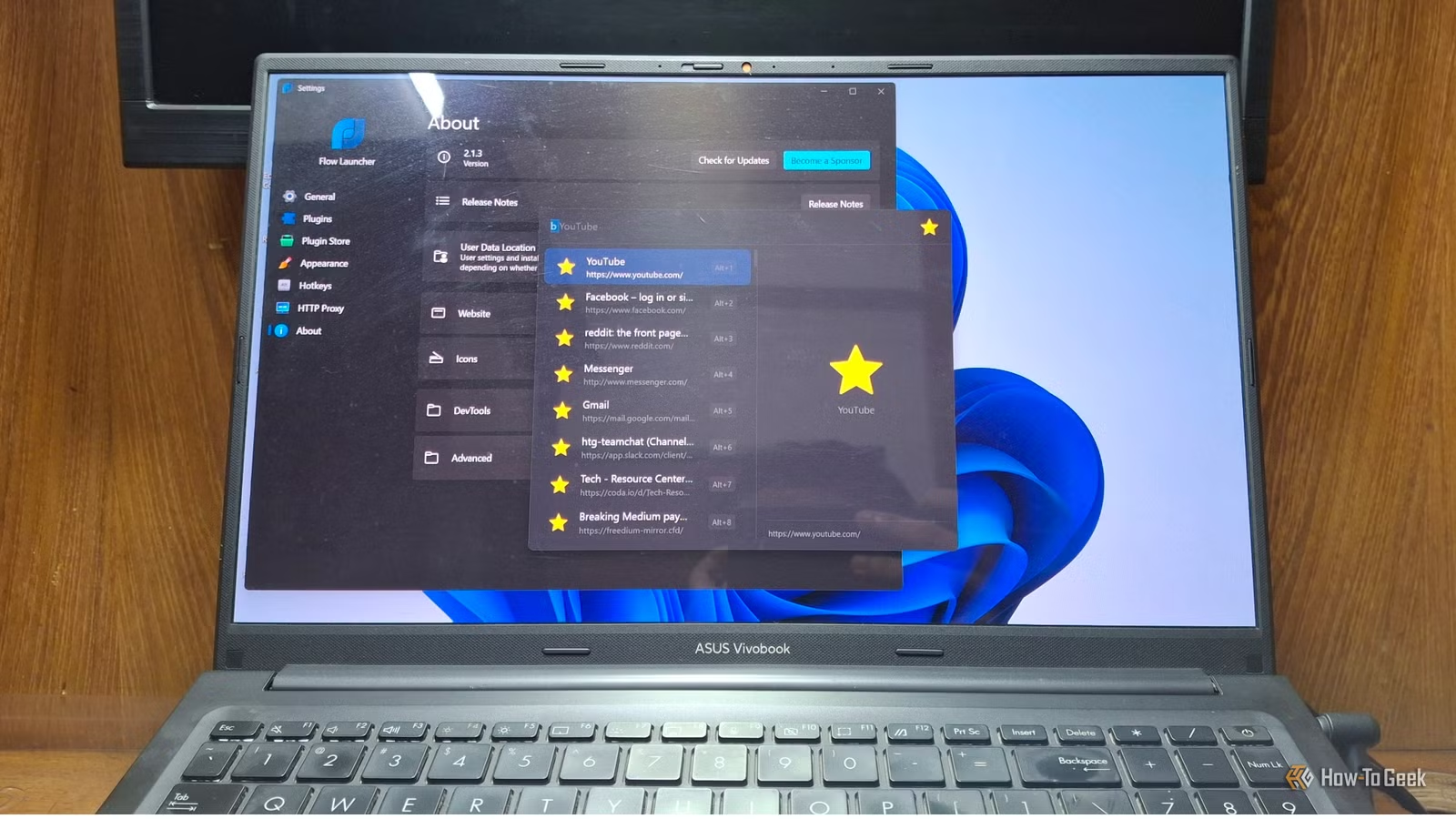
After facing numerous requests from users for increased customization options in the Windows Start menu, Microsoft is revamping the feature in its upcoming 26H2 update. However, it seems they are merely following the lead of an innovative open-source application known as Flow Launcher, which has been providing advanced functionalities for quite some time.
First Impressions of Flow Launcher
A Game-Changing Boost to Productivity
Curious about this acclaimed tool, I visited the official Flow Launcher website to download it. There were several options available, such as a portable version, an EXE file, or installation through package managers. I opted for the portable version for quick installation, which required me to create my own shortcut.
The installation process was straightforward, with onboarding pages that explained essential features like shortcut keys and actionable keywords.
Upon launching the app, I was greeted by a search bar accompanied by a list of commands. The interface was visually appealing and harmonized seamlessly with Windows 11. I noticed a pleasant click sound whenever I accessed it using Alt+Space. The key function of the launcher is to search for and launch applications.
I usually prefer pinning frequently used apps to the Taskbar and Start menu, but this approach necessitates using the mouse. With Flow Launcher, I simply start typing the app’s name and press Enter, making the process incredibly swift. In fact, as soon as I type halfway through the app’s name, the result appears already.
Besides apps, the launcher can also find files and open them in their default applications. This feature is beneficial, as it eliminates the need to recall where a file was saved or to rely on the slow search function of Windows File Explorer. As long as I remember the file name, I’m good to go. If Windows search has ever frustrated you, this could be the solution you need.
Exceptional Customization Features
Diving into the Settings
When it comes to customization, Flow Launcher allows extensive adjustments. You can alter both General and Appearance settings to suit your preferences.
The General settings tab lets you control various functionalities, such as whether the launcher should run on system startup, hide its tray icon, or stay above other windows.
One feature I found particularly useful is the Always Preview option, which opens a sidebar displaying the app icon and pertinent details. This enhances the app’s aesthetics and provides quick information about the app or file.
The Appearance settings focus on the visual aspects of the launcher. With nearly 20 themes available, I found the default Windows 11 theme to be pleasing and decided to switch to the more polished Rider theme.
Customization extends to animations, sound effects, icon styles, badges, window size, and overall color scheme. Note that enabling Always Preview might affect how some results are displayed, as the preview panel takes up space.
You can also configure the clock and date, though I found that displaying both together felt cramped, so I opted to show only the time.
An Impressive Plugin Ecosystem
Transforming a Launcher into a Control Hub
One standout feature is the extensive plugin ecosystem. In the settings menu, you’ll find sections for Plugins and the Plugin Store. The Plugins section contains those you have installed, while the store offers a plethora of additional options to explore and install.
In the Plugins section, you can activate or deactivate plugins and access their individual settings. For instance, the Browser Bookmarks plugin allows you to specify which browser(s) to access bookmarks from. Each plugin can also be assigned a unique action keyword.
Browsing through the Plugin Store is an enjoyable experience, with a variety of plugins available across categories like productivity, education, gaming, and software development. You can search, update, and install plugins seamlessly, including from local sources.
The installation process is simple: click on the desired plugin and hit Install. A restart of Flow Launcher is required for the new plugin to take effect.
Among the useful plugins I’ve discovered are Speed Test, File Folder Opener, Google Translate, and various math add-ons. However, it would be beneficial if each plugin had its dedicated page within the store for easier access to details, instead of having to navigate to linked GitHub pages.
Microsoft Needs to Pick Up the Pace
While PowerToys Run and Command Palette offer similar functionalities, the Start menu continues to fall short. In terms of customization and user experience, Flow Launcher clearly outshines the tools offered by Microsoft, appealing to those who seek to be power users.