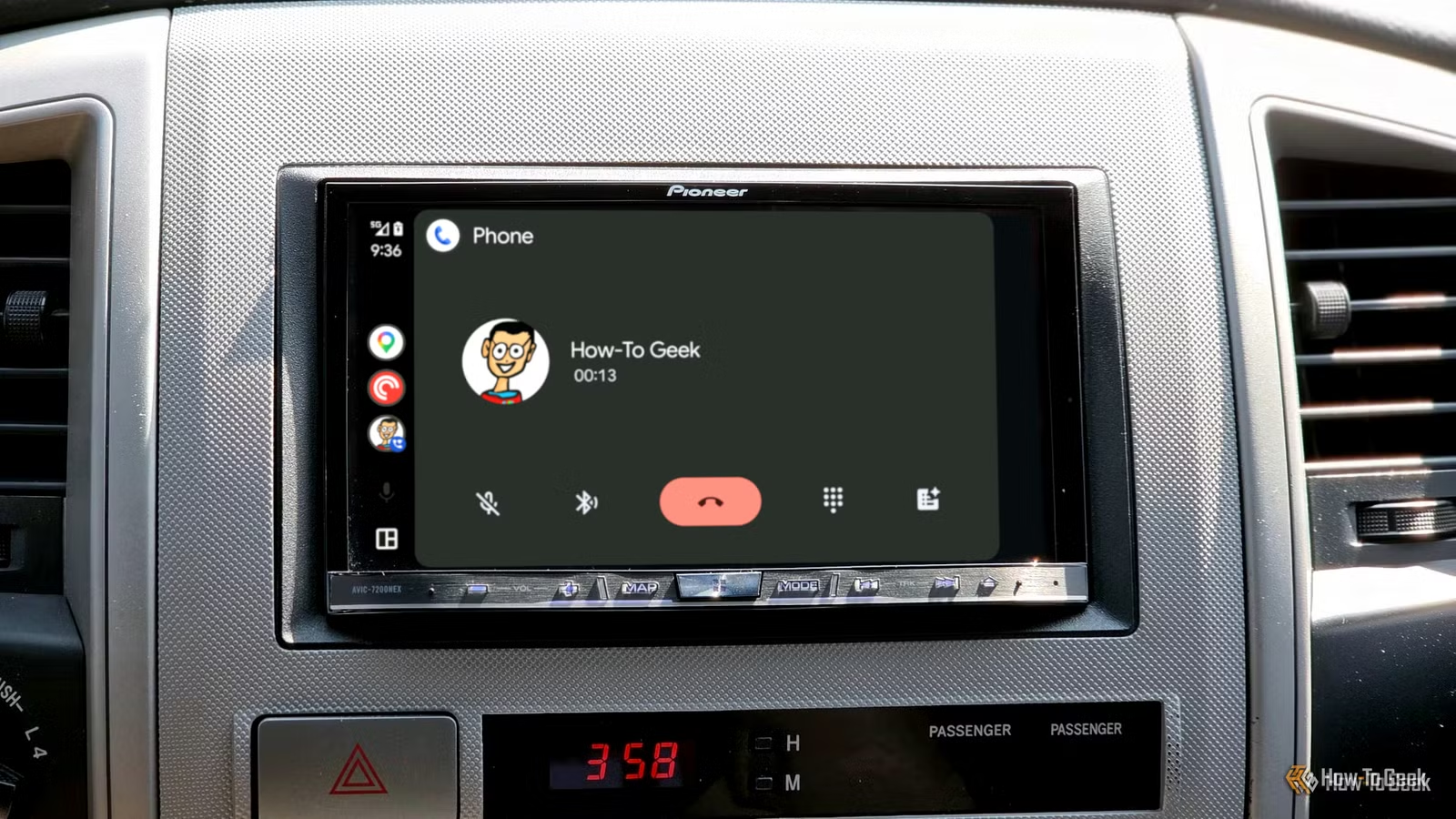
Many users of Android Auto have encountered a common issue: they receive a call on their phone, answer it, and then discover that they cannot hear the caller, or the caller cannot hear them. This frustrating experience can happen unexpectedly, so I decided to investigate possible solutions to address this problem effectively.
Verify Android Auto’s Permissions
Check for Access Blockages
One of the first steps to take is to check if Android Auto has all the required permissions. If you used to receive calls without issues but suddenly face problems, it’s possible that an Android privacy update has revoked some permissions. Android Auto actually needs multiple permissions to function properly with calls.
To check this, navigate to your phone’s Settings > Apps > App Management (the exact terms may vary). Locate Android Auto and select Permissions. Ensure that permissions for Call logs, Contacts, Microphone, Nearby devices, and Phone are enabled.
I recommend granting all necessary permissions for Google Play services as well. Additionally, check the microphone access in Android’s Privacy settings or through the Quick Settings panel. If the microphone works in other apps, it likely isn’t the source of the problem.
Check for Conflicting Bluetooth Devices
Your Watch Could Be the Issue
Even though Android Auto generally uses Wi-Fi for most of its functionalities, it relies on Bluetooth for hands-free calling. A failed Bluetooth handshake can lead to calls not working, while media and navigation may still function properly.
Start by accessing your phone’s Bluetooth settings, identify your car among the paired devices, and confirm that everything under Use for is turned on.
Sometimes, another Bluetooth device nearby—like a smartwatch or headphones—might be interrupting the call functions. If you notice calls sporadically failing, disconnect any nearby Bluetooth devices and reconnect Android Auto to see if the issue resolves. If you identify the problematic device, consider disabling its call access so your car can take over.
Avoid Battery Optimizations Sleeping Android Auto
Some Phones Manage Battery Too Aggressively
In an effort to conserve battery life, Android has become increasingly stringent with background processes, which can inadvertently affect essential features like Android Auto.
Start by checking the battery optimization settings for Android Auto. Access Settings > Apps > App Management, find Android Auto, tap Battery, and set it to Unrestricted.
If you have a Samsung phone, look for system-wide battery optimization found under Settings > Battery > Background usage limits > Never auto sleeping apps and add Android Auto to that list.
Clear Android Auto’s Cache
A Simple Fix That Can Help
Like any application, sometimes simply clearing the cache for Android Auto can resolve issues. This can help eliminate any glitches related to Bluetooth connections, reset audio routing, and provide Android Auto with a fresh start.
To do this, go to Settings > Apps > App Management, scroll to find Android Auto, then choose Storage > Clear cache.
Keep Software Updated
Regular Updates Matter
If none of the previous solutions have worked, check if your Android Auto app is up to date on your phone by going to the Play Store and tapping your profile icon. Select Manage apps & devices, choose Manage, locate Android Auto, and install any available updates.
Additionally, ensure your car’s firmware is updated as out-of-date software can lead to compatibility problems, including with call functionalities. Check your vehicle’s user manual for guidance on performing updates.
Last Resort: Forget and Re-Pair Your Car
When All Else Fails
If nothing seems to remedy the issue, you may need to reset the connection. Start by removing your car’s head unit from your phone’s Bluetooth settings, then unpair the car from Android Auto. Restart both your phone and the car’s head unit, then attempt to reconnect while paying attention to permissions and battery settings.
Hopefully, This Will Be the End of Call Issues
While Android Auto provides valuable features, it often faces challenges linked to its Bluetooth-based call system. Glitches can occur unexpectedly, impacting permissions and audio settings. Thankfully, there are several troubleshooting steps to find and resolve the cause. Once identified, you can enjoy seamless call functionality alongside music and navigation.