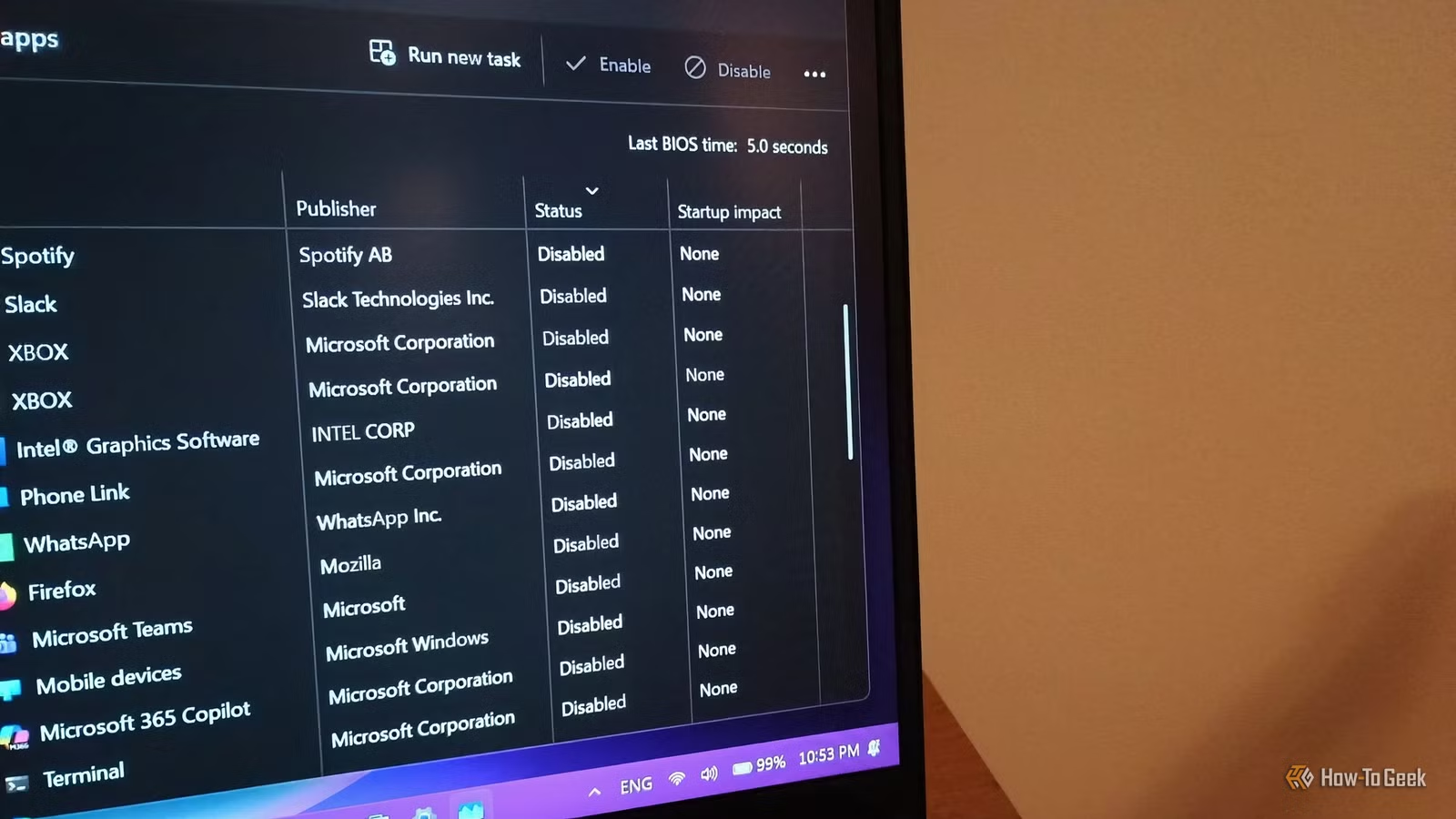
To minimize distractions and reduce startup time, I rely on the Task Manager to disable programs I don’t intend to use when starting my computer. However, I’ve found that sometimes this alone isn’t sufficient. Some apps that I thought were disabled still managed to launch during startup, either appearing in full screen or running in the background and sending notifications.
For instance, I recently encountered this issue with Discord, recalling a similar experience with Spotify previously. The issue arises because the Task Manager’s startup settings only disable a single trigger for launching the application. If an app utilizes secondary components, such as launchers or helper processes, it could bypass your startup configurations.
This behavior can explain why certain apps still launch despite being disabled. Here’s what to look out for:
The application has helper components that initiate startup
Identifying secondary app helpers, game launchers, or updaters
Some applications are comprised of multiple components or make use of helper apps for specific functions. Consequently, even if you disable the main app, a launcher or updater could trigger its startup. For example, Discord would continuously launch and send notifications even though I had disabled it. It turns out that it had a separate process named update.exe that started the app upon login, ignoring my settings in the Task Manager.
Similar instances can occur with gaming launchers that keep games running in the background. If a secondary process is the culprit, you might identify it in the Task Manager by recognizing the app’s name or its icon. Simply disabling it should prevent future occurrences.
In-app startup settings can override Task Manager preferences
Some applications possess their own startup configurations
Certain programs come with their own startup options that may override what you disabled in the Task Manager. If you repeatedly see an application launching despite your attempts to disable it, check its settings. The terminology varies across applications, so look for anything related to startup.
For example, Spotify has “Startup and window behavior” settings that allow you to decide whether the app should open on startup, open minimized, or remain closed. Adjusting these settings within the app can change how it interacts with Task Manager’s disable feature.
If updates revert these settings, and you find an app launching again, revisit its configuration after confirming whether it has been updated recently.
Task Scheduler may be initiating a disabled app’s startup
Additional settings might need adjusting
Many applications create scheduled tasks for various functions like updates or synchronization. These tasks can cause the app to launch at startup even if it has been disabled in the Task Manager. To see if a specific app is scheduled to run, access Task Scheduler and navigate to Task Scheduler Library in the sidebar. From there, you can view scheduled tasks and manage their settings.
You can right-click on any task you want to disable and select the option to stop it from executing.
Be cautious when disabling tasks—only disable those you recognize. Essential Windows tasks for updates or backups might also be scheduled. Turning off the wrong task could disrupt critical operations.
The Startup folder in Windows
Look for hidden shortcuts that trigger applications at boot
Some applications place their shortcuts in Windows’ startup folder during installation. This folder is intended for apps that launch automatically when you sign in, functioning similarly to built-in app settings.
To inspect the contents of the startup folder, press Windows key + R, type shell:startup, and hit Enter. You can then delete any shortcuts you don’t want to start automatically.
Be mindful of apps that may reappear at startup
Certain applications may be best kept closed until needed, as they can slow down the boot process, utilize system resources unnecessarily, and create distractions. While Task Manager can manage most applications, pay special attention to those configured differently. Be careful not to disable critical applications or services, like system updates, antivirus programs, driver processes, or networking services. If you encounter a task with an unclear name and are uncertain about its purpose, it’s typically safer to leave it enabled.