Quick and Easy: How I Set Up Permanent Linux Folder Sharing with My Android in Just 5 Minutes

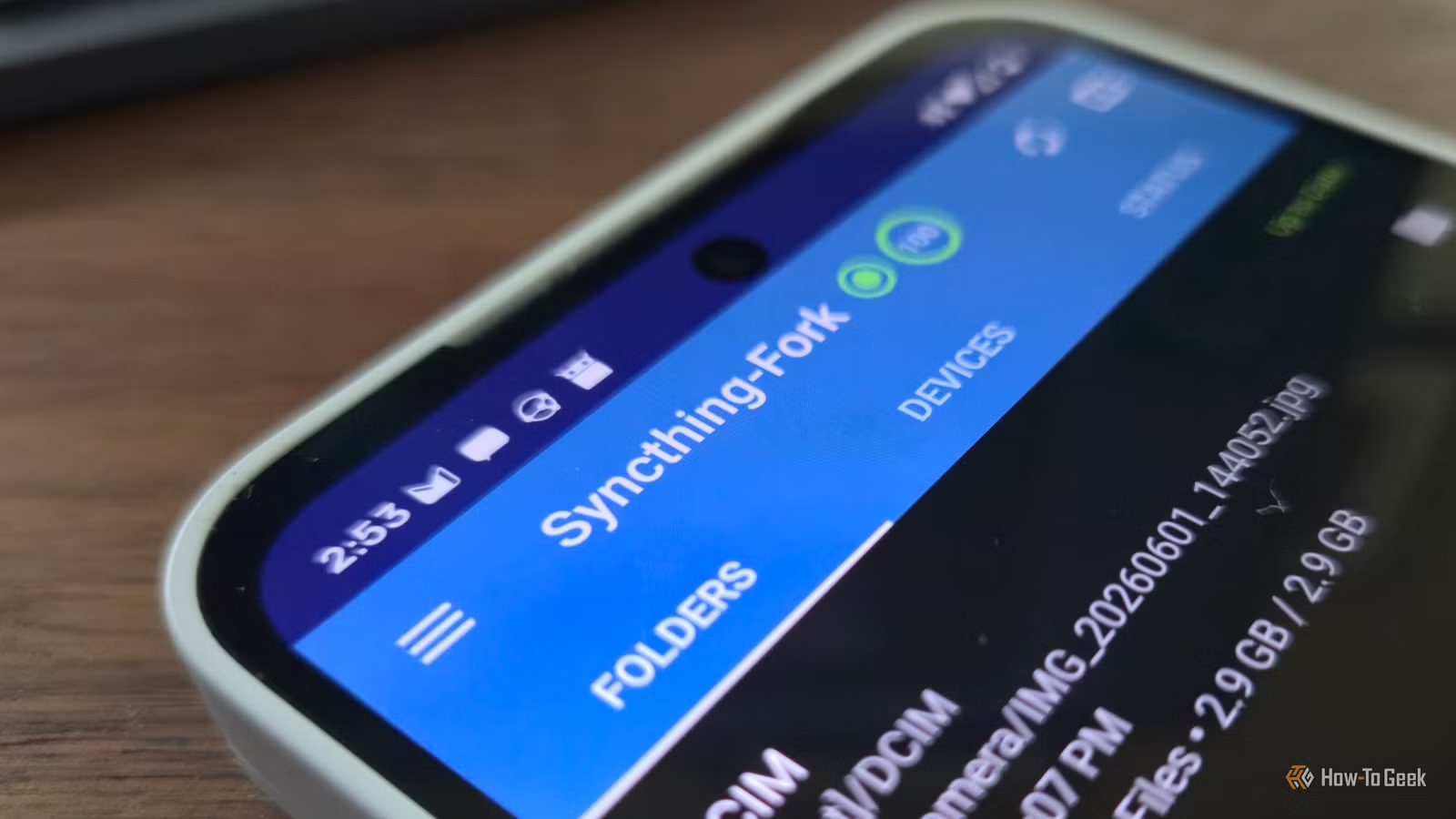
Transferring files between a Linux computer and an Android phone can be more complex than expected, with limited options available. Traditional methods such as connecting via USB, emailing files to oneself, or relying on cloud storage can feel cumbersome and time-consuming. While KDE Connect facilitates quick file transfers, it lacks a full sync capability.
To simplify the process, I decided to implement a system that automatically syncs a designated folder from my Linux PC to my Android phone. This allows me to simply drag and drop files into the folder, and they appear on my device almost instantaneously, depending solely on my home Wi-Fi speed. Here’s how I accomplished this.
Syncthing: A Powerful Sync Solution
Effortless Syncing
Syncthing is a peer-to-peer synchronization tool that mirrors any chosen folder across various devices. It operates in a decentralized manner, meaning there is no single point of failure. Devices communicate directly, so once they’re paired and the folder is selected, any modifications within that folder are replicated across all devices.
Moreover, Syncthing encrypts all connections, ensuring your data remains secure whether you’re connected to Wi-Fi or using a relay system.
Android Compatibility
The official Syncthing app for Android has been deprecated since 2024, but its alternative, Syncthing-Fork, is still available via Google Play and F-Droid. The Play Store version typically lags in updates compared to the F-Droid option. I chose the Play Store version for its simplicity, but if you prefer the latest features immediately, F-Droid is the better choice.
Why Syncthing Outshines Other Methods
The Drawbacks of Using Cables
Relying on a USB cable can be a hassle due to the quirks of the Media Transfer Protocol (MTP) and the necessity of physically connecting the phone. This becomes tedious, especially when frequently taking photos or screenshots. With Syncthing, files are synchronized as they’re created, eliminating the need for constant reconnection.
In terms of speed, while USB-C can theoretically support rapid data transfers, practical usage often falls short. For instance, one transfer test using a Pixel 8 Pro clocked speeds around 500MB/s but struggled to maintain that rate. In contrast, I’ve found my home Wi-Fi often outperforms USB in real-world scenarios.
Cloud Storage Limitations
Cloud storage is another viable option, but it comes with its own challenges. Most services impose data caps, require the installation of additional apps, and can suffer from syncing issues, particularly when the phone’s battery is low. Standard folder sharing methods, like Samba, also restrict access to devices on the same network, whereas Syncthing keeps files available on all connected devices irrespective of their location.
Setting Up Syncthing
Installing on Linux
Installing Syncthing on a Linux distribution is straightforward. It is generally best to install from your package manager. For example, you can execute:
sudo apt install syncthingAfter completing the installation, utilize systemd to ensure the service runs continuously. Execute this command, which will automatically fill in your username:
sudo systemctl enable -now syncthing@$USER.serviceOnce the service is up and running, access the web interface through http://127.0.0.1:8384 to establish a GUI username and password.
Setting Up Syncthing-Fork on Android
Upon installing Syncthing-Fork from either the Play Store or F-Droid, follow the introductory prompts. The setup wizard details necessary configurations. Be sure to grant All Files Access and Notifications for optimal functionality.
You will need to disable battery optimization for the app, as Android systems can prioritize saving power over maintaining active connections for Syncthing. To sync devices, simply scan the QR code displayed on your Linux web UI using the app.
Streamlined Syncing Process
Despite what may seem like multiple setup steps, configuring Syncthing to function between my Linux machines and Android device took roughly five minutes. This method completely replaces the need for cable connections, cloud uploads, and manual file transfers.
An added benefit is that Syncthing is also compatible with Windows, allowing the same seamless experience when syncing between Windows PCs and Linux devices, or even between Windows and Android.
If desired, you can incorporate a consistently active device to the shared folder, effectively acting as a central server. This ensures that any device offline during a sync can still retrieve files from the central repository later.