Android offers users a remarkable level of control over their privacy and security, but many valuable settings tend to go unnoticed. This can be partly due to some features sounding too technical for the average user, leading them to leave these settings alone, assuming they are either too complicated or already set up correctly.
However, you don’t need to be a tech expert to benefit from these protections. Android has streamlined the process for activating several features designed to limit tracking, safeguard your online activity, and bolster your device’s defenses against certain threats. While some of these features might already be in use on your device, others can be easily enabled with just a few taps. Once you know where to find them, these features become straightforward to manage.
Utilize MAC Address Randomization
Restrict Tracking
When your device searches for Wi-Fi networks or connects to one, it sends out a unique identifier. This factory MAC address functions like a digital fingerprint, enabling anyone—from network operators to public spaces—to monitor your movements. This information can contribute to a profile of your behavior and locations. Activating MAC address randomization helps maintain your anonymity and shields you from potential tracking by malicious entities.
If you’re not tech-savvy, this might seem intimidating, but good news: on most contemporary devices, this feature is enabled by default. To verify its status, check the settings of the Wi-Fi network you’re connected to. Tap the gear icon next to the network and look for ‘MAC address type.’ If it reads as randomized, you’re successfully making tracking more difficult.
Configure a Secure Private DNS
Maintain Activity Privacy
Your internet activity is often more accessible than you realize. When browsing with default settings, DNS queries are usually sent in unencrypted text, making them visible to your Internet Service Provider (ISP), network owners, and potential cybercriminals. By switching to a private DNS, you can use protocols such as DNS over TLS (DoT) or DNS over HTTPS (DoH) to encrypt your requests and maintain the secrecy of your data.
Although it may sound complicated, adjusting this setting is fairly simple. Navigate to your connection settings, tap ‘more connection settings,’ and locate the Private DNS option. Change the setting from automatic to your preferred private DNS provider. After entering the hostname, you’ll enhance your online privacy significantly.
Activate Advanced Protection for Maximum Security
An Easy Solution for Enhanced Security
If you aim to maximize the security features of your Android device, one specific setting can elevate your protection to its peak. Known as Advanced Protection, this feature is Google’s most robust built-in security mechanism designed to safeguard high-risk individuals such as journalists and activists from external threats. For those prioritizing privacy, this is the ultimate protective measure for your device.
Enabling Advanced Protection activates various security measures. Before activation, you’ll see a list of these safeguards. These include preventing unauthorized access to lost, stolen, or confiscated devices, as well as protection from memory vulnerabilities and unsafe applications. However, a trade-off exists: once this feature is enabled, you cannot install or update apps from unknown sources, and connections through insecure 2G networks are blocked. Additionally, it helps filter spam and scams within your messaging app and provides live threat protection against harmful websites, warning you before entering non-HTTPS sites.
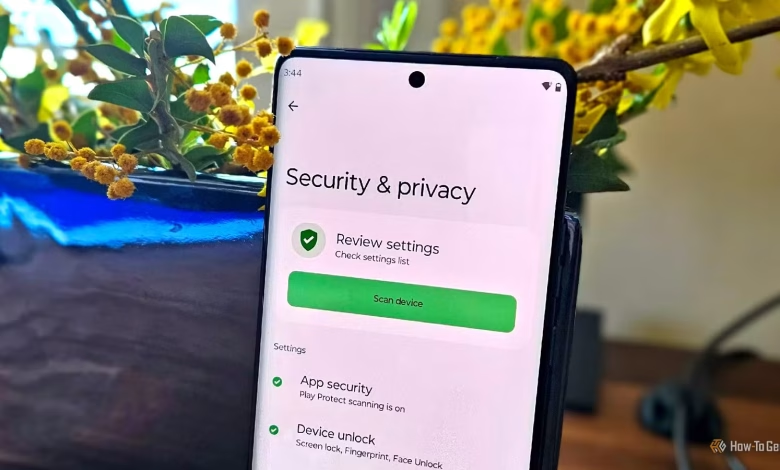
Despite the numerous protections it offers, enabling this feature is as simple as toggling a switch. On Pixel devices, find the option under ‘Security and privacy’ in the ‘other settings’ tab. On most other Android devices, look in Settings -> Google services, tap on All services, and scroll down to Advanced Protection under Personal & device safety.
Accessibility of Advanced Privacy on Android
In our increasingly connected world, privacy is becoming a rarity. Your data and behaviors are often commodified, with malicious parties finding innovative ways to access and exploit such information. By utilizing the settings mentioned, you can achieve a greater layer of protection against these threats. Even if some features come with daunting labels, their access and usability are designed to be straightforward.