Save time with this simple adjustment.
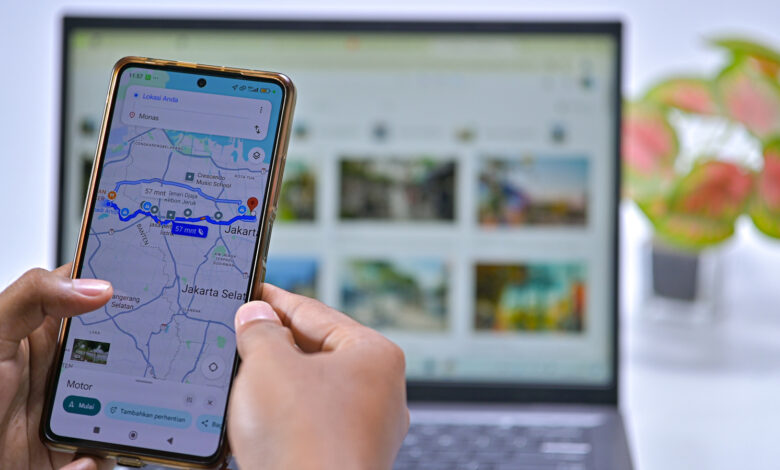
Using Google Maps for navigation almost always leads you back home, making it essential to have your home address easily accessible for efficiency. Setting up your home address can save you valuable time, whether you’ve recently moved or have simply never set it up before. This can be conveniently done either on a computer or mobile device. However, be mindful of the security risks associated with storing your home address on your device. If your phone is lost or stolen, someone could easily access your precise address through navigation apps.
To mitigate such risks and still enjoy the feature, consider saving your “home” as a public location such as a nearby coffee shop or grocery store, allowing you to navigate to such spots and find your way home without revealing your exact address.
Setting Your Home Address on Google Maps via Web
Visit Google Maps in your browser, and if you’re not already signed in, click Sign in at the top-right. When you enter the search box, look for Home and Work options at the top, where you can select Edit to update them.
If these options are not visible, click your profile icon in the top-right corner and select Manage your Google Account. From the left sidebar, choose Personal info and scroll to find Home address. If you haven’t set an address yet, input your address here, which Maps can autocomplete for you.
If needed, utilize the Address line 2 option, or select Choose on map to designate your location visually instead of typing. This method is also useful for saving a nearby public location instead of your home address. If you decide you no longer wish to keep this info, simply select Remove. While you’re updating, consider entering or adjusting your Work address as well for easy access and commute predictions.
Changing Your Home Address Using the Google Maps App

On the Google Maps app for Android or iPhone, tap the You icon located on the bottom bar. Then, select the list labeled Labeled. If you don’t see it, tap the More button to access all your lists. Within the Labeled list, you should spot both Home and Work.
To change either address, tap the three-dot button next to it and select Edit home or Edit work. You can input your new address in the search bar, which will provide suggestions as you type. Alternatively, opt for Choose on map if you prefer to drag a marker or if your home doesn’t correspond neatly to an address.
For a personalized touch, try the Change icon feature for your home or work addresses. You can choose fun icons like a treehouse or a barn for better visibility. If you wish to discontinue using this feature, simply tap Remove.
Utilizing Labels and Contact Addresses
Labels allow you to assign custom names to locations, enhancing your search experience or voice commands for smoother operations with Android Auto. This feature is particularly helpful for locations you frequently visit. Instead of lengthy commands like “Navigate to Planet Fitness on Cherry Street,” you can simply say “Navigate to Gym.” You can even label locations without specified addresses, such as specific GPS coordinates in parks. This is especially useful for locations that are easily confused or cumbersome to type.
To label a location from your computer, click on the desired spot to open its panel, scroll down, and select Add a label. On mobile devices, scroll left on the icons below the basic information of the location and choose More > Add label. Labeled locations will appear with a customized name and a blue marker on the map, presenting a cleaner view than typical lists by omitting photos, review ratings, and other details. Only the name and associated address are displayed.
Finally, Google Maps can display addresses you’ve saved for your contacts, allowing you to search by their names. If this feature isn’t working, ensure that your Google contacts are synchronized with your device and that the Google Maps app has the necessary permissions to access your contacts.