Unlocking Convenience: Two Samsung Galaxy Features That Could Benefit from NFC Tags Over Buttons

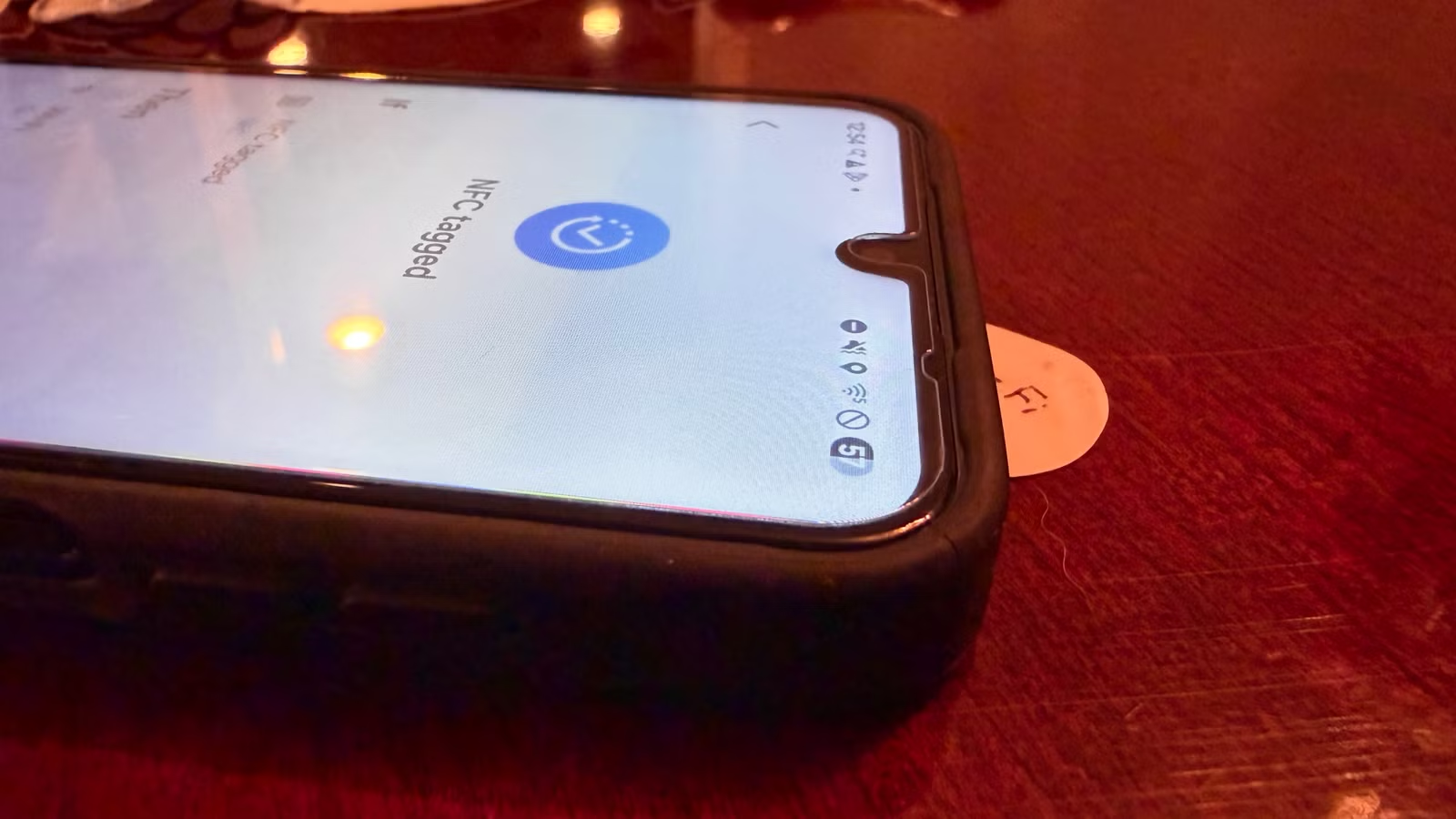
The Quick Settings menu on Samsung Galaxy devices provides easy access to essential features. While tapping buttons is straightforward, executing actions without interacting with the screen is far more convenient. This is where NFC tags come into play, revolutionizing how I manage my most-used tools.
Setting Up NFC Tags
To use NFC tags, the first step is to obtain them, which is quite simple. You can find a pack of NFC tags online and you should choose whether you want an adhesive backing based on where you plan to place them.
After acquiring the tags, navigate to your device’s Settings app and select “Modes and Routines.” If you haven’t already, consider adding this category to your home screen for easier access.
Regardless of how you access it, go to the Routines tab and tap the plus icon in the upper right corner next to the search icon.
Next, tap on “Add what will trigger this routine,” scroll down to find “NFC,” and then hold your phone over the tag to register it.
Once registered, you can specify the actions that should occur when the NFC tag is tapped.
1
Flashlight
Easy Access to Light
Smartphones have largely replaced physical flashlights in our daily lives. I can’t recall the last time I used a traditional flashlight; my phone has always been my go-to lighting source.
While accessing the flashlight is generally quick by swiping down on the screen, it can become tedious at times—especially in situations where fumbling with the screen isn’t ideal.
This is where an NFC tag becomes invaluable. Instead of navigating through several steps, I can simply tap my phone against the NFC tag to turn on the flashlight.
This convenience allowed me to place tags in darker areas, such as closets and storage spaces, where light is essential. Now, instead of going through multiple steps, I can just tap and illuminate the space.
This capability has been a lifesaver when working in the dark, such as searching for tools in my garden toolbox. My gloves often make it difficult to interact with the screen, forcing me to remove them just to use my phone.
With the NFC tag on the toolbox lid, I can easily tap to turn on the flashlight, find what I need, and quickly resume my gardening—all without the hassle of fumbling with my phone.
2
Wi-Fi
Quick Wi-Fi Control
If you’re like me, you aim to conserve battery whenever your phone is away from a charger, particularly while out and about.
A good strategy for extending battery life is turning off Wi-Fi completely rather than just disconnecting from a network. This prevents your phone from continuing to search for Wi-Fi signals, which can drain the battery unnoticed.
Although this task is simple, it usually requires a series of steps, which can be inconvenient when you’re pressed for time. I frequently face this challenge.
For instance, when taking morning walks, I aim to maintain battery life for my return home. Yet, in my rush, I often forget to turn Wi-Fi off.
Unlocking my device, accessing the settings, and navigating to Wi-Fi can feel like a hassle—especially when every second counts.
Having an NFC tag near my front door has effectively solved this issue. I can tap it to turn off Wi-Fi easily and have another tag to reconnect when I return home.
These tags work wonders for managing my connectivity with minimal effort. They allow for a quick transition when I leave or return home, ensuring that my cellular data isn’t wasted while still using my home Wi-Fi.
Simple Tap-and-Go
NFC tags significantly streamline tasks—particularly those involving multiple actions or steps. They enable quick control of vital features when you’re short on time or unable to interact with the screen.
With NFC technology, my interactions have shifted from screen tapping to a straightforward tap-and-go method.