Microsoft’s PowerToys is a great open-source utility, but it falls short in terms of extensive Windows customization options. While you can achieve some modifications using built-in Windows features—like restoring the Windows 10 right-click menu via Registry Editor, adjusting transparency effects, selecting from a limited range of themes, repositioning the taskbar, and more—these tools have their limits and may not fulfill every user’s needs.
If moving the taskbar has sparked your interest in customizing the Windows UI further, you might discover that default options, including PowerToys, won’t cut it. This is where third-party open-source customization tools shine, providing you with the freedom to tweak your desktop as you wish, touching nearly every aspect of the Windows interface.
Windhawk
A diverse modding platform filled with community-created enhancements
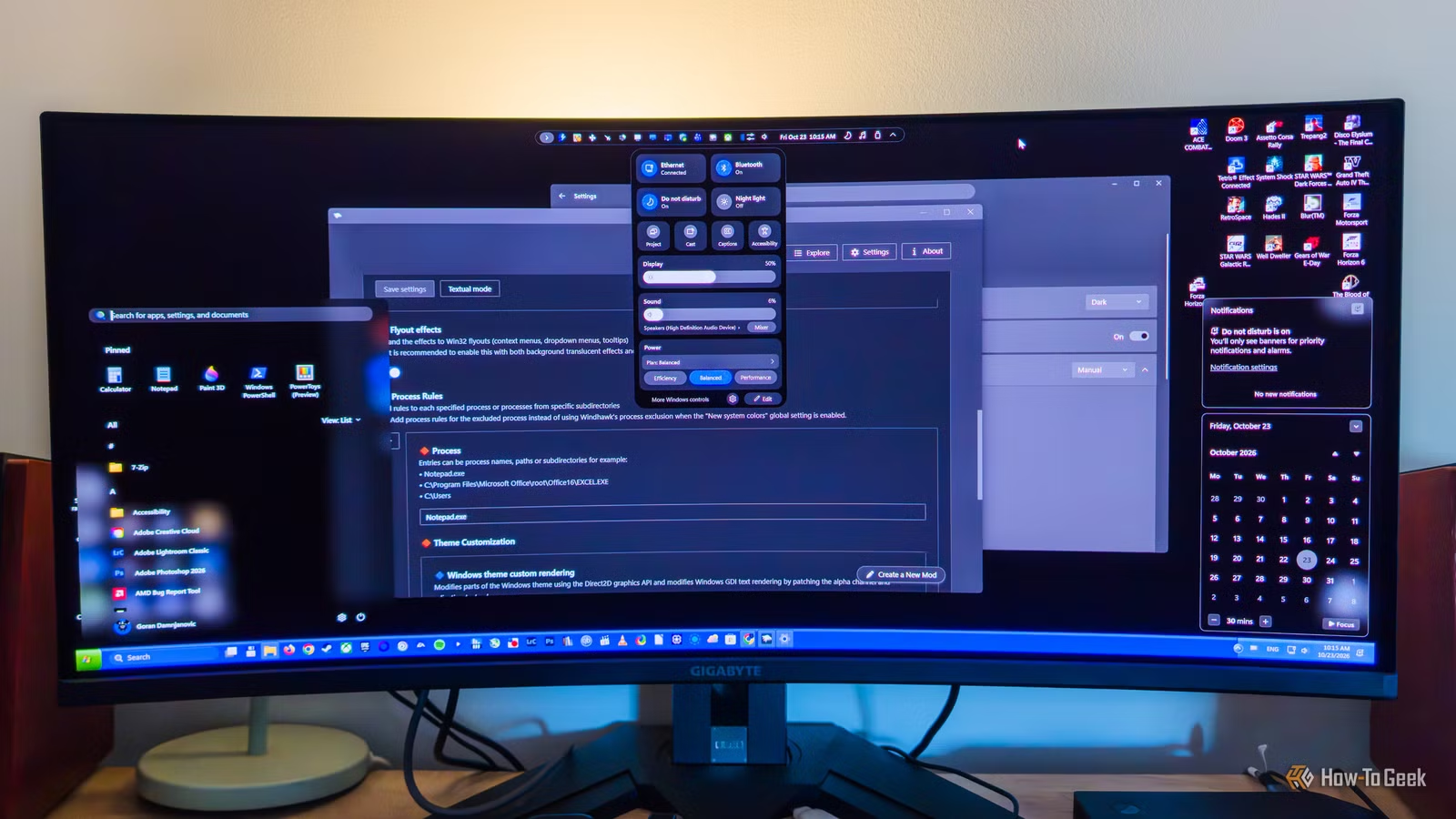
For many users, Windhawk will be the go-to solution for modifying Windows. Rather than offering direct customization, it serves as a modding hub where you can explore a vast range of community-created mods that enhance various elements of your desktop experience.
At first glance, it may seem limited to adjusting the Start menu and taskbar, but a closer look reveals a wealth of options allowing for deeper customization of your Windows environment.
Besides the Start menu and taskbar, you can adjust the Settings app, create a menu bar similar to macOS, implement a Dynamic Island feature akin to the iPhone, enable tab scrolling in Chrome using your mouse wheel, eliminate window borders, manage app-specific volume via taskbar icons, prevent the F1 key from opening help pages, and much more.
Windhawk offers a plethora of mods, and exploring them can be quite rewarding, potentially leading you to find an enhancement that fulfills a long-desired change in your Windows experience that built-in tools could not achieve.
It’s important to remember that while you can combine various modding tools from this list (like Windhawk with Nilesoft Shell), avoid stacking similar mods from the same or different tools (like taskbar modifications) as they may conflict and cause display issues. For example, combining two different taskbar mods in Windhawk resulted in a distorted Search button due to conflicting features.
ExplorerPatcher
A tool for those nostalgic for the Windows 10 taskbar and Start menu
ExplorerPatcher aims to restore the classic Windows 10 taskbar and Start menu, providing a host of additional tweaks. For instance, the taskbar is enhanced not just superficially; it brings back Windows 10 features, such as toolbars, options to cascade or tile open windows, and Windows 10’s volume controls.
This tool includes a comprehensive settings menu accessible via a right-click on the taskbar, allowing you to modify the system tray, taskbar, Start menu, and File Explorer, along with various other tweaks like reverting to sharper window corners or disabling certain Office shortcuts.
In summary, ExplorerPatcher is ideal for those who want to regain the Windows 10 UI and tailor it further to their personal taste.
Nilesoft Shell
An essential tool for improving the Windows context menu
Nilesoft Shell offers a singular but effective enhancement by providing a custom context menu. Its default configuration removes the cumbersome “Show more options” button from Windows 11 and adds various extra buttons to enhance right-click functionality.
This includes shortcuts for File Explorer options and Windows Settings, allowing actions like revealing hidden files or accessing different Settings pages. Users can quickly access common system folders and tools like Command Prompt and Control Panel directly from the context menu.
For most users, the default setup will suffice, but customization is possible through detailed documentation or tutorials. This allows you to add custom themes and buttons, making the right-click menu more suited to your preferences.
I believe Nilesoft Shell is so useful that even if you are not a fan of heavy customization, installing it can significantly enrich the Windows experience.
Seelen UI
A sophisticated modding tool that mimics a macOS desktop
Seelen UI transforms the standard Windows desktop into a macOS-like environment. Upon installation, it introduces elements such as a dock and a top menu bar, called the Fancy Toolbar, while still retaining essential Windows features.
The taskbar is replaced with the dock, but users can maintain access to certain Windows functionalities. For instance, you can open various folders through the top toolbar, toggle between the Seelen UI Start menu or the traditional Windows one, and customize the dock modules for a highly personalized experience.
The settings menu is packed with options for fine-tuning your experience—remove the Fancy Toolbar, reposition the dock, apply downloadable themes, and modify window behaviors, among other adjustments.
While Windhawk is more suited for users wanting to tweak individual aspects, Seelen UI caters to those seeking a macOS-like interface with plenty of customization options.
Why settle for a standard Windows experience when open-source tools allow for complete personalization?
There’s nothing inherently wrong with a standard Windows setup, but the potential for improvement with third-party open-source tools is substantial.
Applications like Windhawk allow users to transcend Microsoft’s preset configurations, ExplorerPatcher helps restore the familiarity of Windows 10, and Seelen UI offers a macOS-styled interface that’s highly customizable.
If you prefer not to undertake extensive modifications, at the very least, consider experimenting with Nilesoft Shell to enhance your context menu significantly.