Enhance your conversations and refresh those overused reactions.
While emojis and GIFs are effective for expressing emotions, they can become repetitive and slow to update. GIFs provide variety, but finding the precise one that encapsulates your feelings can be difficult. For a more personalized touch, consider using stickers on your iPhone.
Stickers offer a fun and customized way to express yourself through the Messages app and other platforms. If you haven’t explored these “stickable” images yet, you’re missing out. Individual photos or videos can transform into amusing reaction images effortlessly, without requiring any advanced editing skills.
Creating stickers from your own photos, including animated stickers using Live Photos, is a breeze. A well-timed sticker can add humor to group chats, foster inside jokes, or help you create new memes with friends. Once a sticker is created, it stays in your library for easy access later, and managing them is straightforward — simply remove any you no longer want. As you start using stickers, your friends are likely to join in, leading to more entertaining conversations for everyone.
How to Create Stickers on Your iPhone

To create stickers, you can choose between the Photos app or the Messages app. In the Photos app, locate the image you want to use. The most suitable stickers feature clear subjects like people, animals, or objects in the foreground.
After selecting your desired image, press and hold the part of the image you want to turn into a sticker. It will shine briefly, revealing a tooltip menu. If this doesn’t happen, try a different image or element with more contrast. Select Add Sticker to save it to your library. You can create multiple stickers from one image, and selecting a Live Photo makes your sticker animated, though you can opt for it to be static.
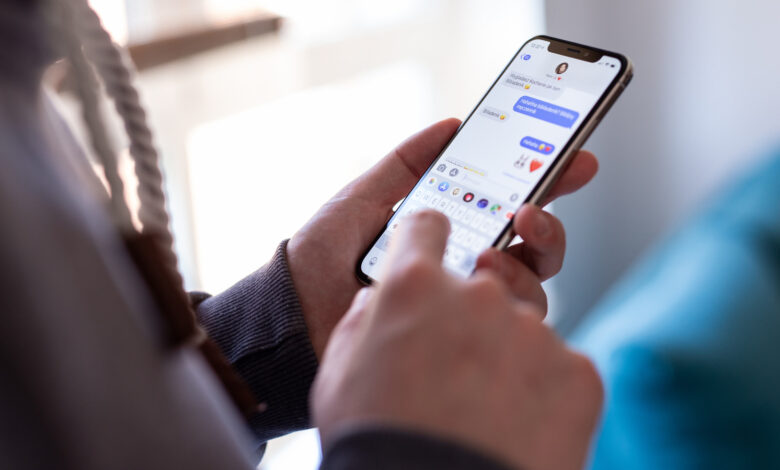
You can also generate stickers directly in the Messages app. Open a chat, tap the + (Plus) icon beside the typing area, and select Stickers. Hit the + (Plus) icon to access your photos, where potential stickers will be highlighted. Tap on one and use + (Plus) to add it to your collection.
Managing and Sending Stickers on Your iPhone

The Messages app is ideal for utilizing stickers. Access them through the + (Plus) menu to see your creations. To manage stickers, press and hold one, then select Rearrange. This will allow you to move them around like you would on the Home screen of your iPhone or delete them in groups using the – (Minus) button. Additionally, you can select Add Effect from the menu for fun options like Outline and Shiny, which react as you move your phone, giving them a holographic look.
To send a sticker, simply tap it from your library to add it to your text message, similar to attaching a photo. For added fun, press and hold a sticker to “peel” it and drag it onto your conversation, creatively enhancing messages and images. Use your pet’s photo to pop into a beautiful landscape or your friend’s funny face as a reaction — the possibilities are endless.
Remember, stickers primarily work in iMessage (blue bubbles). They may send in RCS chats with Android users, but the “peel and stick” feature may not function properly. SMS conversations can have limitations, making stickers appear blurry.
Exploring Other Uses for iPhone Stickers

Your stickers aren’t limited to just Messages. You can also use them in other applications like WhatsApp. Simply tap the Emoji button on your keyboard and select the Stickers tab. However, you won’t have the option to “stick” them like in iMessage. Stickers can also be utilized in any iPhone app supporting Markup mode. For example, open a photo in the Photos app, tap Edit, then choose Markup.
In Markup mode, tap the + (Plus) on the bottom toolbar and select Add Sticker. You can adjust their size, move them, and duplicate them as needed. Remember to save your edited image. Other applications like Mail and Notes also support Markup.
If you’re looking for inspiration, many iPhone apps provide additional sticker packs. Within the Stickers menu, you’ll find options for emoji, custom Genmoji, Memoji, and stickers from compatible apps. The American Airlines, Wikipedia, and Taco Bell apps, for instance, offer unique stickers. You can rearrange your sticker collections and explore more options in the App Store.
Your custom stickers will sync across devices linked to your Apple account, allowing you to use them on your iPad and Mac as well. They’re a clever way to personalize your reactions — so experiment and enjoy!