I Deactivated Four Windows Background Services and Instantly Reclaimed Gigabytes of RAM

Recently, I’ve been facing performance issues with my Windows 11 laptop, such as sluggish browsing, lag when navigating the file system, and increased loading times for files. This prompted me to investigate potential causes for the resource drain on my computer.
While some issues were straightforward, I discovered that several lesser-known Windows background processes were major contributors to the slowdown. To be frank, when was the last time you checked on these processes? After diving in, I unearthed significant offenders silently interrupting my workflow.
Before you decide to close every open application in an effort to free up RAM, consider reviewing these specific processes.
Windows AI Fabric Service Can Consume Large Amounts of RAM
It Retains Copilot AI Models in Memory, Even When Unused
The Windows AI Fabric Service, or WSAIFabricSvc, is a background service that supports local AI functions and component integrations in Windows 11. It enables features like Recall, Click to Do, and Live Captions.
A user on Microsoft’s forum reported that even when idle, this service managed to consume around 5GB of RAM due to multiple active processes. Stopping it immediately freed up that memory. While it seems to affect mainly devices with an NPU running Copilot+, turning off the Windows Recall feature didn’t resolve the issue.
Delivery Optimization Transforms Your PC into an Update Server
It Shares Update Files Using Your Bandwidth and Disk Space
Windows Delivery Optimization is a built-in feature that allows your PC to share or download updates with other devices locally or over the internet. Instead of continuously downloading from Microsoft servers, updates can come in pieces from nearby machines, which can consume your upload bandwidth and take up disk space.
This feature faced criticism in the past for high memory usage, requiring adjustments by Microsoft in a subsequent update. However, even with improvements, your computer shouldn’t have to act as a mini-update server. It’s advisable to modify the settings rather than turn it off entirely.
Connected User Experiences and Telemetry is More About Privacy Than Performance
It Gathers Diagnostic Data for Microsoft
Known as DiagTrack, this service collects usage data to help Microsoft diagnose issues and improve system performance. It operates continuously, occasionally leading to CPU or disk utilization. While it doesn’t consume as much resource as other processes, the larger concern lies in the privacy of the data it collects and reducing disk activity, particularly on older machines.
Xbox Services Are Unnecessary on a Non-Gaming PC
Four Services Handle Xbox Sign-Ins, Cloud Saves, and Controllers
Although I occasionally game on my laptop, I’ve never utilized Xbox services, yet they still run in the background. Windows 11 includes four Xbox services responsible for functions like sign-ins, cloud saves, and controller management. These services are set to Manual, which means they activate only when needed. Their impact is limited, but on a less powerful machine, every ounce of optimization matters.
How to Disable These Services Quickly
Most Can Be Configured in the Settings
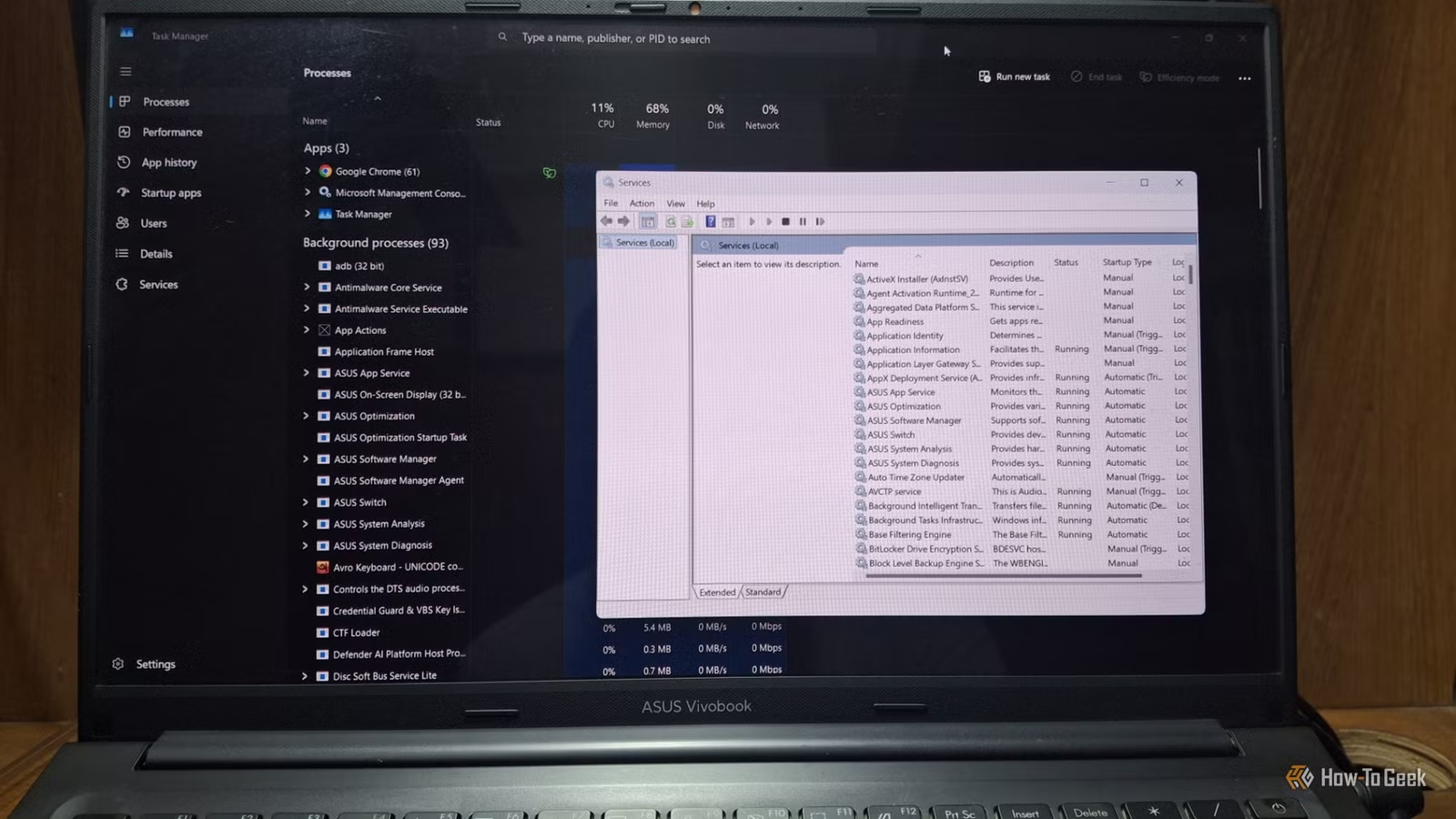
You can disable many of these services through the Services app in under ten minutes:
- Press Windows + R, type services.msc, and hit Enter.
- Locate and double-click on the service you wish to change.
- Click Stop.
- Change the Startup type to either Manual or Disabled.
- Click Apply, then OK, and restart your PC.
While many processes can be adjusted in this way, some require different methods. Here are specific settings:
- Delivery Optimization: Navigate to Settings -> Windows Update -> Advanced options -> Delivery Optimization and turn off Allow downloads from other devices.
- Telemetry: Go to Settings -> Privacy & Security -> Diagnostics & feedback and disable Send optional diagnostic data.
Your Computer Doesn’t Necessarily Need All Windows Services
The processes highlighted here are just a few that I identified during my exploration. You might discover different services undermining your systems’ performance. Make adjustments incrementally, restart your machine after each change, and assess the results. If something doesn’t feel right, simply revert the changes. Once your services are optimized, additional tweaks can further minimize CPU load and enhance speed.