Discover 7 Secret Features in Android Auto’s Developer Menu That Google Hopes You Won’t Uncover

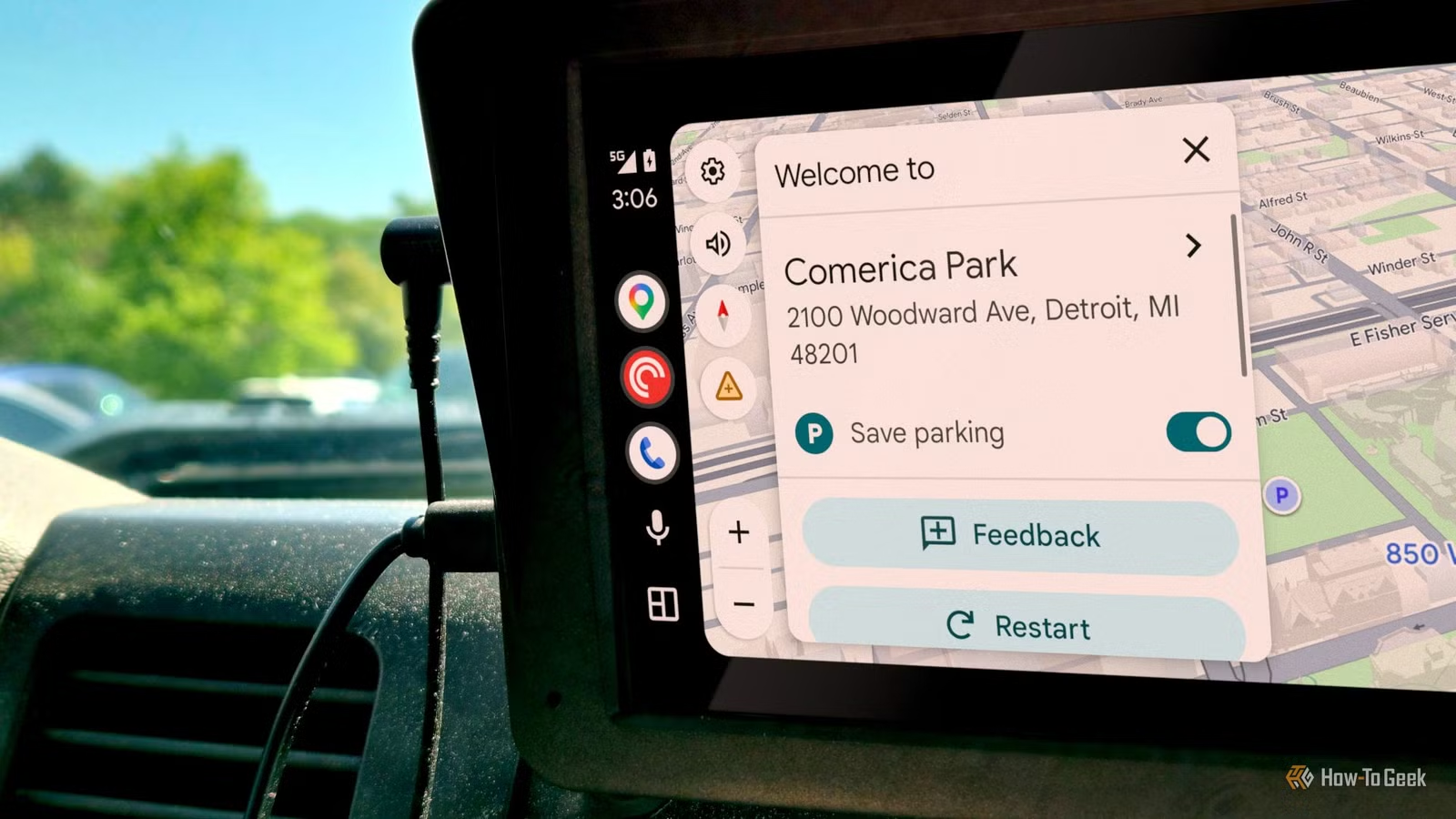
Many users tend to stick with the default settings of Android Auto, as the design appears user-friendly and ready to use. This is by design, as both Google and car manufacturers aim to keep the interface straightforward for safety during driving. However, by accessing the developer menu—achieved by tapping the “Version and permission info” several times—you can unlock a variety of additional features that enhance your experience. Though the interface may look less organized, it offers helpful tools to improve functionality.
Using Apps from External Sources
Enabling Unknown Sources
Typically, Android Auto verifies that any app projecting onto your car’s screen is authentic and comes from a verified source within the Play Store. By enabling Unknown Sources, you bypass this verification. Consequently, you can access media and messaging applications installed from other sources, including APKs or third-party stores. This allows you to use apps like Fermata Auto or CarStream to stream video or browse the internet. However, it’s essential to note that using such features can be distracting while driving. Another useful application is accessing customized diagnostic dashboards created with Torque Pro.
Taking Screenshots on Your Car Display
Capturing a screenshot of your car’s Android Auto screen isn’t as straightforward as it may be on your phone. When Android Auto operates, your smartphone transmits its interface to the car display as a unique screen. To take a screenshot, you must go into the developer menu and select “Share screenshot now.” This action captures the image displayed on your car’s screen and opens your phone’s sharing options, enabling you to save the file or send it to someone else in PNG format, preserving its quality.
Enhancing Display Quality
Changing Video Resolution
When connecting your Android phone to your car’s infotainment system, both devices agree on video feed standards. Typically, many car manufacturers set their units to report a low resolution, like 480p, for easier hardware processing. However, in the developer settings, you can find a Video Resolution option that allows you to adjust the output to a higher definition, like 720p or 1080p, giving you a clearer display.
Managing Application Permissions
Understanding Application Mode
Your phone handles all applications while it sends a driver-friendly layout to the car’s display. The Application Mode lets you choose from various profiles. The default mode, Release, is recommended for most users, keeping all restrictions intact. Developer mode, designed for app developers and testers, loosens several limitations, allowing the use of unverified apps and enabling more complex interface testing alongside detailed logging for troubleshooting. There’s also a Retail mode, which limits personal data access, and an X-Ray mode for security assessments.
Recording GPS Data
Tracking Your Location
If your navigation system consistently leads you astray, Android Auto includes a tool to collect GPS data that logs raw location signals as you drive. Activating this feature captures data on your location stream, including satellite signals and their strength, recording everything in a log file on your phone. This log can be invaluable for diagnosing navigation issues but may also raise privacy concerns, as it tracks precise coordinates without encryption, allowing insight into your daily routines.
Audio Data Collection
Recording Audio for Diagnosis
The Save Audio feature captures sound streams transmitted to your car’s speakers, while the Save Microphone Input feature records audio from your car’s microphone. These tools are intended to troubleshoot audio-related issues encountered during driving. The saved audio can reveal why voice commands may fail, offering developers valuable insights into performance problems.
Logging Video Streams
Recording Video for Diagnostics
The Save Video function continuously records the actual video feed transmitted to the car’s display, along with crucial timing and delivery statistics. This is particularly useful for identifying visual glitches that might occur on the screen while driving.
Not Suitable for Everyone
It’s essential to approach these features with caution. Some settings may excessively strain your phone’s capabilities, and logging can consume significant storage space. The default settings of Android Auto are optimized for most users’ needs, so consider changes cautiously and ensure you understand each option before making adjustments.