Pankil Shah / Android Authority
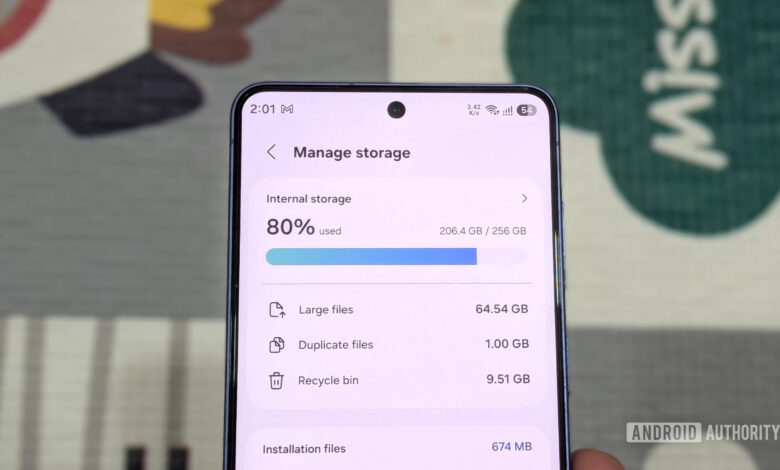
With my Galaxy S26’s limited 256GB of internal storage and no option for an SD card expansion, managing space can be a challenge, especially with such an impressive camera. Rather than deleting cherished photos, I explored alternative ways to optimize my storage.
I took the time to sift through forgotten applications, excessive cache data, offline content, and unnecessary files. This effort resulted in liberating 36GB of storage without the tediousness I initially feared.
What’s consuming the most storage on your device right now?
65 votes
Delete or Archive Unused Apps
Pankil Shah / Android Authority
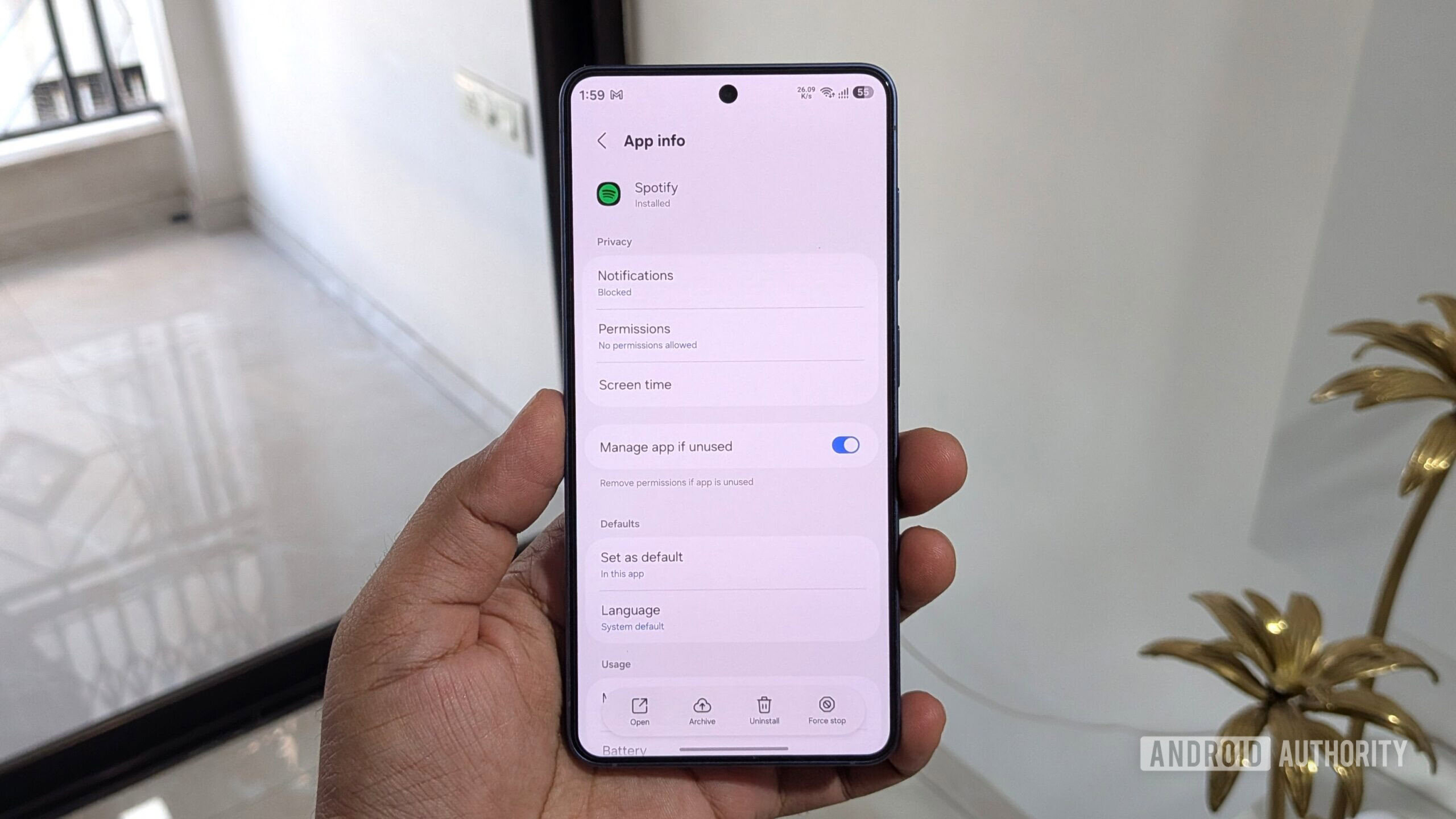
First, I focused on the apps that were consuming substantial storage. I eliminated nearly a dozen apps, including a video editor I had barely used, a few games I lost interest in, and several browsers that were only for testing purposes. Deleting these applications alone freed up about 4GB.
For apps that I didn’t use regularly but felt hesitant to remove entirely, I chose to archive them. Archiving is a simple process that retains the app but removes most of its data and temporary files, freeing up about 60% to 90% of the app’s size. This way, when I need the app again, I can easily redownload it from the Play Store without having to log back in or configure settings.
For further convenience, you can automate the archiving process by going to Play Store Settings and enabling the “Automatically archive apps” feature, which archives unused apps when storage is running low.
Clear Cache for Major Storage Users
Pankil Shah / Android Authority
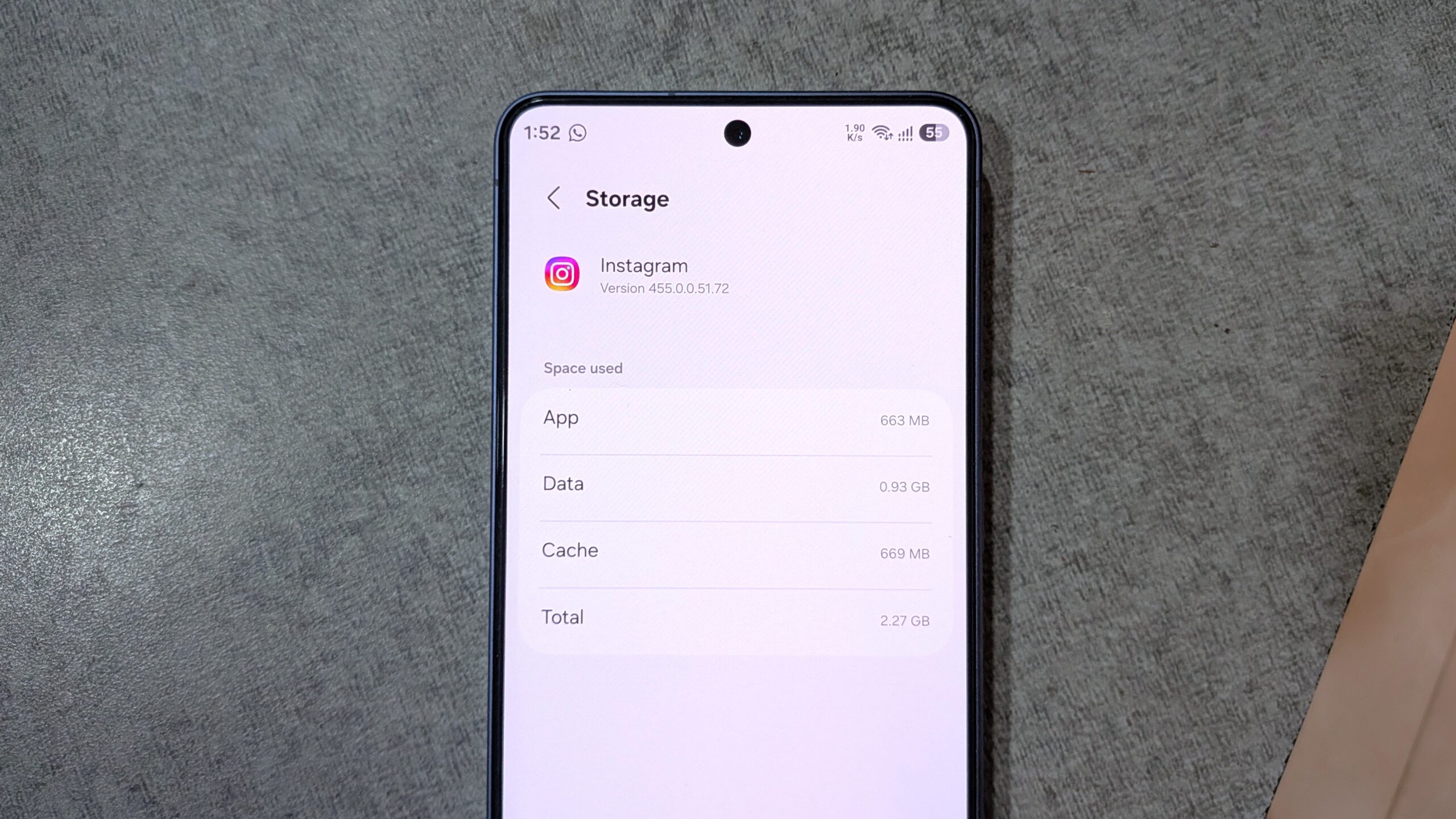
In addition to unused apps, I targeted popular apps I frequently use, such as Chrome, Instagram, WhatsApp, and Spotify, which were also consuming significant storage due to accumulated cache data. While cache is essential for app performance, clearing it can free up storage without much hassle.
Unfortunately, Android lacks a unified option to clear the cache for all apps simultaneously. The most efficient approach is to navigate to Settings, then Apps, and sort by storage usage. This allows you to identify the biggest offenders easily. Once you find them, clearing their cache individually helped me gain back around 6GB of space.
Utilize Files by Google’s Cleanup Tool
Pankil Shah / Android Authority
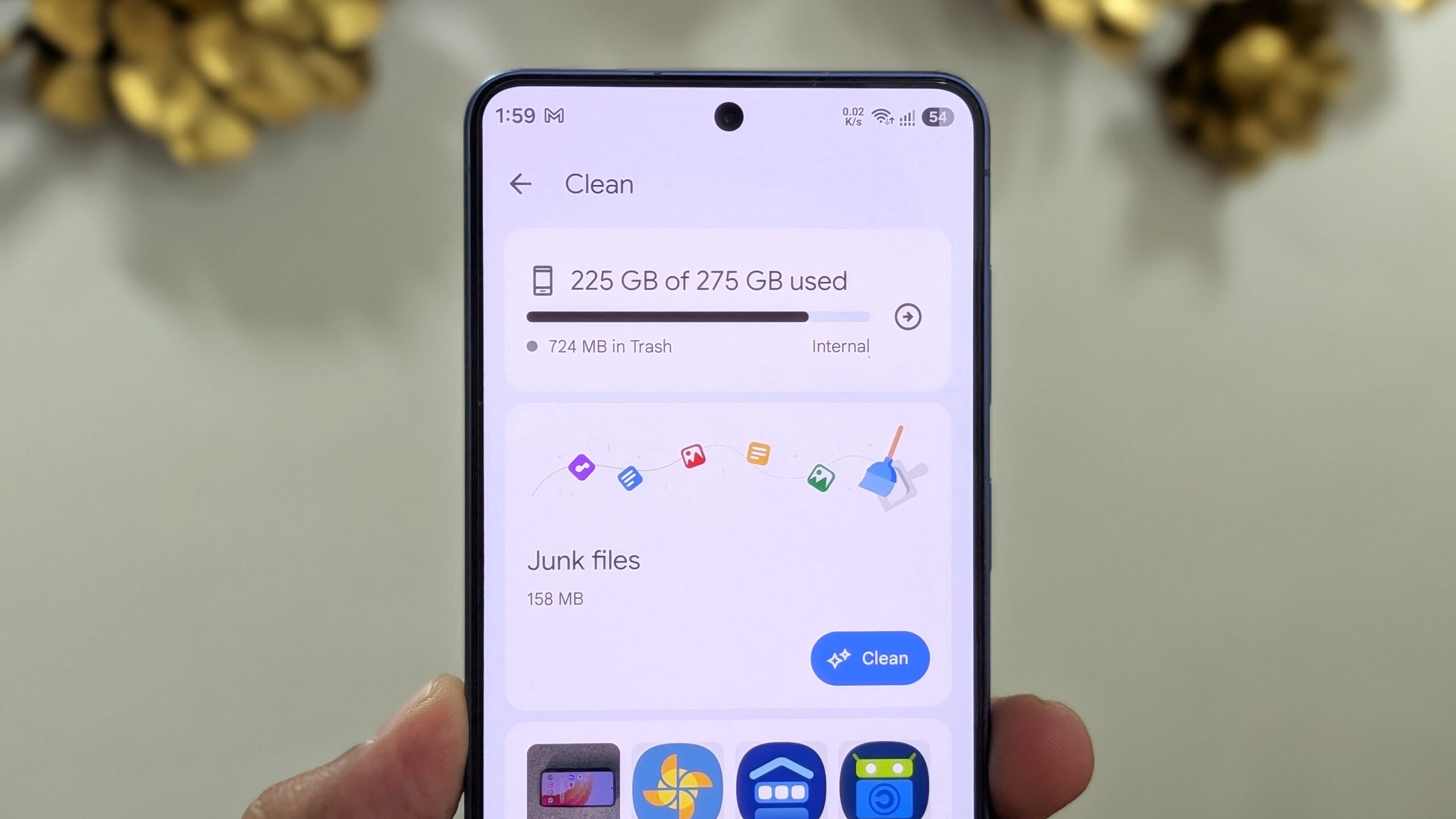
Unlike the general settings, Android doesn’t allow for easy identification of large files directly within the Settings app, prompting me to use the Files by Google app, which offers a dedicated cleanup feature. This section displays junk files, duplicates, and large files all at once, making it simpler to target unnecessary items. After reviewing several categories, I found and deleted unneeded APKs, screenshots, and other big files, clearing up approximately 4GB.
Files by Google also provides thumbnails for quick identification, avoiding the need to open each file. Just remember that deleted items go to Trash for 30 days, so don’t forget to empty it afterward to reclaim that space.
Remove Offline Downloads Stored by Apps
Pankil Shah / Android Authority
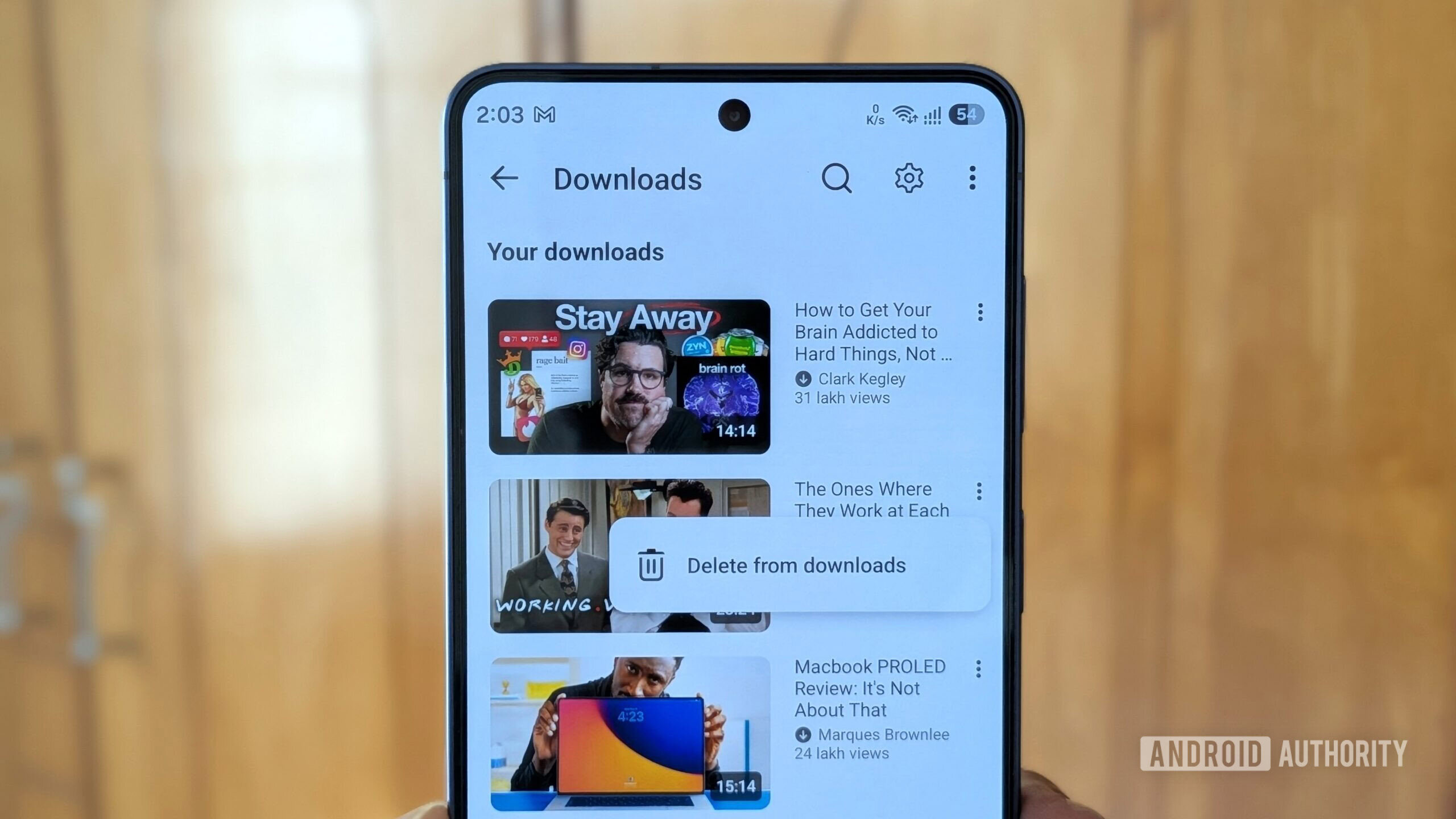
Many streaming services like YouTube, Spotify, and Netflix allow downloads for offline viewing, which is convenient for travel. However, it’s easy to forget to delete these files after usage. I went through these apps and removed unneeded downloads, recovering close to 8GB of storage. If you use offline maps on Google Maps, checking and clearing those can also save space, as saved map data can take up quite a bit.
Transfer Large Files to External Storage
Pankil Shah / Android Authority
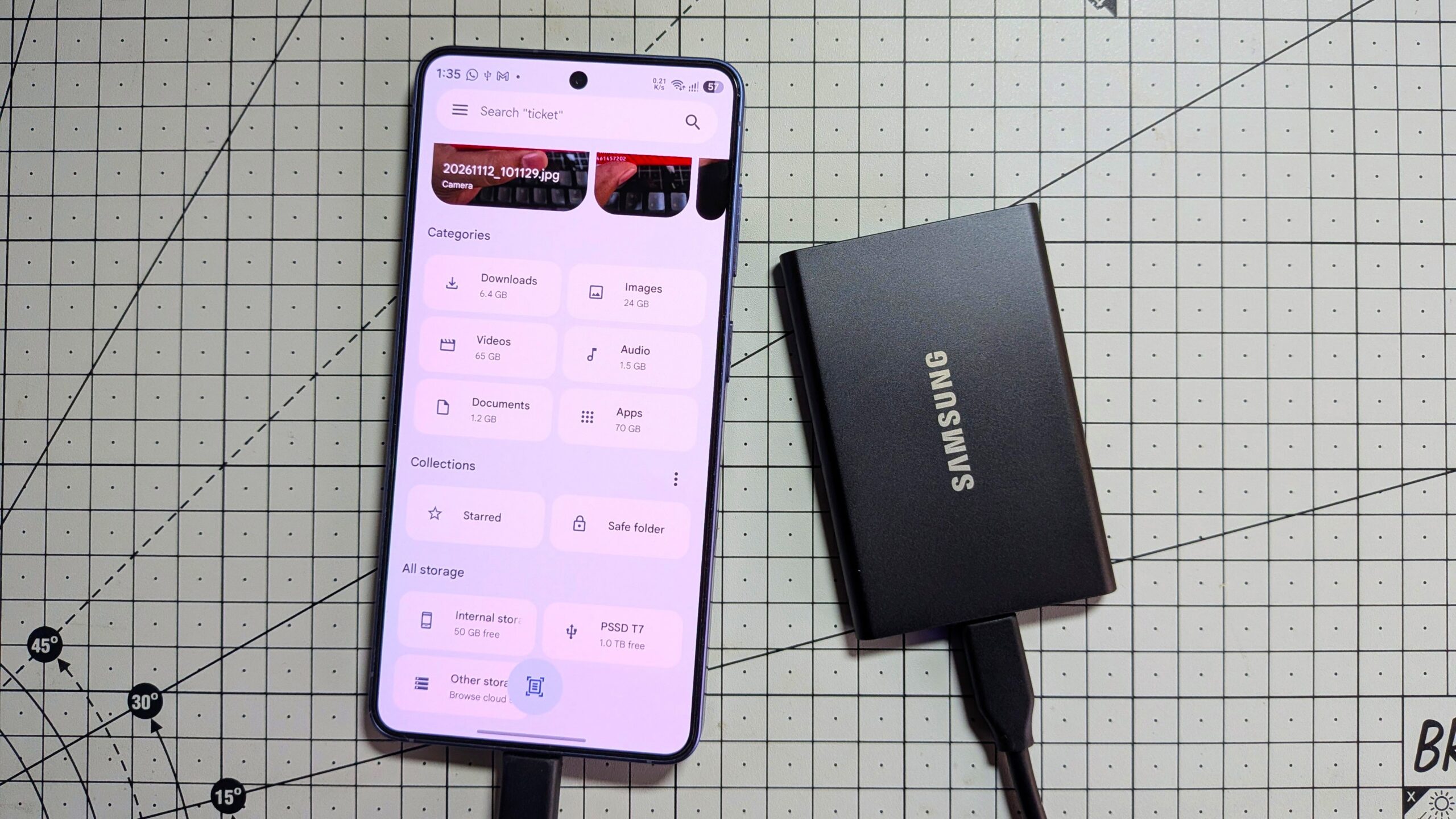
After achieving a considerable amount of free space, I opted to clear up even more by transferring additional files. While many Android devices no longer support SD cards, you can still connect a flash drive or SSD via USB-C and relocate large files, enabling you to reclaim significant storage. I moved various large 4K videos and old photos to my SSD, which yielded an extra 12GB in freed space.
Through these methods, I was able to recover 36GB of storage on my phone without permanently deleting any personal files. While this won’t last indefinitely, I’ve identified efficient strategies for future storage management.