USB connections have immense potential, but deciphering their capabilities can be challenging without the right knowledge.
The USB standard is designed for reliability, yet, as connectors and interface technology have progressed, understanding the capabilities of various USB ports and cables has become increasingly complicated. While some ports enable rapid data transfers, others are capable of powering external monitors. Older USB ports still function adequately for devices that don’t require high-speed connections. Unfortunately, the icons representing these standards can often be ambiguous.
Although it’s too complex to go through every USB update in detail, there are straightforward methods to make sense of the system. Recognizing the specifications behind a connector or port can help you make better choices when selecting new devices or cables, ensuring you maximize efficiency with your connections.
Armed with this knowledge, you’ll gain clarity on the various USB identifiers associated with your devices.
Basics of USB 2 and 3: The Trident Symbol

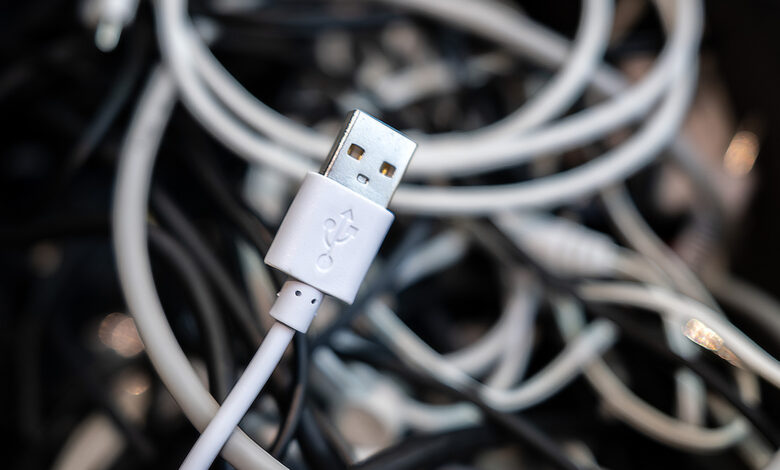
The USB trident logo has been around since the standard was introduced in the late 1990s. When displayed on its own, it typically indicates USB 2.0, which launched in 2000 and remains the oldest version still in use. Though branded as “High Speed,” its 480Mbps transfer rate is considered slow by current standards. USB 2.0 ports and cables are generally best suited for devices like mice and keyboards that do not require faster speeds.
USB 3 made its debut in 2008, introducing a series of updates and names defined by the USB Implementers Forum. The initial version, USB 3.0, offers a bandwidth of 5Gbps. It was followed by USB 3.1 at 10Gbps in 2013 and USB 3.2 at 20Gbps in 2017. USB 3.0 was initially labeled “SuperSpeed,” with USB 3.1 called “SuperSpeed+” and USB 3.2 referred to as “SuperSpeed USB 20Gbps.” These versions featured the trident logo along with “SS” and specific numerical designations representing their speeds.
As these iterations progressed, naming schemes became increasingly convoluted, introducing “gen” designations like “USB 3.2 Gen 1×1” for USB 3.0. Thankfully, as of 2022, a clarifying naming convention emerged: USB 5Gbps, USB 10Gbps, and USB 20Gbps now replace the older identifiers.
Interpreting USB Port Colors
Colors also indicate different USB types. Black or white signifies USB 2.0, while blue is commonly used for USB 5Gbps (initially USB 3.0) connections, although some manufacturers may extend this to incorporate later versions. Red ports typically indicate USB 10Gbps (originally USB 3.1) or USB 20Gbps (originally USB 3.2) and often provide power even when the device is off. Yellow ports may also signify either USB 2.0 or USB 5Gbps while offering power in similar scenarios. Occasionally, you may encounter purple USB ports, but these are mainly used by select manufacturers.
Current industry practices encourage the use of symbols over colors for USB devices, as only black, white, and blue have standardized meanings. Using symbols simplifies identifying the purpose of a USB device without the need to reference manuals.
The Present Phase: Transitioning to USB4
The latest USB standard is USB4, which has introduced two iterations so far. The original version, released in 2019, can achieve speeds of either 20Gbps or 40Gbps. The marketing names for these, USB 20Gbps and USB 40Gbps, align with the designs of previous USB 3 classifications. Its logo features the USB trident alongside a numeral indicating its speed.
USB4 2.0 debuted in 2022, capable of handling throughputs of 80Gbps, labeled as USB 80Gbps. It is important to note that USB4 employs only USB-C connectors. However, not all USB-C cables guarantee fast transfer rates, as USB-C simply refers to the connector type, which can include various standards.
The advancements in USB speed are noteworthy. For reference, transferring 100GB of data would take approximately 28 minutes over USB 2.0, 2 minutes and 40 seconds with USB 5Gbps, and just 20 seconds using USB4.
Other Notable USB Symbols
Beyond the fundamental USB markings and speed designators, various symbols on ports and cables denote additional features. For instance, the Thunderbolt logo, represented by a lightning bolt with an arrowhead, initially utilized Mini DisplayPort but switched to USB-C with Thunderbolt 3. Thunderbolt cables, which tend to be pricier, encompass all capabilities of USB-C, including rapid transfers, video output, and adaptive charging. As such, modern Thunderbolt connections often signify a base level of functionality; for example, Thunderbolt 4 requires support for dual 4K displays, whereas USB4 does not guarantee specific resolutions.
A battery icon adjacent to the USB logo—sometimes accompanied by “PD” text—indicates support for Power Delivery, a feature that optimizes charging for your devices. This port is ideal for charging laptops with compatible USB-C cables. Additionally, USB-C can support video output through DisplayPort Alt Mode, with compatible ports usually marked by the DisplayPort logo.
To understand a USB connection’s capabilities, consider its connector type, speed rating, and any additional features. If the labeling lacks clarity, consult the manual or specifications. When purchasing a cable, it’s advisable to verify the details carefully, as well-marked cables will provide better assurance of their capabilities.