Discover the Hidden Startups: A Microsoft Tool Unveils What Launches at Windows Logon

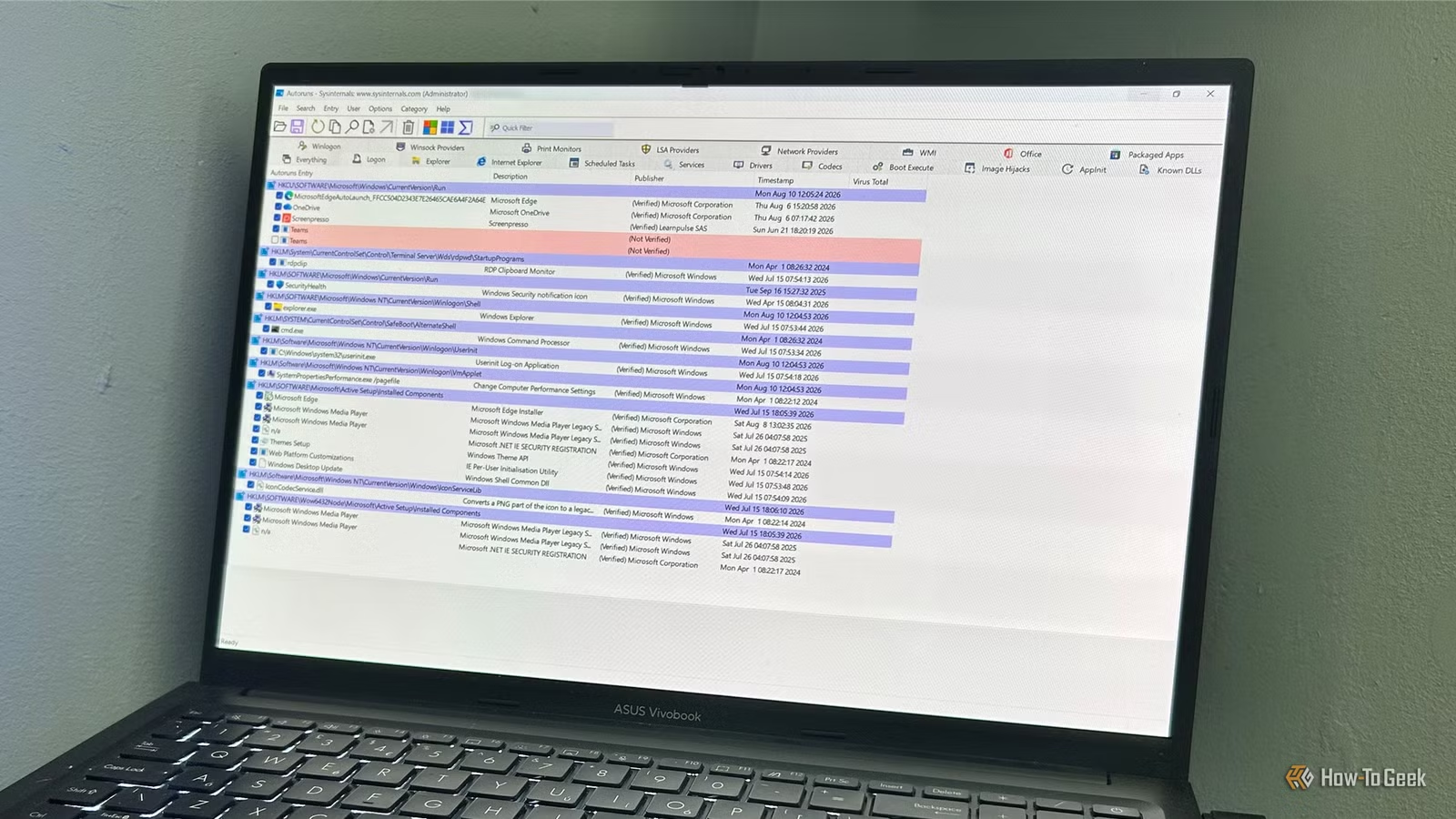
At first, I believed I knew what was running on my Windows PC upon startup. However, after using Microsoft’s Autoruns utility, I was astonished by the number of additional entries it revealed. This led me to delve deeper into these entries to determine their relevance and resource consumption on my system.
I thought I had everything under control
Autoruns provided a broader view of startup programs
I’ve frequently accessed Settings > Apps > Startup to manage the applications that launch when I log into Windows. Additionally, I often consult Task Manager to monitor which programs are active and how much CPU or memory they’re using.
When I launched Autoruns, I began with its Logon view to check what was set to run at login. It displayed the expected entries along with some unfamiliar ones. Turning to the Packaged Apps tab, which includes Windows apps that can register their own startup processes, I discovered multiple startup entries not present in the Settings app.
This led me to a more intriguing question beyond just identifying what to disable: what was the actual function of all these entries? While some were linked to familiar software, others referred to Windows components or startup tasks that I had never encountered before. I was cautious about disabling anything important simply due to not recognizing its name, so I chose to investigate each entry individually.
Recognizable applications were running in the background
Slack and Copilot launched without my initiation
One of the first observations I made was that some well-known applications were running without being manually opened. For instance, I found a SlackStartup entry for Slack’s packaged app in Autoruns. After logging in, I noticed there were seven slack.exe processes consuming about 380MB of memory collectively.
Since I preferred not to have Slack running automatically, I disabled its startup entry in Autoruns and restarted my computer. Upon reboot, the seven Slack processes had vanished from Task Manager.
Microsoft 365 Copilot was another notable process, using a significant amount of memory after startup, even though I hadn’t initiated it. After disabling its startup entry, it also ceased to load automatically on my next restart.
These revelations don’t suggest that every Autoruns entry should be disabled. Instead, they highlighted how some applications could be preloaded, resulting in them being active before I even logged in to Windows.
Startup entries can be misleading
Teams continued running even after I disabled its entry
Microsoft Teams presented a captivating case. The Autoruns Logon tab showed two Teams entries linked to ms-teams.exe. When I traced those entries to the Windows Run registry key, I found a configured value for the program’s launch.
After unchecking the entry in Autoruns, I verified that the Teams value was removed from the registry. However, upon rebooting without opening Teams, I noticed two ms-teams.exe processes still running in Task Manager, consuming 2MB and 38MB of memory, respectively. Checking the registry again, I found that the Teams entry had reappeared.
This prompted me to look for another potential startup mechanism for Teams. Eventually, I found the TeamsTfwStartupTask in the packaged-app startup data, and I realized that the option to run at login was still enabled in Teams’ own Windows settings.
While Autoruns successfully eliminated the startup entry I selected, it also helped me uncover another reason for Teams’ background activity.
Autoruns provided an expanded perspective on Windows startup
Settings and Task Manager remain invaluable tools
I was surprised by the various methods available for programs to launch at Windows startup. The Settings > Apps > Startup option is sufficient for managing typical apps that launch at sign-in. Task Manager is still crucial for monitoring active processes and resource usage, while Autoruns presents a more comprehensive overview. Its diverse views can reveal registry startup entries and packaged-app tasks that aren’t visible through standard startup lists.
Autoruns deserves a closer examination
Through this exploration, I gained valuable insights into what was truly launching on my system. While Settings and Task Manager have their purposes, Autoruns offered a much more extensive viewpoint on automatic startup configurations. Additionally, it became clear that not every entry I discovered needed to be disabled, making Autoruns a beneficial tool in my Windows management arsenal. This experience underscores the value of Microsoft’s Sysinternals collection.