Stay updated on essential notifications without the need to constantly check your device.
While many Android devices transitioned to small hole-punch designs for their front cameras, the iPhone 14 Pro was introduced with a distinctive pill-shaped cutout. This design has remained consistent in Apple’s lineup, with the exception of budget models. The iPhone 18 Pro series even features a smaller version.
This cutout houses not only the camera but also essential sensors required for Face ID functionality. Rather than masking the pill-like shape with creative wallpapers, Apple embraced it by introducing the Dynamic Island, effectively turning what could be seen as a design flaw into a valuable enhancement in the iOS interface.
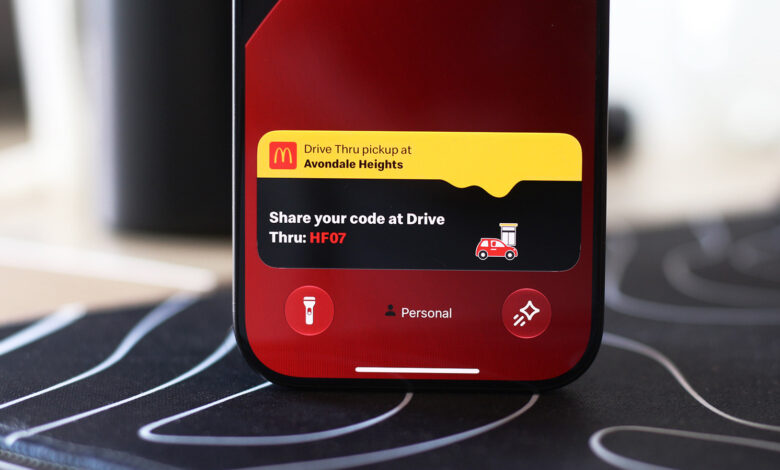
Live Activities on your iPhone appear through the Dynamic Island while using the device. They provide real-time information that you can monitor without needing to switch back into the respective application—this includes options like timers, navigation details, music playback status, and sports scores. Numerous third-party applications, such as those for food delivery and flight tracking, have adapted to utilize the Dynamic Island feature.
Typically, Live Activities are activated by default. However, if you are not seeing them for some apps, check to ensure they haven’t been inadvertently disabled. Go to Settings > Apps, select any problematic app, and ensure the Live Activities switch is turned on. While Live Activities function independently from standard notifications, you may want to turn on notifications for that app to receive all updates.
These Live Activities are also visible on your Lock screen when the device is not in use. To enable this feature, navigate to Settings > Face ID & Passcode. Enter your passcode, scroll down to Allow Access When Locked, and ensure that Live Activities is enabled.
Utilizing Live Activities on CarPlay

CarPlay offers an efficient way to access crucial information from your iPhone while minimizing distractions during driving. This includes the ability to display Live Activities so users can monitor deliveries or flight updates conveniently.
Live Activities from your iPhone automatically show on the CarPlay Dashboard, located to the left of the app list in a split-screen view. If you are using a full-screen app, notifications for Live Activities will still appear at the bottom. If notifications become distracting, you can disable the feature in CarPlay or specifically turn off Live Activities for particular apps.
If you’re not seeing Live Activities, open the Settings app in CarPlay, scroll down, and ensure the Live Activities option is enabled. Additionally, confirm that Suggestions in CarPlay is activated. If they still don’t show up, consider turning off Driving Focus while it’s active.
You can also add widgets to CarPlay for easy access to controls and information from apps without needing to open them. Widgets are located in the leftmost section of the CarPlay Dashboard. Taking some time to explore the Settings app will reveal additional customization options to tailor the CarPlay experience to your preferences.