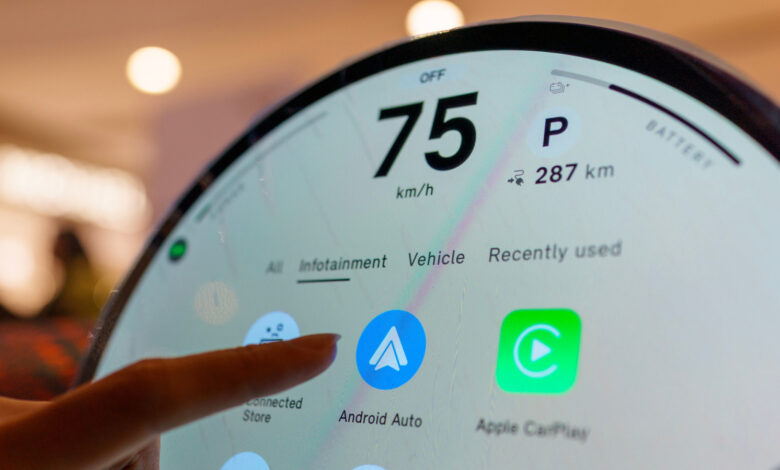
When experiencing issues with Android Auto, consider that your vehicle might also require an update.
There could be various reasons why Android Auto is failing to connect. Initial troubleshooting often targets the smartphone and its connection. Users may check the cable, restart their device, remove and reconnect the car, and ensure that Android Auto is updated. However, if these steps do not resolve the issue, the problem might lie with the software in the car’s dashboard.
The car’s infotainment system also requires regular updates; outdated software can lead to connection troubles with Android Auto. Google suggests restarting the infotainment system or checking the manufacturer’s website for firmware updates, particularly for aftermarket systems like Pioneer or Kenwood.
Since successful operation of Android Auto depends on both the phone and the vehicle, ignoring the latter can lead to ongoing problems. If basic troubleshooting hasn’t worked, including trying different cables or restarting devices, it’s important to examine the vehicle’s software as well.
Your vehicle may require an update too

Car manufacturers have been releasing updates for infotainment systems that enhance Android Auto’s functionality. For instance, Hyundai’s February 2026 update for ccNC-equipped vehicles in Europe improved wireless connections for Android Auto and Apple CarPlay, facilitating quicker reconnections and seamless automatic recoveries. Chevrolet even emphasizes that updating both the phone and vehicle software should be the first step if Android Auto encounters issues.
The process for installing updates varies by vehicle. Some systems can download updates through Wi-Fi, others require a USB drive or SD card, while some automakers provide dealership support. For example, Uconnect allows certain systems to connect to Wi-Fi via the vehicle’s menu.
Because there isn’t a universal update button for infotainment firmware, start by checking your manufacturer’s website for specific instructions. If prompted, provide your VIN or model information. If the update procedure seems unclear or requires dealer installation, it’s safer to seek dealership assistance rather than attempting to source files from elsewhere.
A firmware update won’t solve every Android Auto problem

If Android Auto has malfunctioned following a phone or application update, it’s wise to consult Google’s Known Issues page related to Android Auto before changing the car’s software. Google has recently addressed connectivity issues impacting specific phone models and continues to investigate other connection-related concerns. This timing can guide you on whether to check the phone or vehicle side first.
In instances where an update has recently occurred, begin troubleshooting by verifying the car’s compatibility, ensuring that Android Auto is activated within the system, and testing the USB connection. For wired setups, Google recommends using a high-quality cable that is no longer than three feet.
Updating the vehicle’s software is merely one potential troubleshooting step—not a guaranteed fix. If Android Auto functioned correctly in the past and you’re facing issues after a phone update, be sure to check for updated infotainment software as well before organizing a service appointment.
However, firmware updates have limitations and may not introduce Android Auto to systems that lack initial compatibility. For example, while some Uconnect systems cannot be upgraded to support Android Auto or CarPlay features, Uconnect 5 and select Uconnect 4 systems do include these functionalities.