Resolve hardware and software problems with these straightforward solutions.
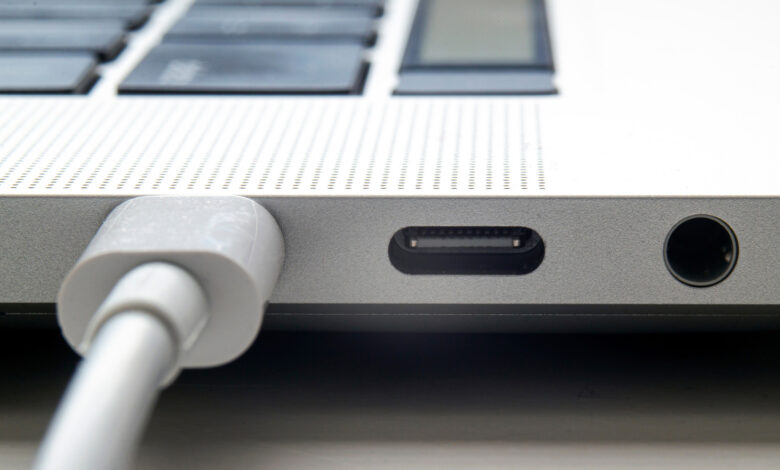
Apple played a pivotal role in the mainstream adoption of USB. Although the USB format predates the release of the iconic iMac, it was the design of Apple’s computer that led the way to its widespread use by eliminating older, incompatible connectors. This shift eventually prompted the company to abandon the Lightning port for iPhones due to EU regulations. Today, nearly all ports on Apple devices are USB, with MagSafe being a notable exception.
While most modern USB accessories for Macs work seamlessly, there are times when macOS fails to recognize them, which can be frustrating. In a world where USB usage is ubiquitous, any glitches feel particularly unwelcome.
The good news is that there are various hardware and software reasons for these issues, such as damaged cables or devices needing more power than supplied. Fortunately, many solutions are straightforward, especially within macOS. However, there are instances where official tech support may be necessary.
Steps to Address Missing USB Devices on Your Mac

Initially, note that macOS requires user permission to connect accessories by default as a security measure against unauthorized access. If you accidentally dismiss a permission request, the accessory will not transmit data until you allow it. It can still charge, though.
You can prompt macOS to show the permission request again by unplugging the accessory and reconnecting it. For smoother future operations, navigate to Apple menu > System Settings > Privacy & Security, and look for the Accessories section. You can select options for permission, such as Ask for new accessories, Automatically allow when unlocked, or Always allow. It’s advisable to avoid the third choice unless you are constantly in a secure environment.
If the problem persists, check if macOS recognizes your device. Hold the Option key and go to Apple menu > System Information. If the accessory appears under Hardware, look for help from the manufacturer’s support site. If it doesn’t show up at all, or if an error message appears upon connection, there may be additional help required.
A common reason for connectivity issues could be insufficient power. Some devices require more power than what a Mac’s USB port provides. You may receive a notification regarding this. If there’s no dedicated power source for the accessory, the USB port might be at fault. Try using different ports or connecting directly if you initially used a hub. If you continue to encounter power warnings, contacting Apple support might be necessary, as there could be a hardware issue with your Mac’s power supply.
Additional USB Issues and Solutions

When using hubs and docks, remember they may require their own power sources. Issues can arise from the device chain as they need to effectively manage power and data transmission. For example, a Thunderbolt dock may render a wireless mouse unusable until it’s connected directly to the computer, even if other devices on the dock function correctly. Whenever possible, avoid intermediaries to ensure reliability.
Ensure that your macOS is updated by going to Apple menu > System Settings > General and clicking on Software Update. Remaining software bugs or compatibility issues could be affecting functionality. Some devices might depend on proprietary software, so checking for updates in the Mac App Store or the manufacturer’s site is recommended. Additionally, external drives should be formatted to macOS-compatible file systems, such as APFS, FAT, or ExFAT.
Lastly, use the appropriate USB cables for your devices’ power and data needs, and check for any damage or debris in ports and cables. Lint or bent pins can obstruct connections. Cleaning can often be done with compressed air or a soft tool, while damaged cables should be replaced, especially if there are signs of wear or exposed wires, which could pose safety risks.