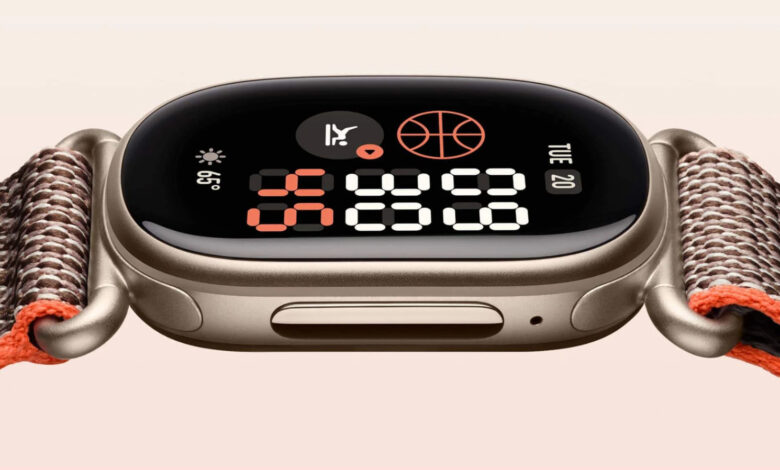
Maximizing your fitness tracker experience.
Fitbit has faced significant challenges in recent years, especially after being acquired by Google in 2019. Following the acquisition, the brand introduced several devices such as the Sense 2 and Charge 6. However, it appeared that the focus shifted toward the Pixel Watch, which led to speculation about Fitbit’s future.
Recently, Google has reaffirmed its support for the Fitbit brand by introducing new devices, including the Fitbit Edge. This device stands out as one of the finest fitness trackers for those who prefer not to invest in a full smartwatch. While it may not compete directly with high-end options like the Garmin Forerunner 570 or Apple Watch Ultra 4, it doesn’t aim to either.
Like any fitness tracker, the Edge has numerous settings that can be adjusted to enhance your experience, allowing you to personalize aspects from the display to better suit activities like deadlifting. While these adjustments aren’t mandatory, they are certainly beneficial when the occasion calls for them.
Settings to Enhance Your Edge
Start by customizing your Edge’s watch face, referred to as its clock face by Google. The appearance matters, but functionality is key—some faces accommodate more widgets (or complications), enabling you to quickly view statistics such as calorie count and heart rate instead of just time or weather. Modular faces are particularly effective, offering space for four to five tiles.
To explore and install new faces, access Google Health, then navigate to Connections > [your device] > Watch faces > Clocks. Choose your desired face and hit Install. You can easily switch between installed faces on your Edge by tapping and holding the screen.
An important adjustment to consider is the Tracker Orientation, found in the device settings within the Health app. This setting allows you to control whether the physical button is on the left or right concerning the displayed content. You might need to change this if you find that your button gets pressed unintentionally during specific exercises. For instance, while deadlifting, certain straps can inadvertently push against the tracker’s buttons unless the device is worn higher on the arm.
If you sync your data with a third-party service or simply wish for fewer notifications, consider turning off the Coach Insights feature in Google Health. In the app, go to [Profile icon] > Google Health Settings > Coaching and select No Coach Insights. This will prevent unsolicited summaries and tips from appearing on your phone throughout the day, which may be unnecessary for seasoned fitness enthusiasts.
Tips for Extending Battery Life on the Edge
Within the device settings of Google Health, you can adjust the GPS settings to solely utilize your phone for location data, maximizing battery life. However, be aware that this means you won’t receive location tracking if your phone is left behind, which may not be practical for activities like swimming. If this is a concern, it’s wise to keep the GPS set to Dynamic, allowing the device to use its built-in GPS when your phone isn’t available.
For those prioritizing battery longevity, ensure the Always-On Display feature is disabled. While it is convenient, it reduces potential battery life from seven days to about two days, and actual performance may vary, especially if GPS is in use. Consider switching this setting off prior to long events like marathons, or if you often forget to charge the device.
Lastly, try to charge your Edge daily. Even a brief five-minute charge can provide enough power for a full day’s use. To achieve this faster charging, pair your device with a 30W power adapter, and you can easily charge it while you shower, easing any battery anxiety.