In the realm of Excel, I’ve developed a quirk: whenever I aim to jump to another worksheet, I automatically hit Alt+Tab. Though I’m fully aware this shortcut is meant for app switching, years of using it have ingrained the behavior, making it tough to shake. To address this, I discovered a practical solution.
Overcoming My Alt+Tab Habit
My Muscle Memory Takes Over
I rely heavily on keyboard shortcuts to enhance my Excel productivity, especially for navigating between sheets. Typically, Ctrl+Page Up moves one sheet left, and Ctrl+Page Down goes one sheet right. However, my fingers don’t naturally gravitate toward these shortcuts. Even if I practiced, a problem arises with workbooks that contain numerous sheets. If the sheets I want to shift between are far apart in the tab layout, it becomes tedious to either rearrange them or repeatedly press the shortcuts until I arrive at the right one.
This is where my instinctive use of Alt+Tab complicates things. I deploy this shortcut throughout the day for various tasks—switching from Word to Excel or looking something up online while working in Excel. Over the years, it has become second nature, symbolizing “take me to what I need next.”
This habit, unfortunately, leads to frustration when I’m solely using Excel. I might be creating a report on one sheet while pulling data from another, or performing calculations that require me to check information elsewhere. Once engrossed in my work, I stop thinking about shortcuts, and my hand naturally gravitates toward Alt+Tab.
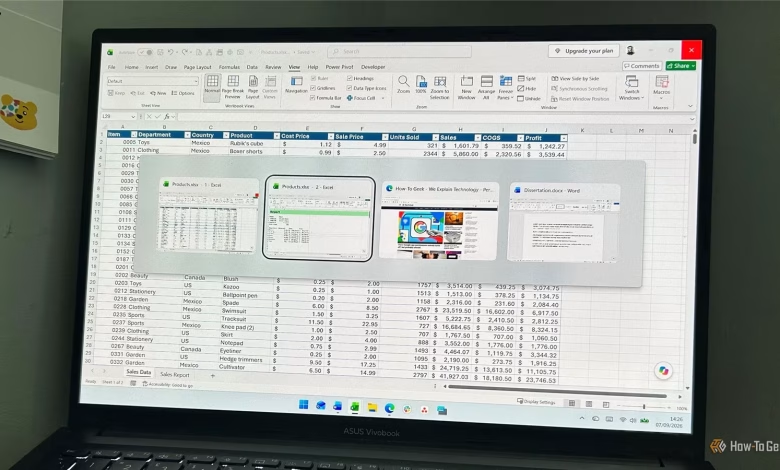
However, Windows does not recognize the two Excel sheets as distinct entities; it treats them as part of the same application. Thus, pressing Alt+Tab takes me back to the last app I used instead of navigating between my worksheets.
Consequently, I have to return to Excel and select the desired sheet, which, while quick, becomes a bothersome disruption when repeated throughout the day. Each time, I ask myself: “Why did I hit Alt+Tab again?”
Ultimately, rather than trying to change this habit, I found a way to adapt Excel to work with it.
Creating a New Window for Another Worksheet
Alt+Tab Now Works As Intended
The solution I discovered is remarkably straightforward, leaving me a bit embarrassed for not realizing it sooner. By selecting View > New Window, Excel opens a new window of the same workbook.
This is crucial because I’m not duplicating the file; instead, I’m given another viewport into my current workbook.
For instance, I could have my main report in one window and the corresponding data sheet in another. This setup allows me to layer the windows and utilize Alt+Tab to switch between them easily. This is especially useful when the sheets are widely spaced in the tab list, sparing me from the repetitive use of Ctrl+Page Up or Ctrl+Page Down.
As both windows belong to the same workbook, any modifications made in either will be saved within that document. I avoid creating duplicate files or muddling my workflow. Once I’m done cross-referencing, I simply close one window and continue working in the other, with all adjustments preserved.
This feels much more intuitive, as I can now use Alt+Tab the way my mind expects.
If you merely need to monitor a few cells from another worksheet, Excel’s Watch Window feature allows you to track selected cells while you continue working in the original workbook, eliminating the need to constantly switch back and forth. This proves especially beneficial when needing to reference specific figures without directly editing the second sheet.
No Need for Additional Excel Shortcuts
Despite the effectiveness of Ctrl+Page Up and Ctrl+Page Down for navigating between sheets, I will continue to utilize them for straightforward moves across a workbook. However, when I am deeply engaged in tasks that involve hopping back and forth between two sheets, Alt+Tab is the shortcut that feels most natural. Instead of trying to adjust my instinctive behavior, I’ve adapted the environment, allowing Windows to manage the transitions for me. So rather than formulating a new habit, I found a way to leverage the one I already have.