Transform your morning drives with personalized greetings using the Shortcuts app.
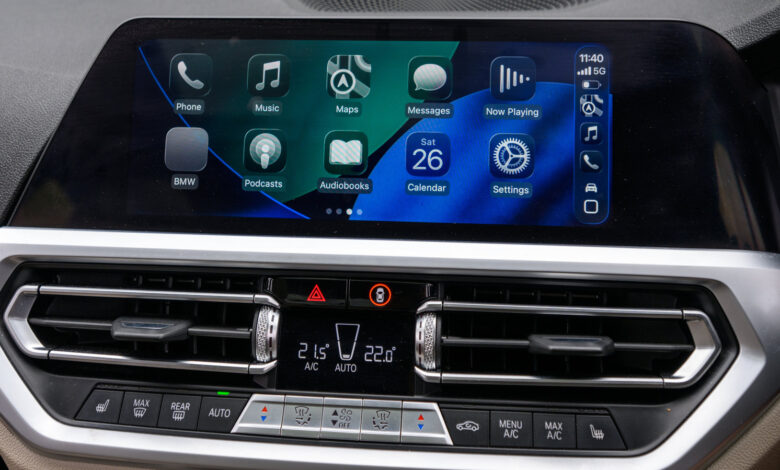
Integrating a welcoming intro into your Apple CarPlay experience is simpler than you might think, adding a touch of personalization to your daily trips. By “intro,” we refer to fun greetings like Siri wishing you a cheerful morning, your favorite soundtrack playing, or even a friendly reminder about your coffee mug left on top of the car. While this tech may not revolutionize your driving experience, it certainly can enhance it.
You can initiate this by setting up a CarPlay automation that triggers when your iPhone connects. This feature won’t replace your vehicle’s standard sounds or alerts, but serves as an additional action you can take while driving. Results may differ slightly depending on whether you’re using a wired or wireless connection and how quickly your iPhone connects to the car.
For optimal results, keep the custom start sound short, aiming for a clip that lasts between two to five seconds. This duration is enough to deliver your message without interfering with navigation instructions or other essential notifications. You’ll need an iPhone, the Shortcuts app, and an audio file stored in your Files for this setup.
Creating Your CarPlay Automation
Before kicking off the setup, you need to download the audio file you wish to use. In the Files app on your iPhone, create a straightforwardly named folder (ensure it’s not in iCloud Drive) and store your audio file there.
-
Launch the Shortcuts app.
-
Select the “Automation” icon located at the bottom center of the screen.
-
If you’re starting from scratch, tap “New Automation” or the + icon at the top right of the screen.
-
Select CarPlay (usually found in the middle of the list or via the search box).
-
If “Is Connected” is not already selected, choose it and set it to “Run Immediately,” then hit “Next.”
-
Tap “Create New Shortcut.”
-
Scroll down and click on “Files.”
-
Choose the “File” tab.
-
Tap the faded blue File button next to the file icon at the top.
-
Look for your folder and select it.
-
Choose your audio file from the folder.
-
Finally, hit the blue checkmark at the top right, and you’re done.
Remember, these steps might slightly vary based on your iPhone model and iOS version. Shortcuts compatibility extends back to iPhone 5s, so older models may show options differently.
Now it’s time to give it a whirl in your car. Connect to CarPlay and wait for your selected clip to play. If the volume isn’t right, adjust it on your iPhone, as the action may utilize the original audio levels from the recording.
Modify, Remove, and Enhance

To modify your CarPlay automation, simply revisit Shortcuts, tap on Automation, and select your created automation. You can change the associated audio file, reorder actions, or even delete an action. If you find that the sound becomes stale, replace “Run Immediately” with “Don’t Run” in your automation settings. This allows for alternating sounds or simply taking a break from the current one.
Beyond audio, Shortcuts and CarPlay offer ample customization options. Consider following your greeting with actions like launching your navigation app, starting a playlist, or showing reminders for your morning tasks. You can also set up automations for when you disconnect from your car, such as pausing media or initiating walking directions. Ultimately, the way you tailor your CarPlay experience is entirely up to you, be it a minimalist driving interface or a suite of automations for added flair and convenience.