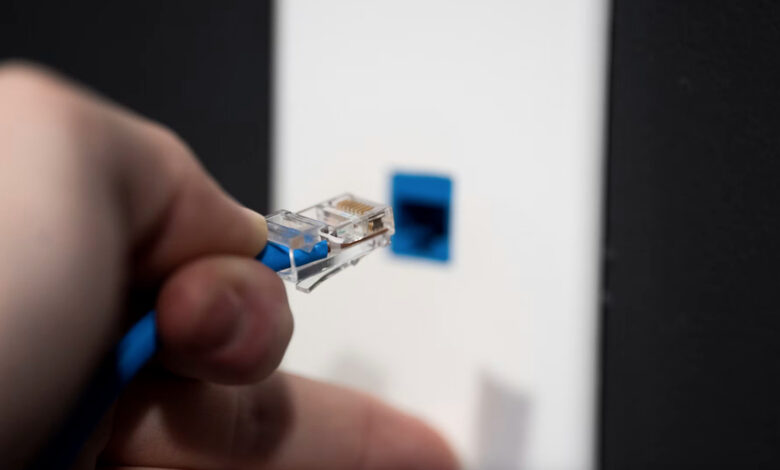
The reasons may vary from hardware to software issues.
Ethernet cables, known as network cables, are often expected to outperform Wi-Fi connections, boasting speeds that can be two to three times faster. This advantage is one of the main reasons why users choose wired connections. However, many have found that their ethernet speeds may actually lag behind those of Wi-Fi.
How can this happen? In some cases, advancements in wireless technology, especially with the advent of Wi-Fi 7, can lead to very high wireless speeds that surpass ethernet rates.
Nonetheless, there are several factors that could contribute to an ethernet connection being slower than a wireless one. Some issues may stem from the hardware, like the cables themselves, while others may relate to software. Let’s explore the various potential reasons so you can enjoy uninterrupted browsing and streaming.
Using outdated or low-quality cables
Ethernet technology has evolved over the years, and not all cables are created equal. Outdated cables can significantly reduce the potential speed of your wired connection. It’s advisable to use at least a Cat5 cable or higher. To identify your cable type, check for small print along the outer sheath.
Moreover, the quality of the cable is crucial, as some manufacturers may compromise on materials. While there’s no need to buy the most expensive options, consider certain factors. Look for recognized category ratings and steer clear of copper-clad aluminum (CCA) cables; opt for pure copper. Ensure that the brand provides certification indicating compliance with TIE/EIA standards, which should also be listed on the sheath.
Cable or port damage
Numerous issues can affect ethernet cables, particularly older ones. Ethernet cables often consist of four twisted pairs of wires; if any pair is improperly twisted, it can impact speed. Similarly, physical damage to the outer sheath can lead to wire degradation. A straightforward troubleshooting step is trying different ethernet cables and running network speed tests.
Additionally, issues within the port can also slow down speeds, even if your cables are in good condition. Damage to internal contacts can limit functionality or make the port unusable. Checking for lights on the router port can reveal connectivity issues: a blinking or steady green light indicates good connection, while no light suggests a potential problem. If one port appears faulty, testing another port or connecting the cable to a different device might help diagnose the issue.
Driver or settings-related issues
Old drivers for your router, ethernet adapter, or network card can affect speeds. Regular updates to these drivers may not be part of your routine. Begin by updating the router drivers and proceed to check others while testing speeds at each step. This is particularly important after any operating system updates.
Several settings can also influence ethernet performance. Windows users can consult the Network and Internet settings to verify aggregated link speed, while Apple users have access to similar options in the Network section. Compare this speed against what your ISP provides; a significant discrepancy could indicate a fault.
Beyond checking settings, consider that both Mac and Windows systems use Energy-Efficient Ethernet by default. Disabling this feature might enhance speed. Additionally, Windows devices sometimes deactivate the network adapter for power savings, which can be adjusted in the Power Management settings.
Malware affecting performance
Malware can decelerate virtually any computer function, including wired internet access. Background tasks initiated by spyware, trojans, and worms can monopolize bandwidth and slow down ethernet speeds. Some malware can even infiltrate routers, disrupting traffic. A notorious example was the VPNFilter incident, affecting over half a million routers worldwide in 2018.
To combat this, conduct thorough scans with reliable security software or built-in antivirus systems. If any threats are detected, follow the necessary steps to remove them. Regularly scheduled scans are advisable, since threats evolve over time.
Internet service restrictions
Your slower ethernet performance could be preordained by service limits imposed by your ISP. It’s wise to read the fine print to check for any speed caps. Some ISPs may be less than transparent, particularly with promotional offers that initially promise high speeds.
Conduct speed tests to compare the results between a wired ethernet connection and Wi-Fi, providing valuable information. If you encounter evident disparities, contacting your ISP for clarification may lead to resolution or even a potential discount.
If Wi-Fi speeds remain robust while ethernet struggles, it’s indicative of the earlier mentioned issues rather than a service restriction.