From my initial impression, I never anticipated forming such a strong bond with Android Auto, but here we are.
Initially, I viewed Android Auto primarily as a handy tool for navigation and music playback. Over time, however, I’ve developed a shortlist of features that I genuinely treasure. I utilize these on quick school runs, grocery errands, and during longer journeys when I have extra time. There are certain features I instinctively reach for, and I often find myself pondering how I managed without them before.
In essence, I can forget about my phone while driving.
This is precisely the goal. The four features I’ll discuss do not come off as mere novelties that I might try once and disregard. Give me a moment, and I will explain why I’m so fond of them.
Android Auto Truly Understands Me
Appearing When Needed
This feature has quickly become my favorite. There’s no required action on my part. I simply step into the car, connect my phone, and Android Auto takes over.
Previously, I would manually launch Android Auto every time I entered the vehicle. This was a habitual action until I discovered I didn’t actually need to. If I can eliminate that added step, I’m all for it. Now, it automatically appears on my screen, allowing me to dive straight into navigation, music, or any other needs. For this magical experience, just head to the Android Auto settings and activate “Start Android Auto automatically.”
This proves exceptionally useful during several short trips throughout the day. I might leave for groceries, return home, and leave again shortly after. I no longer have to ponder whether Android Auto connected last time or set anything up. If my car can handle the mundane tasks, I’m not going to intervene.
Music Marks My Journey
As It Should Be
Let’s face the truth—Maps and music are probably the first applications most of us access on the Android Auto interface, and I’m no exception. The moment I plug in my phone, I crave a ready navigation route and my playlist to begin. That’s why the “Start music automatically” function appeals to me. I dislike the monotony of repeatedly having to open Spotify and hit play every single time I get in the car. Thankfully, Android Auto can resume from where I left off and start playing automatically.
What’s even better is that my car doesn’t fall silent the instant I enter. The moment Android Auto launches, the music begins. What more could I ask for?
Driving Controls at My Fingertips
Less Tapping, More Focus on Driving
I find it frustrating to toggle between screens while navigating a route. This is where Quick Controls come into play, making a significant impact in a minor way. After activating this feature, I can keep essential controls visible while another app is in full-screen mode. It’s much more efficient. For example, if I’m using Waze and want to pause a podcast, I don’t need to switch screens just to do that. Fewer taps are appreciated, especially while driving.
To enable this feature, you can go to the Android Auto settings and turn on “Show quick controls for apps.” This activates the controls in the taskbar when a full-screen app is in use. There’s no need to select specific apps; Android Auto manages that seamlessly.
This allows for a smoother driving experience with everything just a touch away.
I Rely on Gemini for the Little Tasks
Such as Sending my Husband a Quick ETA
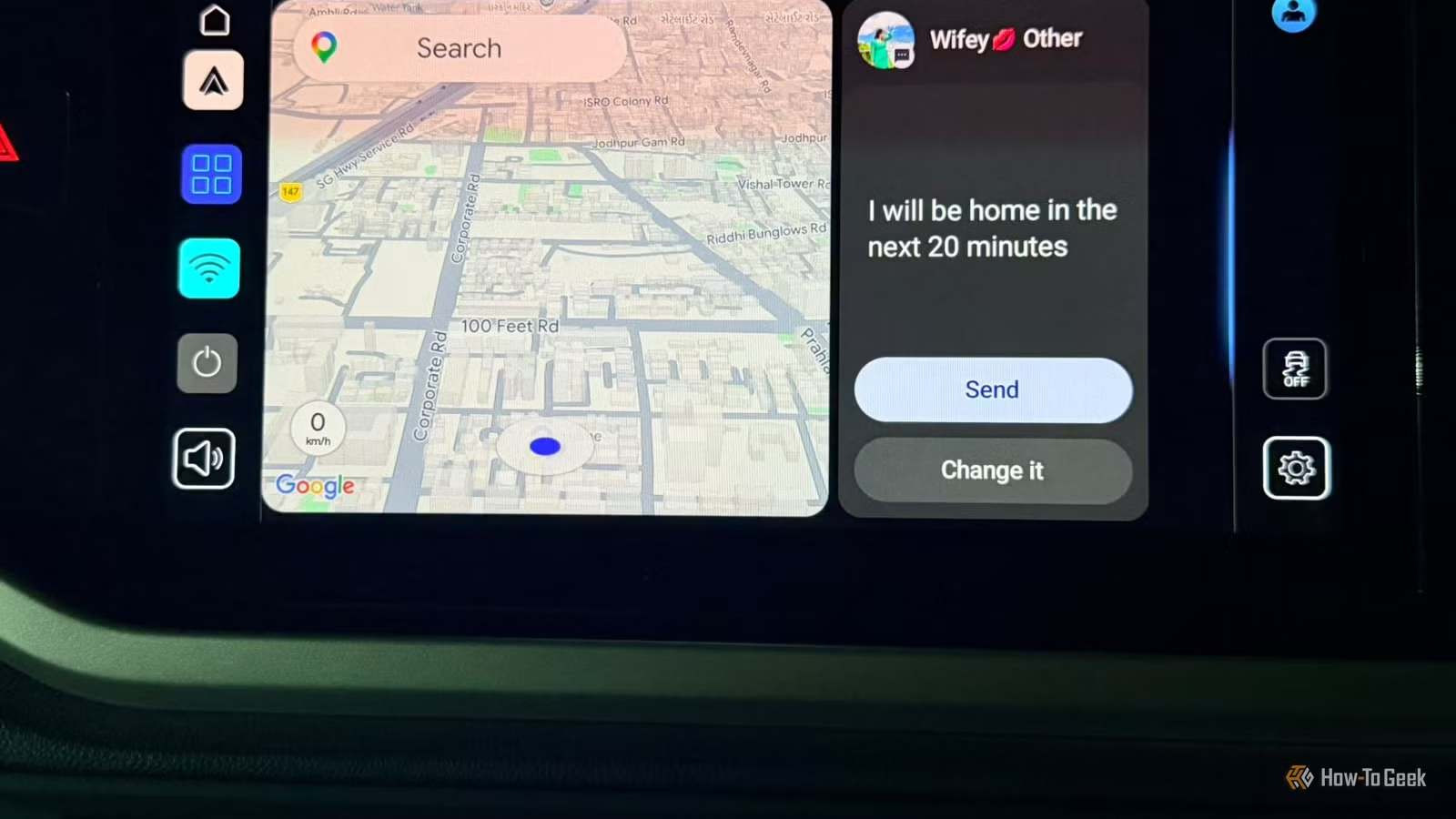
Why perform tasks manually when so much capability is built into Android Auto? I’ve started using Gemini within Android Auto to manage various tasks for me.
With a simple command, I can have Gemini send a message, check traffic conditions, or find a nice coffee shop along my journey. At times, it genuinely feels as if I have a personal assistant beside me rather than my daughter.
The best part? I can casually say, “Hi, Gemini, text my husband that I’ll arrive in about 20 minutes,” and it’s taken care of. No need to sift through messages or touch my phone while driving. This not only saves time but also ensures my hands stay on the wheel. I can ask Gemini anything and carry on with my driving. It’s a fun feature to showcase to passengers too.
Now, imagine all the wide-ranging capabilities of Gemini.
You don’t need to adjust any settings in Android Auto. If you’ve set Gemini as your digital assistant, it will show up automatically. If you haven’t, what are you waiting for?
My Car and I Have a System
This is why I feel such a connection to Android Auto. None of these features are difficult to set up, yet they transform everyday driving into a much simpler experience.
Try them out for yourself and see how they complement your routine. You might just find yourself astonished at how you ever drove without them.