Unlocking the Secrets of Android Auto: 4 Hidden Developer Features You Didn’t Know About

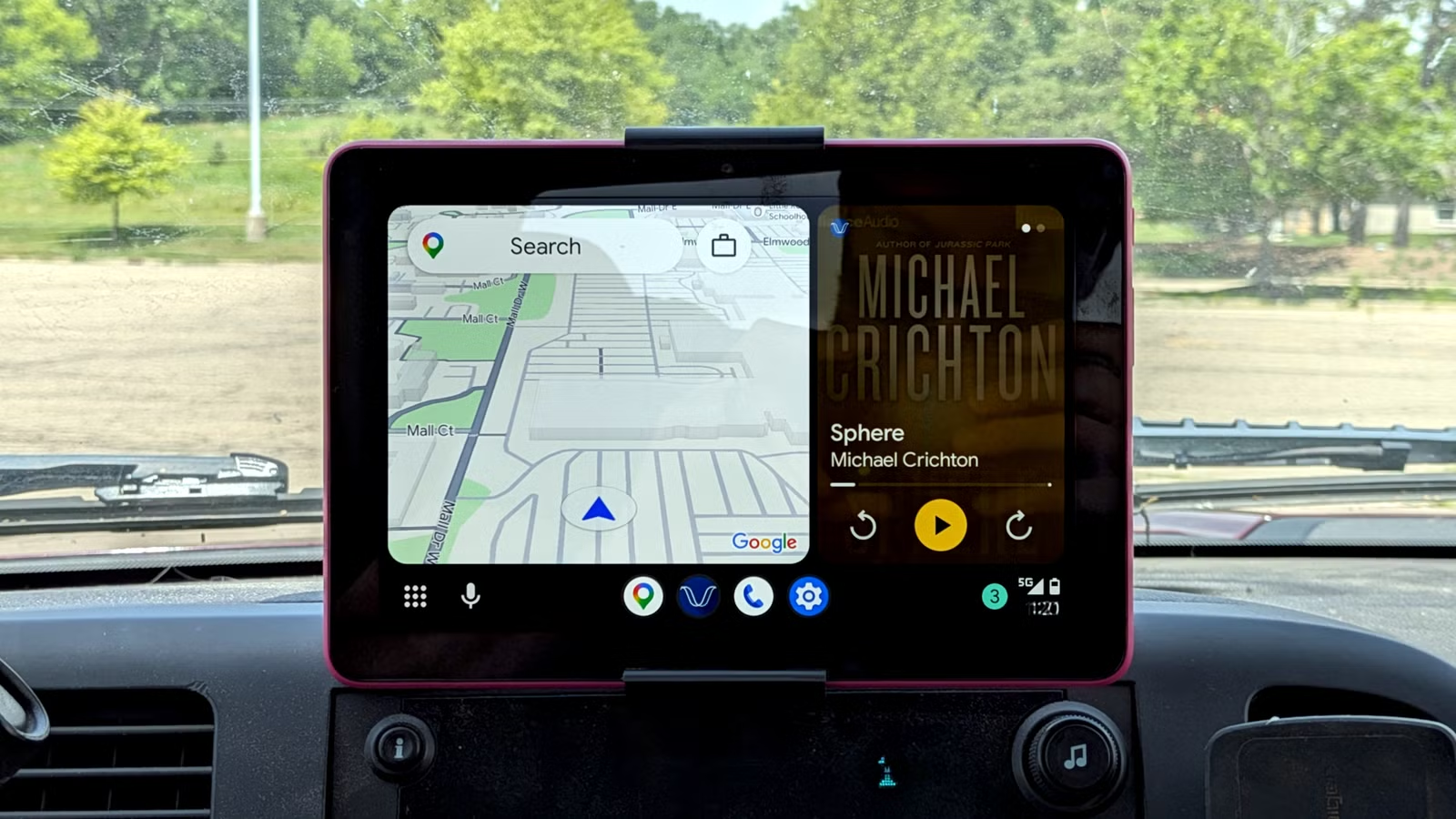
Android Auto maintains a straightforward settings interface for a reason: it focuses on essential features while minimizing distractions. However, if you choose to enable the developer mode within the app, you’ll uncover additional functionalities. While many of these are geared towards testing and debugging, some can be quite advantageous for everyday users.
Activating Developer Settings in Android Auto
To use the developer settings in Android Auto, you must first activate them since they are not immediately visible. The steps to do this may vary slightly depending on your device, but a common approach is to go to your phone’s settings, click on the search icon, and enter “Android Auto.” This should lead you to the settings option.
Once inside, scroll to the bottom until you locate the Version section. Tapping this section ten times will trigger a confirmation prompt to enable the developer settings; click OK to proceed. Afterward, access these settings via the three-dot menu located in the upper right corner.
While the developer settings in Android Auto may not be as extensive as those available on standard Android devices, there are notable features worth checking out.
Wireless Android Auto
Wired or Wireless?
Years ago, the wireless Android Auto option was readily available in the main app; now, it has been moved to the developer settings. Although modern vehicles generally support wireless connections, there are valid reasons to consider turning it off.
From my experience, wireless Android Auto tends to be less reliable than a wired connection and can drain your phone’s battery quickly. You will likely need to charge your device while using it; otherwise, you risk ending your trip with an empty battery.
On the other hand, going wireless offers a neater setup, making it an option to enable if you prefer a clutter-free interface.
Unknown Sources
Installing Apps Beyond the Play Store
The next feature to consider enabling is Unknown Sources, located towards the lower part of the settings screen. This option allows installation of apps from outside the Play Store, similar to standard Android settings. If you utilize alternative app stores like F-Droid or sideload apps such as different navigation tools or open-source media players, this setting will grant access.
After activating it, return to the main Android Auto settings and select Customize Launcher. Here, you can view and select the apps you want available on your Android Auto interface.
However, enabling apps from unknown sources does not permit the use of any app on Android Auto; you must still adhere to the service’s limitations, which typically define applicable types of apps such as mapping, messaging, and certain media applications.
Video Resolution
Enhancing Fit and Notification Size
Upon connecting Android Auto, the phone and car negotiate to determine the optimal video resolution. Typically, this works adequately, but issues can arise—especially on larger displays—leading to blurry images or oversized notifications.
To address these issues, navigate to the developer settings and select Video resolution. The default option is Allow car and phone to negotiate, but you can opt for a manual selection of a higher resolution. Experimentation is key to finding the setting that looks best on your device.
Taking Screenshots
Capture Your Screen Whenever Needed
If you wish to capture a screenshot from your Android Auto display, this can only be done through the developer settings on your phone.
Navigate to the desired screen on your Android Auto, then in the developer settings, select Share screenshot. This opens a sharing menu, allowing you to save it in your files app or share it via email or messaging apps.
Saving Videos
Review Your Driving Routes
In the developer settings, you’ll find options to Save video and Save audio, capturing visuals and sound from your Android Auto interface while driving. Although intended for developers to troubleshoot, enthusiasts might appreciate the ability to log their journeys.
However, be aware that these features consume significant storage and data, and continuous recording can result in overheating the device and faster battery drainage.
Additional Settings to Adjust
If you prefer not to use developer mode, you can simply ignore these settings or choose to deactivate it via the three-dot menu by selecting Close developer mode.
After exploring these developer options, don’t forget to fine-tune the standard Android Auto settings as well, including forcing dark mode for navigation apps, customizing the app launcher for better accessibility, and adjusting music playback settings upon connection.