Understanding USB Tethering: A Step-by-Step Guide to Activating Mobile Hotspot Features

Establishing a physical connection can be beneficial. Here’s how to do it effectively.
While many think of smartphones providing mobile hotspot capabilities wirelessly, USB tethering is an alternative that shares your phone’s cellular data with a computer via a cable. Here’s how it functions, its advantages, and how to set it up.
Benefits of USB Tethering
Most users find a wireless hotspot to be the simplest option for connecting a laptop to the internet when away from a reliable Wi-Fi source. It offers greater flexibility, allowing multiple devices to connect simultaneously. Moreover, it allows for more mobility as the phone can be moved away from the computer.
However, there are instances when USB tethering may be preferable. A wired connection often provides more stability, making it ideal for busy locations like airports or conference halls. This method also avoids broadcasting a network in public areas, and it can simultaneously charge your phone while connected.
Setting Up USB Tethering

Before proceeding, it’s important to note that Android devices cannot tether via USB to a Mac; however, Wi-Fi tethering remains an option. USB tethering does function with Android to Windows connections and iPhone to either Mac or Windows systems.
If you are tethering from an iPhone to a Windows computer, the installation of the Apple Devices app or iTunes might be necessary.
For Android users:
- Connect your Android device to a Windows PC using a USB cable.
- On your device, go to Settings > Network & internet > Hotspot & tethering. (Some models may require you to navigate to Settings > Connections > Hotspot & tethering instead.) Alternatively, access Quick Settings and press and hold the Hotspot option to open the tethering menu directly.
- Activate USB tethering. If this option appears disabled, ensure you are using a data-enabled USB cable, not one meant solely for charging.
For iPhone users:
- Connect your iPhone to a computer via a USB cable.
- You may need to authenticate the connection. If prompted, tap Trust and enter your passcode. For Mac users, you may see a prompt asking to allow the accessory to connect; click Allow.
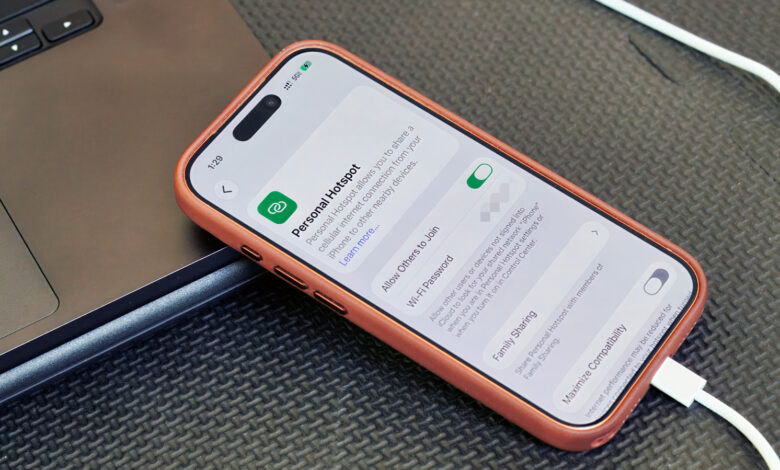
- On your iPhone, navigate to Settings > Personal Hotspot. (If this is your first time using a hotspot, you might start under Settings > Cellular > Set up Personal Hotspot.)
- Enable Allow Others to Join.
Additional Considerations
USB tethering is typically more applicable for individual devices rather than serving as a complete hotspot substitute. Therefore, if you want to connect both a laptop and a tablet simultaneously, it is advisable to use a Wi-Fi hotspot.
Note that laptops can consume data rapidly due to background processes such as updates and cloud synchronization. Your mobile carrier may have restrictions on hotspot usage, impose extra charges, or allocate tethering against a separate data limit, so verifying your data plan is recommended before tethering.
Lastly, while a wired connection can offer greater stability than a wireless one, it still relies on your phone’s cellular service. Weak signals will lead to unreliable internet, no matter how you connect.