Transforming My Phone: The Free Open-Source Android App That Consolidated 8 Others

Yash Wate / Contributor
One of the standout features of using an Android device is the wide availability of apps designed for various purposes, whether it’s merging images, rearranging PDFs, or generating QR codes. This diversity makes it easy to handle various minor tasks directly on your phone.
Historically, I tended to download numerous apps—beyond the essentials—on each Android phone I owned. However, this practice proved to be impractical as I had to reinstall all these apps with every new phone and regularly update them to ensure optimal functioning. Additionally, it increased the storage space used on my device.
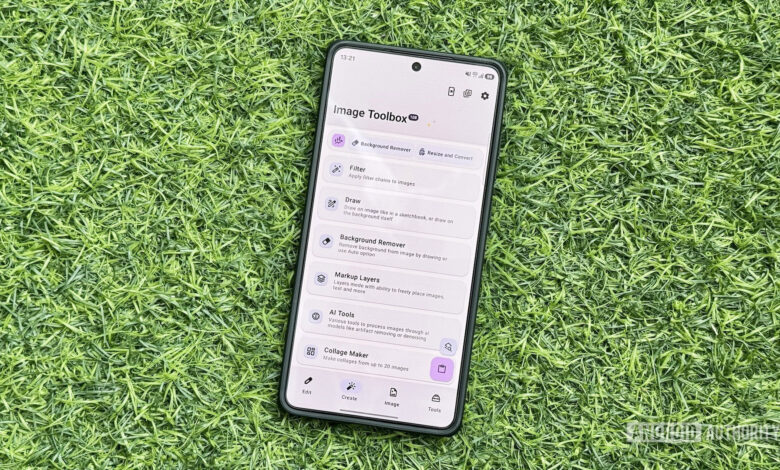
That all changed when I discovered Image Toolbox, an Android application that consolidates numerous tools for addressing different media tasks within one convenient platform. Since then, I have replaced many single-use applications with Image Toolbox, and it has been exceptionally effective for my needs.
Would you rather use multiple single-use apps or one comprehensive app?
Vote Count: 274
Image Toolbox: A Versatile Media Tool

Yash Wate / Contributor
Image Toolbox is a versatile app that unifies a multitude of media tools, eliminating the need to individually search for and download various applications. It is open-source, entirely free to use, and features no ads, making it an even better option.
The user interface is also highly responsive and easy to navigate. The app includes four main tabs at the bottom: Edit, Create, Image, and Tools. Each tab houses various tools to streamline your tasks. For instance, the Edit tab features tools like Resize, Crop, and Format Conversion, while the Create tab is focused on creation tasks. The Image tab contains other image-related operations, and the Tools tab encompasses additional media utilities, including Document Scanning, GIF functions, and QR & Barcode generation.
Tools within the Image Toolbox are organized into categories. For instance, selecting GIF Tools reveals multiple options such as Images to GIF, GIF to Images, and more, making it easier to locate related tools without overcrowding the main tabs.
Applications I No Longer Require Thanks to Image Toolbox

Yash Wate / Contributor
I have been aware of Image Toolbox for several years and have used it intermittently for specific tasks. However, in the past few months, I’ve integrated it into my daily workflow for various media-related actions on my Android device, and I’ve found no need to revert to individual applications. In fact, I didn’t install any of the previous apps when I transitioned to the Galaxy S26 Ultra earlier this year.
Image Resizer and Converter: Image Toolbox’s Resize and Convert feature effectively manages image resizing and format conversion. It allows me to easily modify the dimensions of any image by specifying the desired width and height. Additionally, I can convert images between formats with just a few taps, including selecting a compression type. The app even displays the anticipated file size post-modification without needing to save it. For batch conversions, Image Toolbox includes a dedicated Format Conversion tool that operates similarly.
EXIF Data Remover: The Delete EXIF tool streamlines the process of removing EXIF information from photographs. By default, it clears all EXIF data, but I can also remove tags selectively. The capability to remove EXIF data from multiple images at once is particularly beneficial.
Background Remover: The Background Remover tool in Image Toolbox is excellent for quickly eliminating backgrounds, offering both automated and manual options. I’ve found that the RMBG, InSPyReNet, and BiRefNet models work best for automatic background removals. If the automatic feature fails, the manual mode is effective as well, allowing for precision adjustments.
PDF Editor: Image Toolbox includes a robust PDF tool called PDF Tools, offering numerous capabilities for handling PDFs. I utilize it for tasks such as creating PDFs from images, merging documents, removing pages, and reordering PDF content. The tool also enables password protection, unlocking PDFs, and compressing files to save space.
Image Stitcher: The Image Stitching feature in Image Toolbox simplifies the process of combining images horizontally or vertically. I often rely on this tool to stitch together screenshots for articles I write, simply selecting the images to create a seamless compilation. Options for changing the order, switching between stitch orientations, adjusting spacing, and specifying output formats make it quite flexible.
GIF Creator: Image Toolbox’s GIF Tools is a suite that includes various functionalities for GIF creation. I particularly like the Images to GIF feature, which lets me convert multiple images into a GIF to illustrate processes effectively.
QR Code Generator: The QR & Barcode tool allows me to create QR codes quickly and conveniently. It features numerous templates, including Wi-Fi, Email, and Phone options, making generation straightforward. There are also customizable options for creating text-based QR codes, which I frequently use for personalized designs.
Collage Maker: With Image Toolbox’s Collage Maker function, I can efficiently create collages. The app generally selects suitable templates automatically, but I can also adjust images manually. It offers various grid layouts, aspect ratio choices, and additional customization options for spacing and background colors.
Beyond these tools, I also utilize several other features within Image Toolbox, including WEBP Tools for converting WebP files, Watermarking for adding logos to images, and Edit EXIF for correcting metadata on older photographs. Additionally, I sometimes use the Gradient Maker to generate themed wallpapers.
Personalizing Image Toolbox for Optimal Use

Yash Wate / Contributor
Image Toolbox is highly customizable, allowing users to adjust numerous settings such as themes, layout of tools, save locations, and app behavior. To customize, simply tap the gear icon in the top right corner, select the setting you wish to modify, and change it to your liking.
Before I begin using Image Toolbox, I adjust several settings to enhance my experience. First, I enable the Launcher Mode, which reformats the display of all tools to resemble app launchers on the home screen. This simplifies navigation, although tool descriptions will be hidden in this mode. I also activate the Search feature, adding a floating search button that allows for quick access to any tool within the app.
Next, I customize the output behavior of Image Toolbox. By default, edited files are saved to Documents/ImageToolbox; however, I prefer to save modified files alongside the originals, so I enable the Save to Original Folder option. Additionally, I adjust how files are named since I find the default nomenclature confusing; I enable the Add original filename feature, remove the standard prefix, and add “image-toolbox” to the suffix, which makes it easier to identify files modified through the app.
While in the Settings tab, I recommend exploring additional options within Image Toolbox, as there are numerous useful settings to enhance your user experience.
No Plans To Switch Back to Single-Purpose Apps

Yash Wate / Contributor
Initially, I had my doubts about whether Image Toolbox could effectively handle my tasks as well as individual applications I was accustomed to. However, after several months of using it, I am confident that it performs just as well, and I have no intention of returning to those single-purpose apps.
Thank you for being part of our community. Please read our comment policy before posting.