A simple solution for your home’s Wi-Fi dead spots.
If you have an old Android phone lying around, you might just have the perfect solution to improve Wi-Fi coverage in your home. Instead of investing in new devices such as extenders or more powerful routers, you can repurpose that old Android phone.
Many households have outdated Android phones stored away, still functional enough to be useful. Before recycling it, consider its potential. With just the phone’s settings and a power outlet, it can serve as a Wi-Fi extender, boosting your network’s signal into hard-to-reach areas.
You won’t need any specialized apps or technical expertise. The device can utilize its built-in hotspot feature to connect to your current Wi-Fi, functioning as a signal repeater and effectively expanding your coverage.
Understanding the Role of an Android Wi-Fi Extender
Encountering weak internet signals in certain areas of your home can be frustrating. While there are adjustments you can make, like properly positioning your router antennas, some issues may remain unresolved. Purchasing new hardware — like a mesh system or a Wi-Fi extender — can be costly, with extenders typically starting around $50. Instead, you can leverage technology you already own.
Your Android device can connect to your home Wi-Fi and transmit the signal as a separate hotspot. This enables you to connect other gadgets, such as laptops and smart TVs. It acts as a signal relay, picking up Wi-Fi from your router and distributing it to other devices in need. While it’s not as efficient as a mesh system, it’s an effective and cost-free solution for improving coverage.
Steps to Set Up Your Android Phone as a Wi-Fi Extender
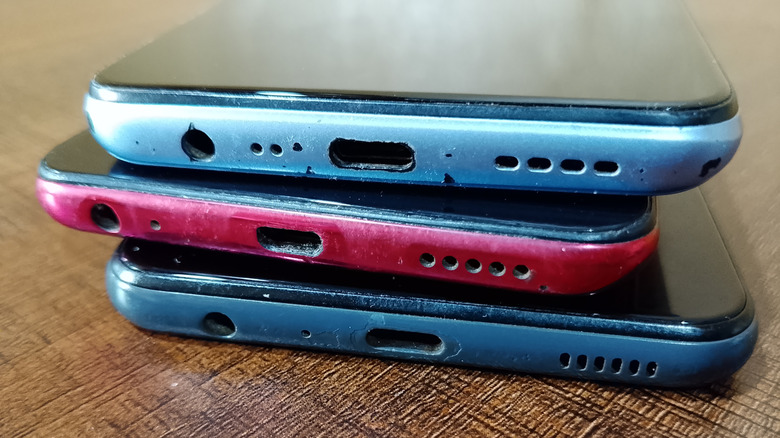
Setting up your old Android device as a Wi-Fi extender is straightforward and can be completed in just a few minutes. Here’s how to do it after you locate, charge, and update your phone:
- Open Settings, navigate to Network & Internet > Internet. Connect to your home Wi-Fi network and enter the password.
- Go to Settings > Hotspot and Tethering and enable the Wi-Fi Hotspot option. You can also find the Hotspot icon in your quick settings menu.
- Rename the Wi-Fi hotspot and set a secure password to differentiate it and protect your network.
- If the option is available, choose 5GHz under speed settings for better performance over shorter distances.
- Position your phone midway between the router and the area with poor signal. Ensure it’s close to a power source to keep it charged, as hotspot functionality can drain the battery.
Keep in mind that while this method extends your existing Wi-Fi, it won’t increase your internet speed. If your internet is sluggish, the hotspot will not resolve that issue. Also, commercial extenders typically offer better performance.
Additionally, there is no integration with smart home devices. Unlike dedicated extenders that support smart ecosystems, this method creates a separate network that might not be suitable for all devices, requiring you to switch networks as you move through your home.
Comparing an Android Phone to Commercial Solutions
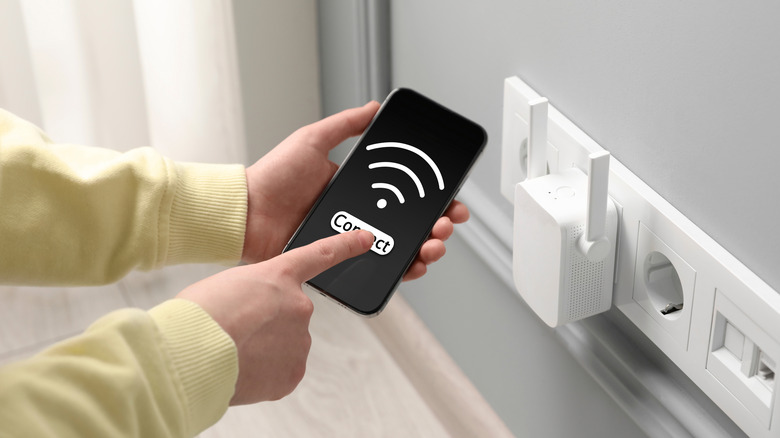
Ultimately, the choice depends on your specific needs and budget. Using an Android phone as an extender is cost-free and can serve as a temporary or supplementary fix for specific areas. However, for better performance and coverage, investing in a dedicated Wi-Fi extender, mesh node, or a new router is advisable. This method is great for immediate relief if you have an unused device on hand. You might also consider USB tethering for a stable connection, which provides good results with minimal effort and zero cost. Just remember, this is a practical, temporary solution rather than a comprehensive fix for all your network needs.