Mastering Claude’s Reflect Dashboard: Your Guide to Recognizing When It’s Time to Unplug and Recharge in Nature

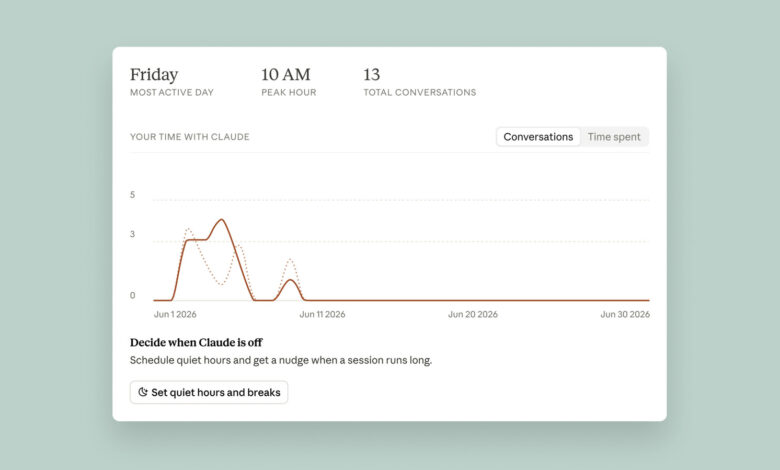
To begin, access the dashboard to create your initial reflect report by following these steps:
-
Launch your web browser and go to claude.ai.
-
Click on your profile name and photo.
-
Select Settings.
-
Choose Reflect.
Claude will take a few moments to compile your report. By default, the chatbot summarizes your activity for the past month, but you also have the option to review your usage for the last three, six, or twelve months by adjusting the toggle at the top.
Once your report is generated, you’ll see a brief overview of your interactions with Claude. As of now, specific details on the total time spent using the service are unavailable; clicking the Time spent tab will indicate that it’s “coming soon.” According to Ryn Linthicum, who oversees wellbeing policy at Anthropic, this limitation is due to the absence of a tracking system for time spent when the Reflect dashboard was developed.
Nevertheless, the dashboard offers two distinct methods for managing your time on Claude. Firstly, you can establish break reminders, which the chatbot will issue as a prompt after you’ve been using it for a predetermined duration. You can decide how long you want to use Claude before a break reminder, with options available for every 15, 30, or 45 minutes, or even a few hours. Additionally, there is an option to set quiet hours, preventing usage during specific times throughout the day. You can customize these hours for each day of the week. For instance, on Monday, you might restrict access from 5 PM to 8 PM, but allow use on Saturday from noon to 4 PM.
Ultimately, like any screen time management tool, it’s your responsibility to adhere to the usage limits you’ve established, as you can easily ignore all reminders from Claude. If you wish to adjust your break settings, these can be modified in the Time and focus section of the settings menu.
Another noteworthy feature on the dashboard is the AI fluency section, located towards the bottom of the interface. Here, Claude generates suggestions aimed at enhancing your chatbot experience. For example, if it notices that you often need to reiterate similar contexts when formulating questions or requests, it may suggest utilizing its Projects feature to consolidate your prompts, making your interactions more efficient. In my experience, this tool has significantly improved my usage of Claude, so I encourage you to experiment with some of the suggestions offered.