Android Auto stands out as a user-friendly platform, particularly when used wirelessly. You can simply enter your vehicle, connect your smartphone, and hit the road without delay. Yet, managing settings, adjusting controls, selecting playlists, and other distractions can make it challenging to start your journey smoothly. To address this, I created a convenient shortcut that simplifies everything with a single tap.
If you enjoy using Android Auto, you might be interested to know that you can enhance your driving experience by establishing automated routines. For instance, when I get into my truck and start the engine, I just tap an icon and I’m ready to go. These automations are often more efficient than relying on voice commands. Here’s how to set them up.
Streamline Your Experience with Routines
Setting Up Routines in Android Auto
We will leverage Google Assistant routines within Android Auto. Once configured, you can avoid the hassle of managing controls, launching apps, or fiddling with settings. Instead, a single tap will trigger everything automatically.
No longer will you need to say “Hey Google, navigate to work,” followed by another voice command to play music or touch the screen multiple times. Upon entering the car, you only need to say “I’m driving” or tap the “I’m Driving” shortcut. Google Assistant will then handle everything from setting your phone to do-not-disturb mode to starting your navigation app, bypassing traffic, launching your favorite podcast, switching to dark mode, or any other actions you set up.
You can even configure a routine that sends a quick message to your partner letting them know you’re off to work and wishing them a good day.
Image description
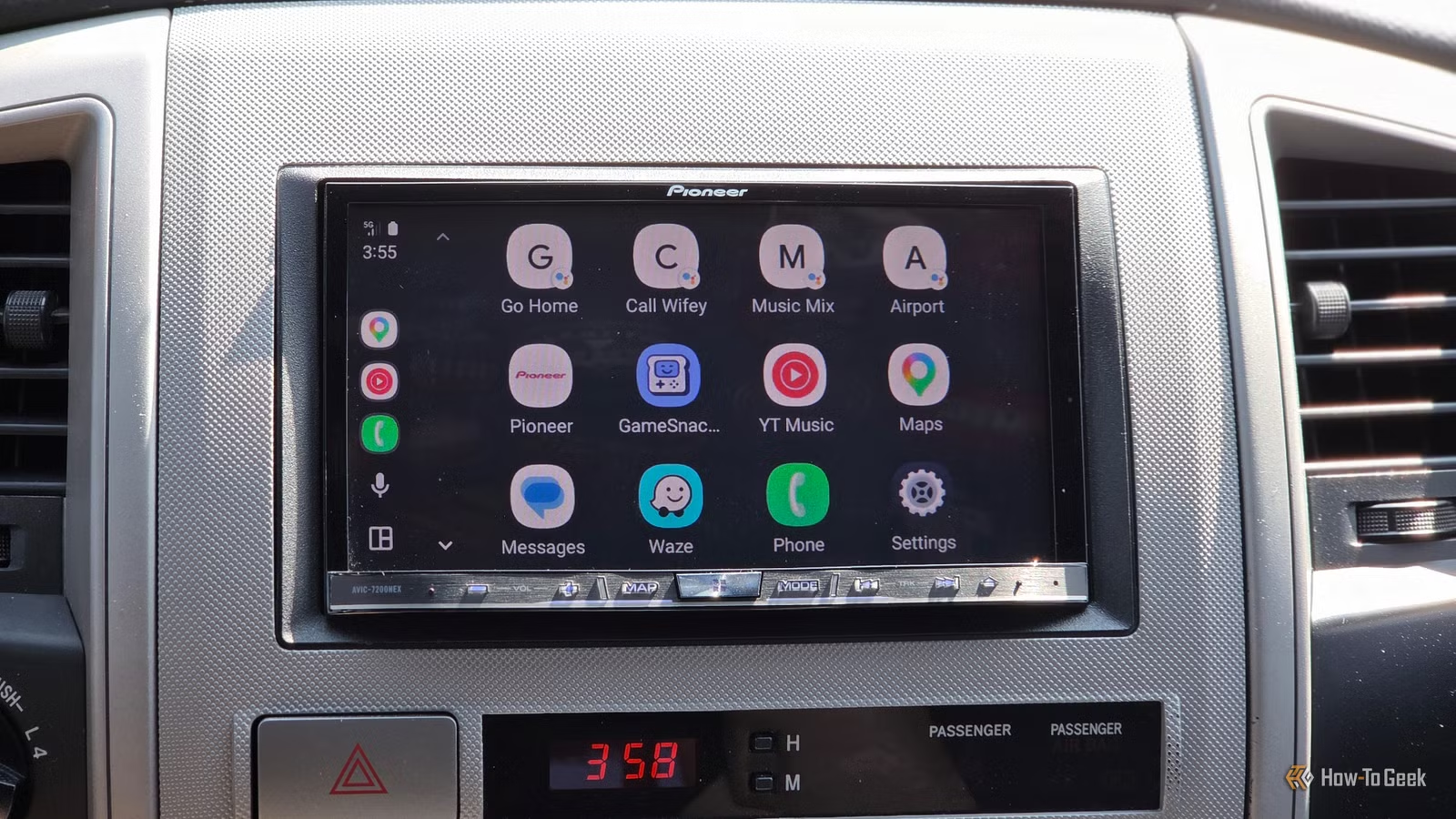
The icons shown above represent different routines available within Android Auto, and they’re invaluable. Here’s how you can set it up yourself.
Begin inside the Google Home app instead of the Android Auto app. Open Google Home, tap on the Automations tab at the bottom right, then hit the + Create button and choose Automations.
Within the Automations section, you’ll see three primary categories: Starters, Conditions, and Actions. This is where the real customization occurs.
Starters determine how your routine will be activated, whether through voice commands, location, or time triggers, like leaving for work at 8:00 AM. While this may not be crucial when integrating as a shortcut on your display, it can automate the process.
Conditions ensure that your automation only activates when you want, although this may be less relevant for a one-tap shortcut.
The Actions section allows you to get creative. You can program an action such as navigating to your workplace, turning on do-not-disturb, or even closing the garage door if you’re integrated with smart home devices. Once satisfied, tap Save automation. Then, we’ll add this shortcut to Android Auto.
Before you proceed with adding these routines to Android Auto, consider creating additional ones. For example, I have an “Arriving Home” routine that opens my garage, turns on my home lights, adjusts the thermostat, and disables do-not-disturb. Another one, triggered when I reach my daycare, automatically starts a playlist, texts my spouse that I’m heading home, and navigates while avoiding traffic.
Add a One-Tap Routine to Your Android Auto Home Screen
It’s More Beneficial Than You Might Think
Image description
Once you’ve created a few Google Assistant routines, go to Settings on your phone and select Android Auto. Look for the Customize Launcher option, tap Add a shortcut > Assistant actions >, and choose the routine you just set up.
Your “Driving” routine will now appear on your Android Auto display, ready for use. With one tap, all settings, controls, and apps will launch as per your configuration. For example, my “Driving” button switches Android Auto to dark mode, sets my phone to do-not-disturb (except for important contacts), initiates Waze for navigation, and plays my favorite playlist on YouTube Music.
Additionally, I have a separate routine for airport trips that performs similarly, while minimizing notifications and initiating directions right away. The best part is that you can customize each routine to fit your preferences and access them with a single tap.
Enhancing Your Android Auto Experience
Android Auto offers a feature called “Assistant actions” in Customize Launcher, but it doesn’t have the same level of sophistication as Google routines.
For maximum control and flexibility, or to create shortcuts for passengers that can be activated directly from the vehicle’s head unit, develop routines and add them as shortcuts on your display for an improved Android Auto experience.