How This Easy Android Auto Trick Keeps My Battery Lasting Longer on Every Trip

Android Auto enhances the driving experience by allowing you to use your phone with greater ease and safety; however, it tends to drain battery life significantly. This issue is more pronounced with wireless connections, but a wired connection can also lead to noticeable battery depletion. Fortunately, there are simple ways to mitigate this problem.
What Causes High Battery Drain with Android Auto?
A Lot is Going On
At its core, Android Auto is designed to project a simplified interface from your Android device onto your vehicle’s display. This projection can occur through either a wired or wireless connection, and each method impacts battery usage differently.
With a wired connection, your phone transmits audio, video, and controls directly through a USB cable, similar to how an HDMI cable works with a TV. Conversely, a wireless setup begins with Bluetooth for initial pairing and then uses a private 5GHz Wi-Fi network to handle the heavier data transmission. It’s similar to streaming content from your phone to a TV.
The wired connection typically places less strain on your phone’s battery since most processing is done locally. However, even then, delivering high-definition video to your car’s screen requires power. In contrast, maintaining a continuous Bluetooth connection alongside a private Wi-Fi network for wirelessly transmitting high-definition video is even more energy-consuming.
Efficient Solutions to Combat Battery Drain
You’re Not Meant to Be Using Your Phone While Driving…
The Android operating system provides built-in features for enhancing battery longevity, including “Standard” and “Extreme” battery saver modes. These options limit background data, animations, and unneeded applications.
You can activate these modes to minimize battery drainage when using Android Auto, but toggling them manually each time can be tedious. Fortunately, many devices offer automation capabilities, or you can utilize a simple third-party app to achieve this.
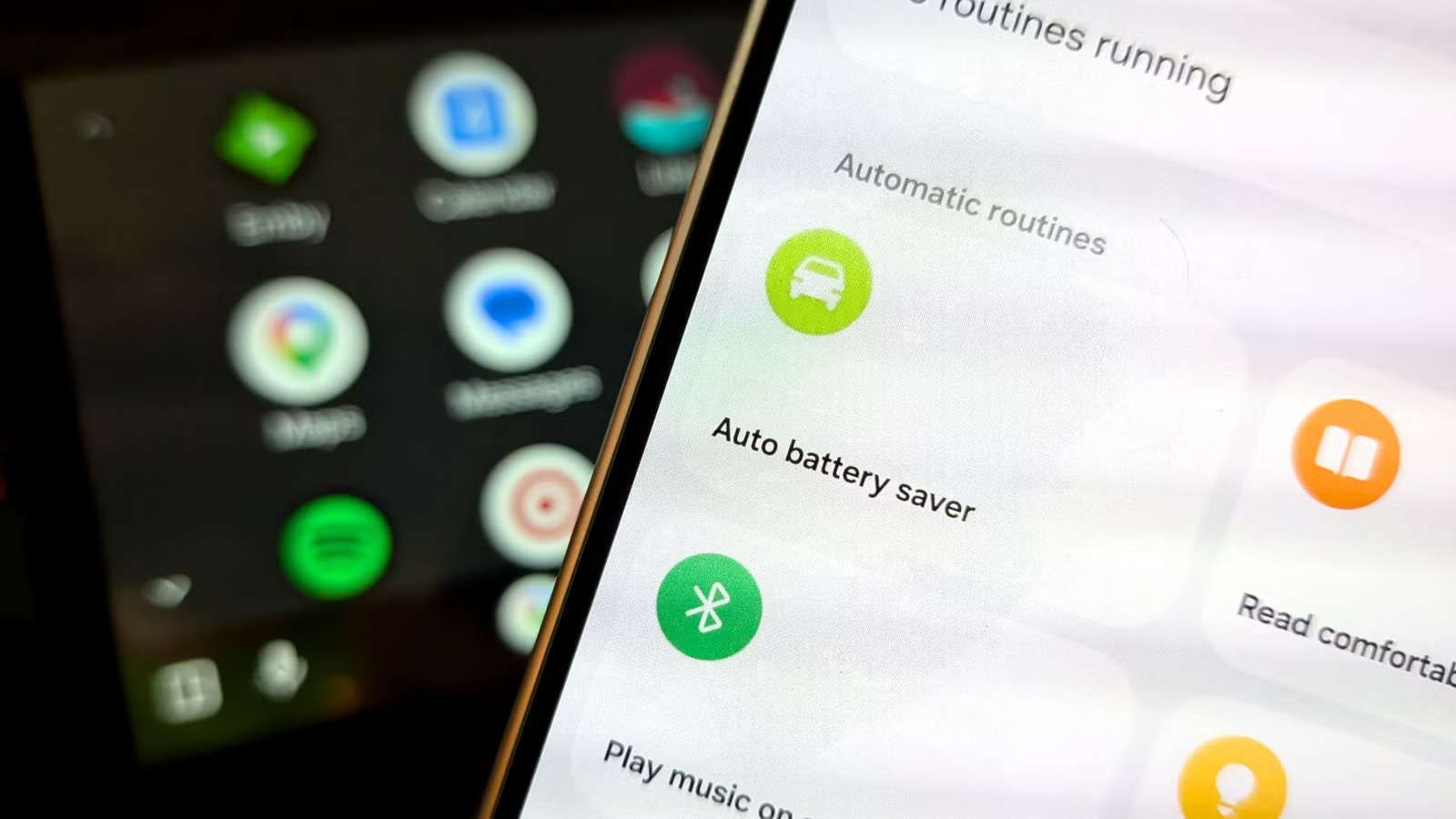
Samsung Galaxy users can streamline this process through the “Modes & Routines” feature. By selecting the “+” icon, you can set a trigger like “Driving,” which detects when you’re behind the wheel, or opt for “Bluetooth device” to designate your vehicle.
Next, choose the “Then” action and navigate to Battery > Power saving, where I recommend using “Standard” mode. Lastly, create a name for your routine and select an icon. This setup will automatically enable Power Saving mode when you start driving and disable it once you’re done.
For those using Google Pixel phones or devices without built-in automation options, an app called “Automate” can be beneficial. This app lets users create automated processes using a visual flow system rather than traditional conditional statements, making it user-friendly.
In this automation, employ two blocks: one for detecting Bluetooth connection and another for setting the power saving mode. Select your vehicle from the Bluetooth block and connect it to enable power saving mode while disconnecting will disable it.
Ensure to visit your Android phone’s battery saver settings to exclude any essential apps you frequently use while on the road from the limits applied by battery saving modes.
Simple Solutions are More Effective
We have previously discussed various tips for conserving battery life while using Android Auto, especially with wireless configurations. While those methods are useful, they often involve additional manual adjustments. The automation option I’ve mentioned simplifies the process, as we shouldn’t be using our phones while driving anyway, making limiting their activity a sensible step. Although it might not eliminate all power drain, it will certainly help reduce it.