Initially, my experience with Excel’s Copilot left much to be desired, prompting me to revert to Microsoft 365 Classic. I found it more of an intriguing addition rather than a true enhancement to my productivity. However, after a year and a half, I decided to reassess its features to see if it could manage tasks beyond the basics. The outcomes of my tests may have just swayed me to resubscribe.
I Discontinued Copilot Due to Added Workload
Usefulness was Limited, Workflows Still Felt Manual
When I first delved into Copilot in Excel, my expectations were high for a productivity enhancement. Yet, I often found myself clarifying details about my workbook, rectifying misinterpretations, and verifying if the suggestions were aligned with my goals.
While it indeed provided formulas, explanations, and ideas, it struggled to grasp the overarching purpose of the spreadsheets without extensive input. Initial impressive responses often required more scrutiny than anticipated. A formula might function well in isolation but fail to integrate seamlessly into the overall workbook, or a suggestion could inadvertently simplify the layout while omitting crucial components.
Persisting in my exploration of tools, I decided to upgrade back to Microsoft 365 Copilot to see if there had been any advancements.
Copilot Designed an Impressive Dashboard
It Managed the Structure but Struggled with Design Choices
To gauge Copilot’s capabilities, I began with a sales table comprising ten columns and tasked it with developing a professional dashboard featuring KPI cards, PivotCharts, slicers, conditional formatting, and a management-friendly layout.
The outcome exceeded my expectations. Copilot crafted a dashboard sheet with KPI cards and charts representing various data insights, all connected to the original sales table, along with slicers for visual data filtering.
The standout feature was the hidden PivotData worksheet it created, which included supporting PivotTables sourced from the original table. This meant the dashboard was constructed using proper Excel frameworks instead of static numbers. Overall, the calculations were correct, the KPI cards utilized dynamic formulas, and Copilot ensured a consistent color scheme throughout the dashboard.
I noticed small conveniences as well. Copilot automatically assigned meaningful names to tables and added titles when inserting charts. These details, while minor, significantly reduced the cleanup I typically have to do after manually constructing elements in Excel.
Nonetheless, the result wasn’t flawless. The charts varied in size, not all slicers were connected to their respective charts, and it placed frozen panes awkwardly, disrupting the layout. The functionality was there, but I would still need to refine it prior to sharing. Additionally, it altered my source data—a request I hadn’t made. Overall, while it could generate a functional dashboard, it did not align perfectly with my design preferences.
Another drawback was that Copilot sometimes did not retain the chat history within the workbook. Although the resultant formulas, charts, and PivotTables remained intact, the dialogue that led to their creation occasionally did not. This was an unexpected limitation that I would have to navigate.
Copilot Formulated a Complex Equation I Would Retain
It Created a LET Formula, Then Enhanced its Auditability
In my next test, I asked Copilot to calculate performance bonuses using a new column, considering factors like employee ratings, tenure, department, and target achievements.
I provided a vague prompt, consisting solely of the calculation criteria, curious about how it would handle a complex calculation without explicit issuing. I specifically aimed to see if it would revert to creating a nested IF formula, which I typically avoid in Excel. Instead, it opted for the LET function, breaking the calculation into distinct variables including sales, targets, bonus rates, rating eligibility, and caps. Although lengthy, the formula remained easy to interpret and manage.
Sensing that LET may not be available in older Excel versions, I requested an alternate version that utilized helper columns instead. Copilot generated a separate calculation table, detailing the logic step-by-step, and importantly, the final bonus results matched those of the LET version precisely. An additional advantage was that the intermediary steps could be leveraged for other calculations, while they would have otherwise remained obscured within the LET formula.
This test marked a turning point; Copilot provided a working formula and assisted me in crafting various iterations based on workbook sharing and maintenance needs.
Copilot Transformed a Data Table into Reports
Setup Work Was Streamlined, Yet Finishing Touches Needed Adjustment
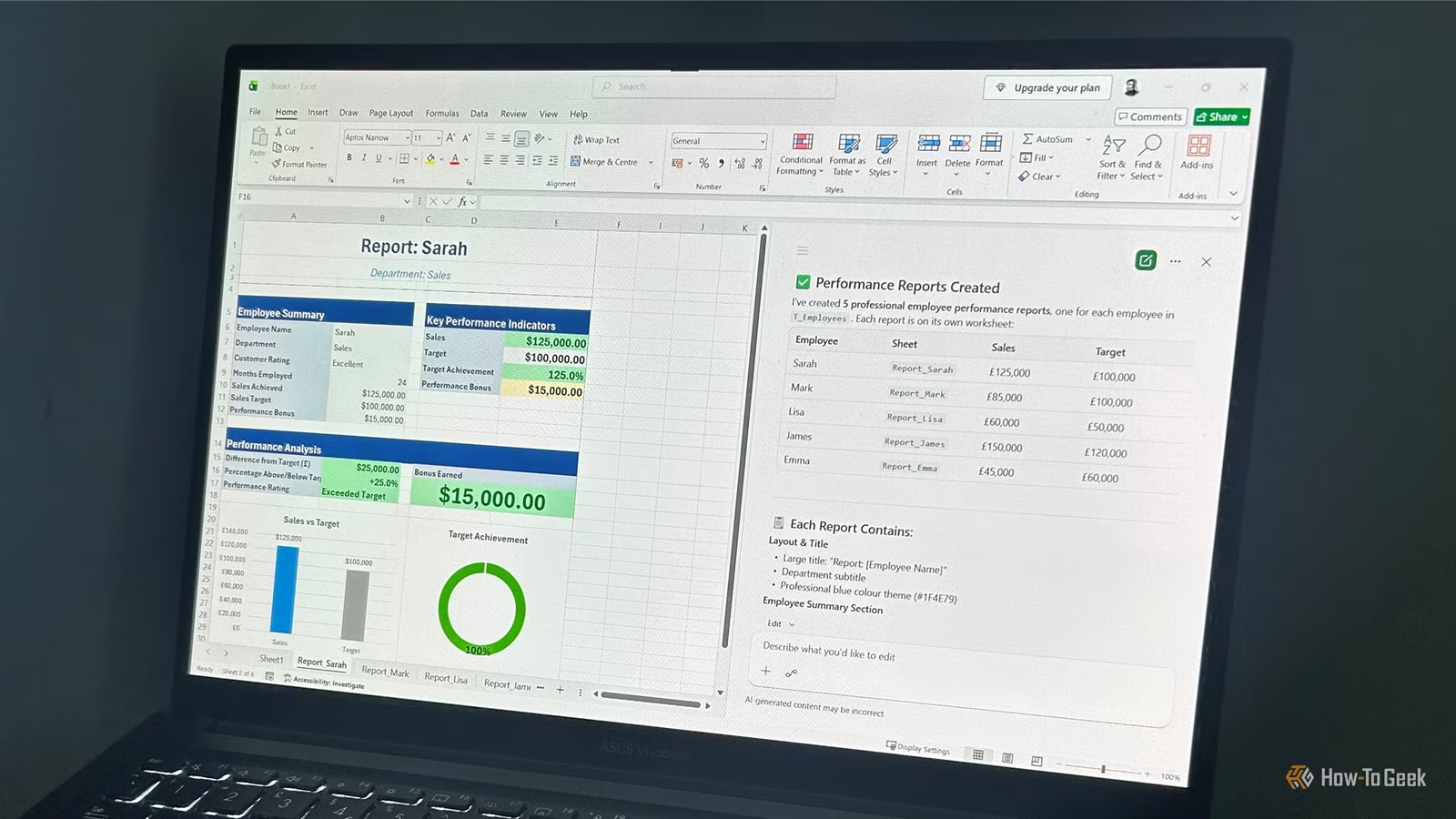
My final experiment built upon the previous one by asking Copilot to develop individual performance reports for each employee. Each report required its own worksheet, KPI cards, charts, calculations, conditional formatting, and a design conducive to PDF exports.
Once again, Copilot impressed with its output. It generated separate report sheets, linked calculations to the source table, computed performance ratings, and produced comparisons of sales against targets, incorporating charts to display performance and bonus distributions. Plus, the printed PDF versions efficiently fitted onto a single page.
It also efficiently managed several time-consuming tasks typically associated with report preparation, including formatting, print settings adjustments, hidden gridlines, and color consistency.
A particularly valuable feature for repetitive tasks is the opportunity to create a .Rules worksheet. This acts as an instruction guide linked to the workbook. For instance, I could direct Copilot to maintain consistent currency formats, employ bold headers, adhere to naming protocols, or prefer newer functions where applicable. These preferences travel with the workbook, ensuring I don’t need to reiterate requirements each time I ask Copilot to make adjustments.
Most issues encountered were cosmetic. Some spacing adjustments were necessary, and certain chart labels overlapped, indicating refinements were still needed before sharing. There was also some currency formatting that required tweaking. Ultimately, Copilot alleviated a substantial amount of repetitive setup work, resulting in a product in need of enhancement rather than starting from zero.
Copilot Has Won Another Opportunity, Yet Faces Additional Challenges
These evaluations have shifted my perception of Copilot in Excel, though I hesitate to label it as indispensable just yet. It has definitely saved time on intricate spreadsheet tasks and surpassed my expectations in translating ideas into functional files. However, I am not inclined to pay extra simply for a more proficient Excel assistant. The true test will be whether it can tackle more demanding tasks like VBA automation, thorough data cleansing, repeatable reporting workflows, and integration with other Microsoft 365 applications such as Word, PowerPoint, and Outlook.
For the time being, Copilot has transformed from a service I discontinued to one I am genuinely eager to continue exploring, representing a significant shift from my perspective 18 months ago.