Essential, Overlooked Security Settings in Windows 11 You Need to Activate Immediately

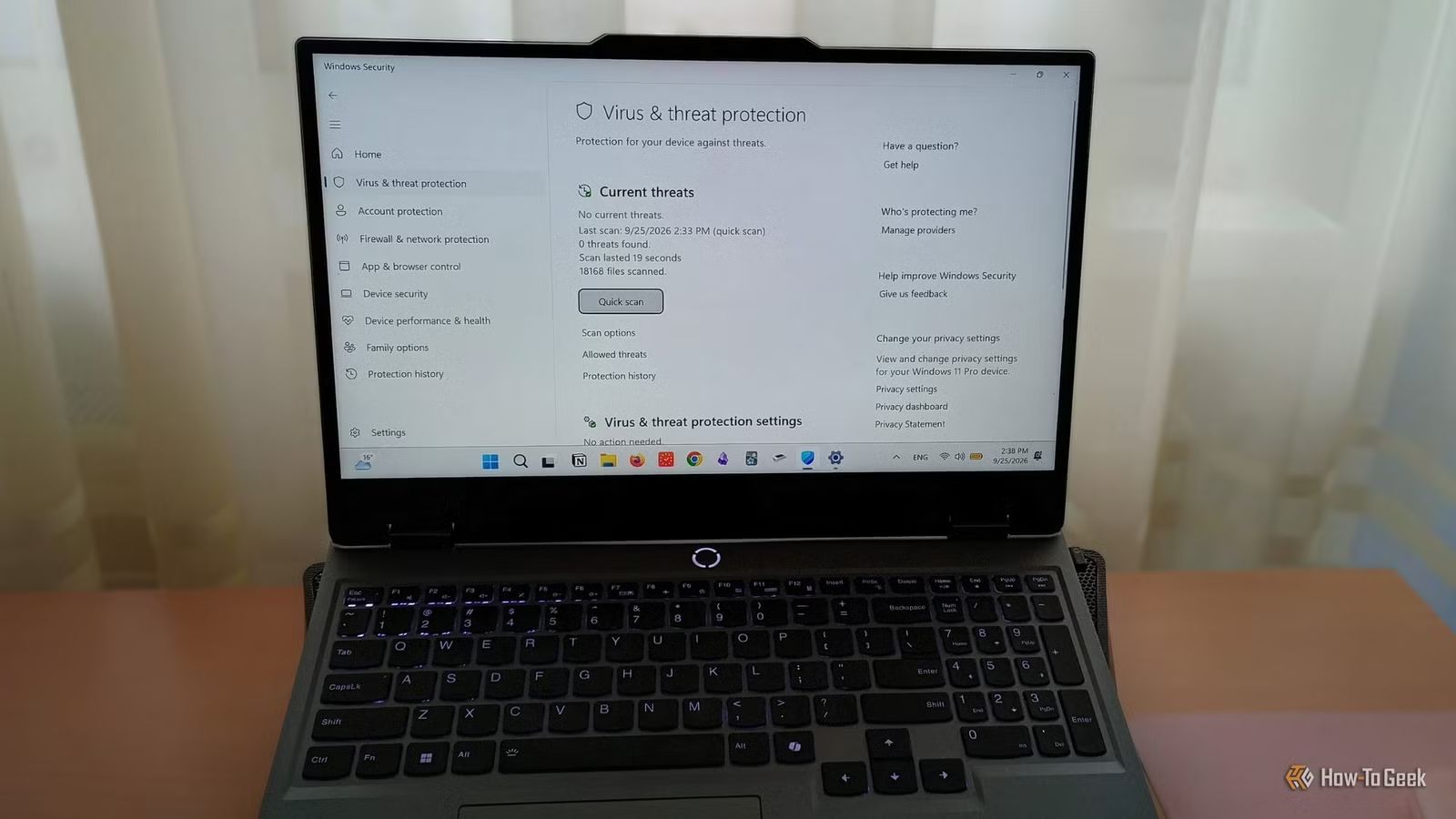
As a typical Windows user, I depend on the system’s native security features to protect my device. While I’m familiar with Windows Security, I primarily used the default settings until I came across a Microsoft report about a recent malware threat. This malware pretends to be popular applications and aims to compromise Windows security by stealthily turning off its protective features.
This prompted me to activate Tamper Protection and delve into additional helpful Windows 11 security configurations that are often overlooked. I’ll highlight the ones that I find particularly noteworthy. All the suggestions are straightforward to implement directly in the settings, without any complicated Registry modifications.
Tamper Protection
Prevent malware from altering your security settings
What happens when sophisticated malware attempts to disable your security features? As previously mentioned, some malware may not immediately take control of your device but can progressively disable the security protocols keeping it in check. Once it gains unrestricted access, it can wreak havoc, including altering files and stealing data.
This situation sounds alarming, but you can avert it by enabling Tamper Protection. This feature, which can be easily activated, prevents programs on your PC from modifying or disabling security settings, even if they have administrative rights. In addition to blocking routine setting changes, it also stops suspicious Registry alterations. To activate it, navigate to Settings > Privacy & security > Windows Security > Virus & threat protection > Manage settings and toggle Tamper Protection on.
Controlled Folder Access
If you store sensitive data, such as medical records or financial documents, enabling Controlled Folder Access is highly advisable.
A ransomware attack could lock you out of essential files, photos, or work documents. A survey conducted by the Pew Research Center in 2025 found that 10% of participants reported being locked out of their files or computers for ransom.
Attackers often deploy seemingly innocuous applications to restrict access to your files. Unfortunately, you may remain unaware of this until it’s too late.
Controlled Folder Access prevents applications on your computer from altering files in designated protected folders. Activating it is simple: go to Settings > Privacy & security > Windows Security > Virus & threat protection > Manage ransomware protection and toggle Controlled folder access on.
After enabling it, you can choose which folders to protect and whitelist any applications you need to allow access. Following this, any untrusted application attempting to modify a file within your protected folder will be blocked, and you will receive a notification.
Smart App Control
Block suspicious apps before they execute

As someone who enjoys testing new applications, I find any feature that prevents harmful software from executing quite beneficial. Smart App Control serves this purpose but has a more restrictive approach than User Account Control, which prompts for permission to run applications.
This feature employs a combination of cloud-based application intelligence and digital signature verification to determine if an application is safe to run. If an app is flagged as malicious or fails to meet Microsoft’s trust criteria, it will be blocked.
Note that you cannot create exceptions for Smart App Control. Power users or developers attempting to run their applications may find this feature obstructive. For app developers, it’s advisable to sign your apps with a valid certificate; otherwise, you may need to turn off Smart App Control entirely.
To enable Smart App Control, visit Settings > Windows Security > App & Browser Control > Smart App Control > Smart App Control Settings and toggle it on. If it seems overly stringent, you can alternatively set Windows to display file extensions, thus avoiding the opening of suspicious files.
Dynamic Lock
Secure your computer when leaving it unattended
Working in a café, library, or any public space can be refreshing; however, if you often leave your laptop unattended, consider using Dynamic Lock for additional privacy.
This feature does require pairing with your phone, but it is worth the effort. Once set up, your PC detects when your phone is out of range. So, if you step away with your phone still in your pocket, you won’t need to manually lock your device each time.
While it might be an exaggeration to think that everyone is watching you, the risk of data theft is very real. Dynamic Lock adds a convenient layer of security that’s easy to set up.
The steps for setting up Dynamic Lock are as follows:
- Go to Settings.
- Select Bluetooth & Devices, then Add a Device.
- Find and pair your phone.
- Return to the main Settings menu.
- Navigate to Accounts > Sign-in options.
- Scroll down to Dynamic lock.
- Check the box next to Allow Windows to automatically lock your device when you’re away.
Beyond just malware protection
Windows Security in Windows 11 offers more features than mere malware detection. It combats sophisticated threats like ransomware and provides options for specific scenarios, such as locking your PC when you leave it unattended. The functionality is impressive and grants users the freedom to customize it according to their needs. This flexibility is likely why many users choose to forgo third-party antivirus solutions in favor of the built-in features.