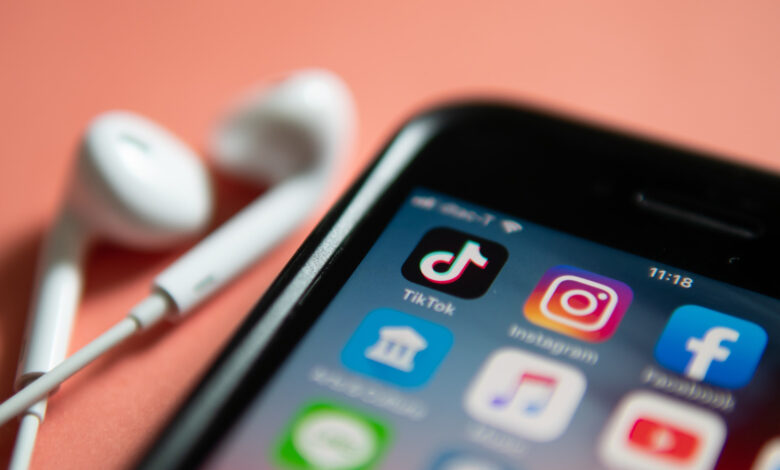
While your iPhone’s audio quality is impressive initially, making a few adjustments can elevate your listening experience significantly.
We may receive a commission on purchases made from links.
Audio quality is essential when using your iPhone for music, videos, or calls. Whether you’re relying on the speaker or headphones, having clear audio enhances your enjoyment.
Fortunately, there are numerous ways to enhance your iPhone’s audio, extending beyond just adjusting settings for AirPods. The Settings app, alongside specific app configurations, provides various features aimed at improving sound quality, such as noise cancellation, equalizers, and lossless audio options.
It’s crucial to pair the right hardware with your audio settings; software adjustments can’t make a lower-quality speaker perform like a premium one. However, even high-end devices can benefit from tweaking settings, suggesting that both hardware and software should be considered for optimal sound.
Enhancing settings in Apple Music and Spotify

Popular streaming services have options to modify the audio quality on your device. For Apple Music, navigate to Settings > Apps > Music, select Audio Quality, and configure your preferred settings for mobile data, Wi-Fi, and downloads. Choosing High Quality offers a solid compromise between sound quality and data use; only opt for Lossless if you have high-quality wired headphones.
Spotify users have similar options available under their profile by going to Settings and privacy > Media quality. Free users are restricted to Low, Normal, and High options, while Premium members can select Very High or Lossless. For streaming via Wi-Fi, Very High usually suffices.
After selecting high-quality streaming, check the equalization (EQ) settings to fine-tune specific frequencies. In Apple Music, EQ options can be accessed through Settings > Apps > Music. Choose EQ and pick a preset to enhance your listening experience. Unfortunately, custom EQ settings are not available in Apple Music. The Sound Check feature normalizes volume, but opinions vary on its effectiveness, so try it both ways to decide what you prefer.
For Spotify, the EQ settings are under your profile icon in Settings and privacy > Playback. Enable the Equalizer and select a preset, or manually adjust frequencies to best suit your preferences. At the bottom of the page, you’ll find the Volume normalization slider; for optimal quality, avoid the Loud setting.
Exploring lossless audio on iPhone
The option for Lossless audio is especially noteworthy. Both Apple Music and Spotify for Premium subscribers allow access to this feature, retaining all original audio data for a sound quality comparable to CDs. Within the earlier discussed Quality menus, you can activate Lossless for Wi-Fi, mobile data, and downloads, though be aware that this significantly increases data usage and storage requirements.
Even the finest AirPods won’t deliver lossless audio because Bluetooth doesn’t support it. However, the latest AirPods models and specific peripherals can achieve wireless lossless audio when used with compatible devices. For the best audio quality, investing in a high-quality DAC (digital-to-analog converter) is essential. Affordable options like the FiiO KA11 can provide excellent performance for most users. Additionally, Apple Music offers Hi-Res Lossless for studio-quality audio, but unless you have top-tier equipment, this feature may be excessive.
Using accessibility settings and enhancing speaker quality
Your iPhone’s accessibility settings offer additional sound quality adjustments. Access them via Settings > Accessibility > Audio & Visual. Here, you can activate Phone Noise Cancellation (available on iPhone 12 and earlier) to cut down on background noise. The Balance slider lets you equalize audio levels between the left and right channels.
If you’re using supported Apple headphones, explore the Headphone Accommodations settings, where you can modify Frequencies for enhanced sound or adjust Soft sounds to amplify quieter audio, making conversations clearer. Experiment with these settings while wearing headphones to find what you prefer.
When using the iPhone’s built-in speakers, aside from fine-tuning settings for your preferences, ensure that the speaker grilles are clean, which can improve output quality. Use tools like cleaning putty or air blowers to keep them free from blockage.