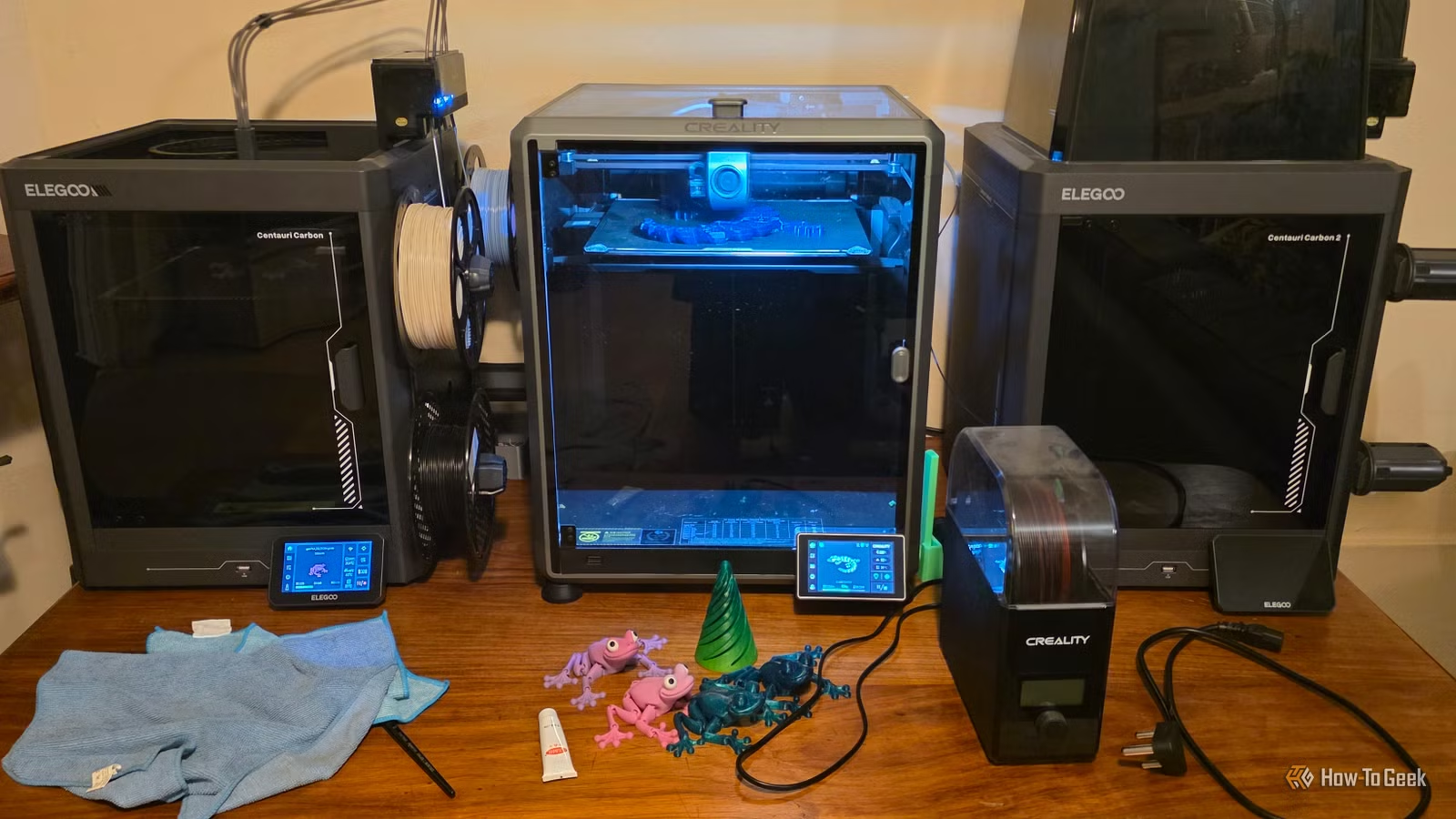
If you own a 3D printer but aren’t satisfied with the quality of your prints, there’s hope! Tuning your printer used to mean hunting down and downloading various models, but with OrcaSlicer, that process is simplified. In this guide, I’ll show you how to adjust your printer settings for exceptional print quality every time.
Why Opt for OrcaSlicer?
Many slicer programs are available, and some printers even come with their own. However, not every 3D printer accepts third-party slicers. For example, only recent models from FlashForge have started to support OrcaSlicer. As long as your printer can work with these external tools, you’re set!
I initially used PrusaSlicer for several years, believing it was unmatched. My perspective changed when a friend introduced me to OrcaSlicer, a tool based on both PrusaSlicer and Bambu Studio, packed with features I hadn’t encountered before. While it may look like Prusa or Bambu at first glance, the standout feature is its built-in tuning capabilities. OrcaSlicer includes several calibration prints, eliminating the need to search through sites like Printables or Thingiverse for tuning options. Now, tuning your printer doesn’t have to consume hours of your time.
Why Calibration Matters
You might be questioning the importance of calibrating your 3D printer. Although it’s not mandatory, doing so greatly enhances the quality of your prints. While you can print with default settings and achieve acceptable results, proper calibration leads to smoother prints with superior surface finishes and accuracy.

In most cases, you only need to calibrate your printer once for each type of filament, not for every color change. I’ve found success in using the same settings across different colors of the same filament type (like PETG or PLA).
Calibration Options in OrcaSlicer
OrcaSlicer provides an excellent guide for its calibration methods, which I recommend checking out. Here, I’ll share the settings I personally use and what you can expect from each calibration aspect.
Temperature Tower
The temperature tower is a crucial initial print as it helps identify the optimal temperature for your filament. The right temperature can significantly impact print quality.
After printing the tower, choose the temperature that yields the best results to your eye. Ideally, you should run this test whenever you change the filament color or type. Personally, I settle for a decent temperature for PLA and PETG without frequent re-testing, and it’s worked out well for me.
Flow Rate Calibration
This is where extensive calibration begins. While temperature towers are common, flow rate adjustments often go overlooked.
Flow rate impacts the quality of your top surfaces, and you want to avoid over or under-extrusion. Start by testing a flow rate range that varies from zero in the middle to +/- 20. After printing, examine the top layers to determine the smoothest, then apply the formula from Orca’s Wiki to adjust your new flow ratio. Once you complete stage two, your flow rate will be finely tuned for impressive finishing surfaces.
Pressure Advance Tuning
Not every printer includes pressure advance functionality, but many new models do. For older Marlin-based printers, some firmware updates may be necessary.
I usually don’t tweak the pressure advance feature on my Bambu Labs A1 Mini, but it was essential for my older Ender 3 V2. Options for tuning pressure advance include the line method, which I prefer. It involves creating a continuous line from start to finish, which helps achieve consistent line quality during rapid direction changes.
Retraction and Tolerance
I seldom conduct retraction or tolerance tests, except occasionally to troubleshoot excessive stringing. Tolerance adjustments are used for creating friction-fit parts and perfect hinges, but since I don’t often require them, I generally skip these tests.
Orca provides comprehensive guidance on performing these tests in their wiki if you’re interested in diving deeper into either method.
Max Flow Rate Testing
Max flow rate differs from the flow rate discussed earlier. This refers to the volumetric flow your nozzle can handle. A printer may be capable of moving at high speeds, but if the nozzle can’t melt the filament quickly enough, quality will suffer.
Testing max flow rate involves printing a single-wall tower at varying speeds to determine the maximum speed before structural failure. This will give you insights into your printer’s actual speed capabilities. If you discover your printer isn’t reaching your desired speeds, consider upgrading to higher-wattage nozzles for improved melting efficiency.
You’re Now Prepared for Improved Prints!
After completing the calibration processes outlined, your printer should be more than capable of handling challenging prints. Now it’s time to put it to the test!