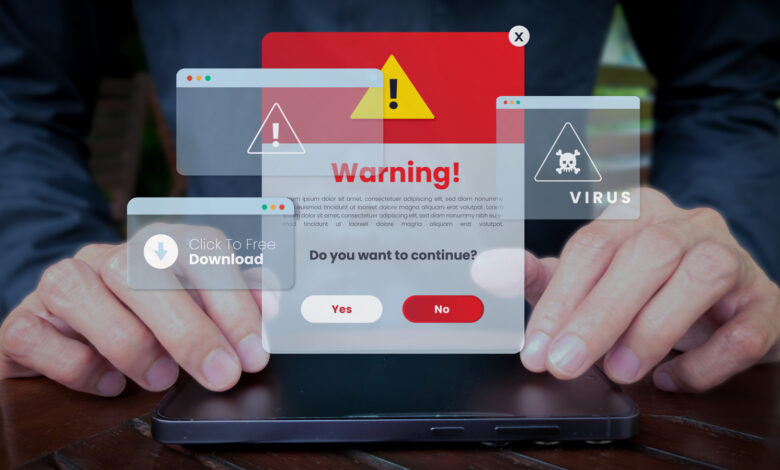
Beware of fake Microsoft alerts that attempt to install real malware on your device.
While browsing online, you may suddenly encounter a distressing pop-up claiming your system is infected with a virus. Fortunately, these alerts are almost always false alarms, usually triggered by compromised websites aiming to create panic. However, if unwary users respond to these warnings, they may inadvertently download harmful software.
Cybersecurity experts refer to these manipulative tactics as “scareware,” aimed at inciting fear. A recent report indicates that a specific browser-based scareware variant named CypherLoc has targeted over 2.8 million individuals since early 2026.
The primary goal of these scams is to either exploit your computer or extort money from you. Victims are often lured into calling fake tech support numbers, downloading malicious anti-malware software, or providing sensitive payment information. Some deceptive pop-ups masquerade as legitimate security notifications, with one scam reported by the FTC involving faux CAPTCHA prompts to install malicious code.
While these alerts can be alarming, they are manageable if you recognize their origins and understand how to dismiss them.
Why am I receiving virus notifications?
Scam pop-ups typically feature urgent language like “Critical Threat Detected!” and often employ bright colors and attention-grabbing sounds to enhance their alarmist effect. Some may even play a robotic voice asserting a “critical Microsoft security alert,” displaying your IP address to lend credibility.
These scams may incorporate the names of genuine security software providers, further increasing the likelihood that you will fall for the ruse, often using titles like McAfee Security Software or Windows Defender. But what leads to these unwanted notifications?
Fake virus alerts can emerge from either intrusive browser pop-ups or notifications from your computer’s system. Typically, these issues arise from clicking on unsafe links or visiting harmful sites, although dubious ads can also appear on reputable pages. Cybercriminals exploit ad spaces so that clicking a compromised ad redirects you to a fraudulent warning page. Such alerts often commandeer your screen, making it appear as if you’re trapped by hiding your mouse cursor.
Alternatively, smaller notifications may appear if you have inadvertently allowed a website permission to send alerts. When you visit a site that requests notification permissions—legitimate or not—you receive a prompt to click “Allow.” This permission is frequently obtained under false premises, often with messages like “Click Allow to read more.” Subsequently, the site can push notifications even when you’re not actively browsing it.
How to eliminate scareware pop-ups?
If confronted with a full-screen pop-up claiming a virus, avoid interacting with it. These alerts tend to hijack the browser, complicating attempts to close them without inadvertently clicking dangerous links. The best course of action is to terminate the troublesome tab via your browser’s task manager, which can be accessed using the shortcut Shift + Escape for Chrome, Edge, and Firefox. Look for tabs labeled “Security Alert!” and close them using End Task or the X button. Pressing F11 exits full-screen mode.
If that fails, you might need to force-quit your browser entirely. Open the Task Manager with Ctrl + Shift + Esc, and navigate to the Processes tab. If necessary, you can also access Task Manager through Ctrl + Alt + Del. Sort active applications by clicking Name, then right-click your browser and select End Task. If your browser is set to restore the last session, do not opt to reopen closed tabs, as this will reload the scam page.
If the notifications continue, clear recent cookies and other site data from your browser (Ctrl + Shift + Del in Chrome and Edge). Check the list of websites permitted to send notifications, removing any unrecognized sites. In Chrome, go to Settings, then Privacy and security > Site settings > Notifications to manage allowed notifications. For maximum safety, you can set permissions to Don’t allow sites to send notifications.

Kari Paul for Engadget
Some browser extensions might also be the culprits behind these alerts. Click the puzzle piece icon in the upper-right corner of your browser, choose Manage extensions, and remove any unfamiliar or unused extensions. Restart your browser to apply these changes.
Additionally, junk applications on your computer might trigger these pop-ups. Press Win + I to open Settings, navigate to Apps > Installed apps, and uninstall anything that appears suspicious.
How to prevent malware infections in the future
Interestingly, when a device is genuinely infected, it typically does not display any flashy alerts. Regular scans are essential for detecting hidden malware quietly running on your device. Microsoft Defender offers built-in protection that is adequate for most users, but supplementary software such as Malwarebytes, which includes a free on-demand scanner, is an excellent backup resource.
Malwarebytes also features a browser extension named Browser Guard, which can enhance protection against malicious pop-ups and intrusive advertisements. Utilizing these tools, combined with your computer’s built-in defenses, can significantly bolster your online safety.