Because you likely don’t want your stereo blaring the moment you turn on your vehicle.
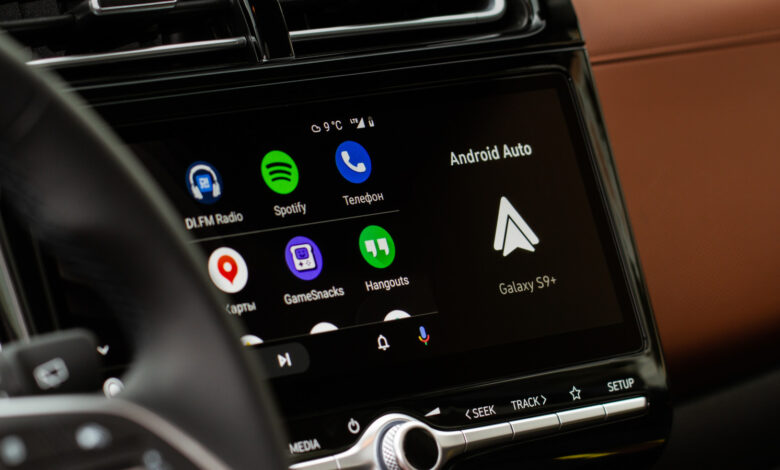
If you’ve experienced the jarring moment of unexpected music blaring when you start your car, you’re aware of the annoying autoplay feature in Android Auto. Upon connection—be it via USB or wirelessly—your last listened playlist, podcast, or audiobook resumes playback at the last volume setting. This can be quite startling during a morning drive and can also be inappropriate material if you’re driving kids to school.
Previously, addressing this issue required numerous workarounds and extra apps, making it a cumbersome experience. Fortunately, the solution now often boils down to simply toggling a setting.
How can I disable audio from auto-playing on Android Auto?
To tackle this, begin with the settings within Android Auto. Navigate to Settings > Connected devices > Android Auto and locate the Startup section. There, you will see an option for Start music automatically. If it’s challenging to find, searching for Android Auto within your settings may help. Disabling this option prevents Android Auto from automatically resuming playback when it connects to your car. For many drivers, this simple action solves the autoplay issue, as noted in discussions on service forums.
If this toggle doesn’t resolve the issue, it may stem from Bluetooth connections rather than Android Auto itself. Since Android Auto uses Bluetooth for call routing and the initial connection handshake, you might try removing your phone from the car’s Bluetooth memory and connecting via USB alone. This can sometimes diminish unwanted playback prompts, but the results can differ depending on the car, phone, and method of connection.
Why does Spotify keep automatically playing in my vehicle?
If you’ve turned off Start music automatically and Spotify continues to launch automatically, you’re not alone. Users have long reported similar experiences in various discussion forums since 2022, and the problem remains unresolved. Sometimes, the issue may not even lie with your vehicle, as any Bluetooth device paired to your phone, such as headphones or speakers, could influence autoplay behavior. As indicated by Spotify’s support team, how a Bluetooth device interacts with Spotify’s API can affect playback initiation.
This distinction is important, as Spotify cannot always stop a connected device from issuing a “play” command upon reconnection or power-on. Before blaming your phone or reinstalling the app, it’s wise to check if the autoplay occurs with just one Bluetooth device or if it changes with another. Keeping Spotify and your phone’s system updated may help avoid connection issues, though there’s no one-size-fits-all solution when the command comes from another Bluetooth device.
Due to the challenge of providing seamless connections across a wide array of hardware, a universal solution may not be forthcoming. While some users find relief through Android Auto’s settings, others gain no success, and for many, there is no consistent solution that works for their particular vehicle or device. If none of these alternatives work, you might consider removing Spotify from Android Auto, but this would mean losing access to Spotify via your car’s display.
In summary, start with the toggle for Start music automatically in Android Auto, as it resolves the issue for numerous drivers. If playback still occurs uninvited, explore the Bluetooth unpairing option before entirely removing the app from Android Auto. Given the unpredictable nature of Bluetooth across vehicle makes and models, anticipate some trial and error.