Creative Uses for the Apple Watch Ultra 4’s Action Button: A Guide to Unlocking Its Potential

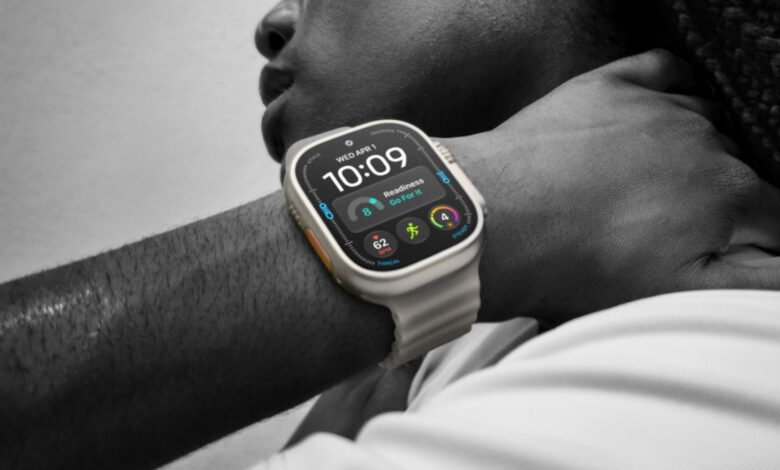
The small orange button packs a punch, offering more than just workout initiation.
The Apple Watch Ultra 4 is highly recommended for those who are passionate about activities like running, hiking, or weightlifting. Priced at $800, it comes with features that set it apart from traditional fitness watches. It’s more robust, has a longer battery life of up to 50 hours, and offers enhanced GPS capabilities that can be life-saving during outdoor adventures.
A unique feature often overlooked by Apple is the orange action button positioned next to the speaker. This button provides a quick shortcut to commands that other Apple Watch users must search for in menus or complications. Moreover, it can activate an emergency siren, useful in attracting attention during emergencies. It’s surprising that this simple feature isn’t available on other models.
The button allows you to assign a variety of commands, one at a time, making it extremely handy for daily tasks, especially with the new automation features introduced in watchOS 27 and iOS 27.
Versatile Actions Right on Your Wrist
A quick press of the action button reveals the Quick Switch menu, allowing you to easily change its single-tap function. This flexibility can be critical in various situations, particularly for outdoor activities.
Basic options include Flashlight, Voice Memo, Translate, and Recognize Music, all of which can be activated with a single press. The music recognition feature benefits from Apple’s Audio Intelligence, making it quicker than ever.
Other more involved options include Workout, Stopwatch, and Dive. For Stopwatch, tapping starts timing, while a second tap marks a lap, and both buttons together pause it. The Dive feature starts aquatic activities with a simple press and provides an app-specific function with a combined button press.
The Workout option can also directly launch specific activities, and during a session, pressing the button can complete secondary tasks like marking a segment or pausing the activity.
Unique functionalities like Waypoint and Backtrack assist with navigation. Waypoint sets visible markers in the Compass app, while Backtrack records and retraces paths, allowing you to easily navigate back to a starting point.
Key Features: Accessibility and Shortcuts
For some individuals, programming the button for Accessibility functions is essential. This can trigger features like AssistiveTouch and VoiceOver, and control nearby devices, which can also benefit those who are not impaired.
However, the most impactful function could be Shortcut, enabling you to activate any automation created in the Shortcuts app on your iPhone. Given the breadth of these automations, including smart home controls, the possibilities are virtually limitless. A simple press could, for instance, turn on lights, adjust climate settings, and start a news stream on your HomePod.
While the Shortcuts app can be complex, a significant update in iOS 27 simplifies shortcut creation via natural language commands. Still, it’s wise to verify the outcome to prevent any mishaps, like sending an ETA to the wrong recipient while driving.