Creating a “My Computer” Shortcut on Your Windows 10 Desktop: A Step-by-Step Guide

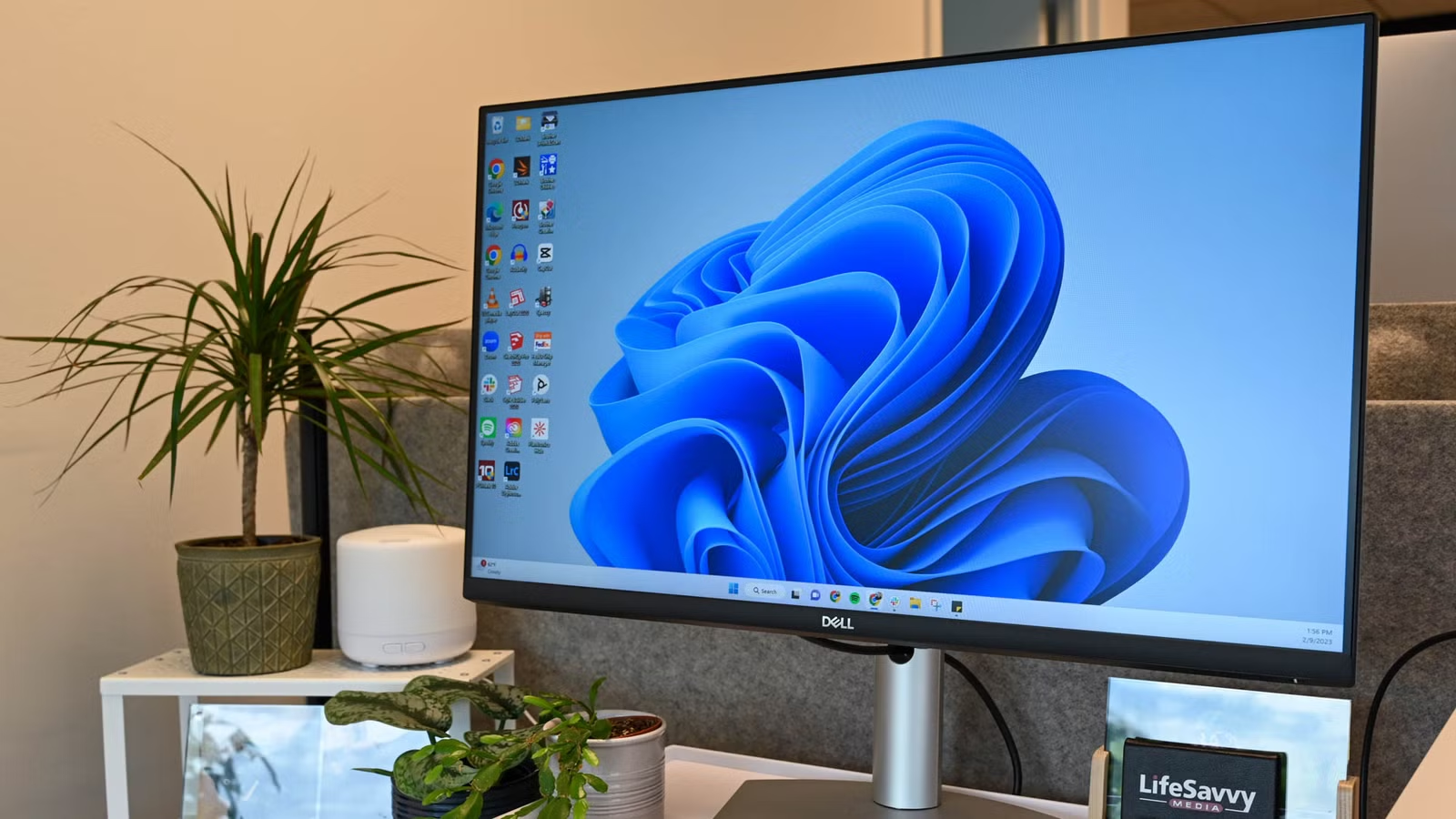
For many years, the My Computer icon was a staple of Windows desktops, but it was replaced and rebranded as “This PC” when Windows 10 was released. Users who want to see this icon again on their desktops will need to add it manually. Here’s how to restore the This PC icon on Windows 10.
Mainstream support for Windows 10 concluded on October 14, 2025. As a result, the operating system no longer receives security updates. Upgrading to Windows 11 is highly advised. The instructions provided here are applicable to Windows 10, though we emphasize Windows 11 techniques when applicable.
Restoring the This PC Icon in Windows 10
By default, Windows 10 does not display the This PC icon on the desktop. Fortunately, bringing it back is a simple process.
Begin by right-clicking on any vacant space on your desktop and choosing Personalize. In the Settings window that opens, navigate to Personalization > Themes, and select Desktop icon settings under the Related settings category.
A dialog box will appear. Check the box next to Computer and click Apply. The This PC icon will now appear on your desktop.
While you’re in this menu, you can also select any other built-in icons you’d like to display, such as User’s Files or the Control Panel. Simply check the boxes next to them and hit Apply.
If you notice other necessary desktop icons missing—like Network, Recycle Bin, User folder, or the Control Panel—you can also restore those here by selecting their respective checkboxes before applying the changes.
Moreover, once you’ve added the This PC icon, you have the flexibility to customize it further, if desired.
If you find that no desktop icons are visible, right-click on the desktop, go to “View,” and ensure “Show Desktop Icons” is enabled. If this option is unchecked, all icons, including This PC, will remain hidden.
Resolving Missing Icons Due to OneDrive or Cache Issues
If your icons seem to be missing or are displaying as blank squares, it’s essential to identify two common causes before diving into deeper system settings.
OneDrive May Be Backing Up Your Desktop Folder
If your file icons are absent but the files themselves remain on your computer, OneDrive could be redirecting your Desktop folder. Open File Explorer, right-click the Desktop folder in the sidebar, and select Properties. Look at the Location tab, and if it shows a OneDrive path, click Restore Default or Move back to C:\Users\[YourName]\Desktop.
Blank White Squares Indicate a Broken Icon Cache
Seeing blank white squares doesn’t mean your icons have vanished, but rather that Windows has lost their appearance. To rectify this, you can clear the icon cache. Press Win + R, enter %localappdata%\Microsoft\Windows\Explorer, and press Enter. Delete any files that start with iconcache or thumbcache. Restart your computer, and the icons should return to their normal state.
Windows 11 also typically keeps many essential icons off the desktop, and restoring them, including This PC, follows a similar approach as in Windows 10. Right-click the desktop and choose to personalize.
From there, head to Themes > Desktop Icon Settings.
When you arrive there, select the checkbox next to “Computer,” then click “Apply” to have it displayed on your desktop.
For users of older Windows versions like Windows 7, Windows 8, or Windows Vista, the method to restore the My Computer icon is slightly different. Right-click on the desktop, choose Personalize, and then select “Change Desktop Icons” from the left menu.
From the Desktop Icons panel, choose which built-in icons you’d like to have visible on the desktop.
You can also restore the Recycle Bin from this same menu.
To add the Computer icon back to your desktop, click the Start button, right-click “Computer,” and select “Show on Desktop.”
- Your icons may just be hidden.
- Your icons could have been deleted.
The first scenario is straightforward to fix. Right-click on a vacant area of your desktop, hover over “View,” and select “Show Desktop Icons.”
These instructions apply to users of Windows 10, Windows 11, Windows 7, Windows 8, and Windows Vista.
If this action does not restore your icons, they may have been permanently deleted. In that case, you will need to check the Recycle Bin to retrieve them. If they can’t be recovered, you can create a new desktop shortcut as a replacement.
If you enjoy customizing Windows, you can also create a new icon using just about any image file you prefer.