I have a deep appreciation for desktop widgets, a fondness that dates back to the Windows 7 era. It’s disappointing that Microsoft phased them out, as I believe they offer a practical way to access information without the hassle of launching applications. While some may argue that eliminating widgets results in a tidier desktop, I see it as a loss of useful screen space.
Yes, it’s possible to restore functionality similar to desktop widgets in Windows 11 using a program called Rainmeter. However, this solution comes with its own challenges, which I will discuss later. Rather than rely on those limitations, I took the initiative to create my own custom widgets with Claude and Rainmeter, displaying information tailored to my preferences with minimal effort.
Widgets in Windows 11
Before I receive numerous comments, I want to clarify that Windows 11 includes widgets. However, these are not as effective as traditional desktop widgets. They are contained within the Widgets Panel, which can only be accessed through a taskbar icon or by pressing Windows + W. This extra step diminishes their utility in my opinion.
Some users appreciate this panel since it can be accessed from any application without going back to the desktop. However, it’s worth noting that you can simply press Windows + D to return directly to the desktop. Thus, the panel fails to enhance workflow, providing less accessibility overall.
In contrast, desktop widgets remain visible even when you close applications, switch virtual desktops, or restart your computer. While the aesthetic debate can go either way, their practicality is solid. Constantly viewing a calendar and a to-do list widget can bolster accountability and enhance productivity. I’ve even written a separate post on how to utilize widgets as productivity tools.
Creating Your Own Widgets
Rainmeter stands out as one of the best methods to add desktop widgets to your Windows 11 setup. Typically, users search online for different “skins” and install them, but this approach has its drawbacks. One major issue is that widgets designed by different creators often clash in style, leading to an unsightly desktop. Additionally, some of the more appealing skins require payment.
For those wanting a tailored solution, you can also write your own widgets since each Rainmeter skin is essentially a text file. However, without coding skills, this isn’t practical—until now. I’ve been experimenting with Claude and having impressive results. By using Claude, I was able to create Rainmeter widgets effectively.
Exploring Vibe Coding
The process is quite straightforward, requiring no additional prompts or connectors. I’ve found Claude, particularly Opus 5.5, to understand Rainmeter efficiently, even without specific guidance. By simply indicating my desired widget appearance and functionality, I produced custom widgets in mere minutes.
For enhanced design accuracy, sketch your widget on paper, take a photo, and share it with Claude.
You can use any version of Claude for this, although I recommend Claude Code for its ability to directly manipulate your file system and create Rainmeter skin files automatically. If you prefer more control, the standard Claude app can generate the code and provide instructions for saving files, though this process is more time-consuming.
Using a robust model like Opus 5.5 or Fable is advisable if available. My attempts with Sonnet 5.5 were less smooth, while Opus streamlined the creation process significantly and reduced errors.
Widget Ideas for Inspiration
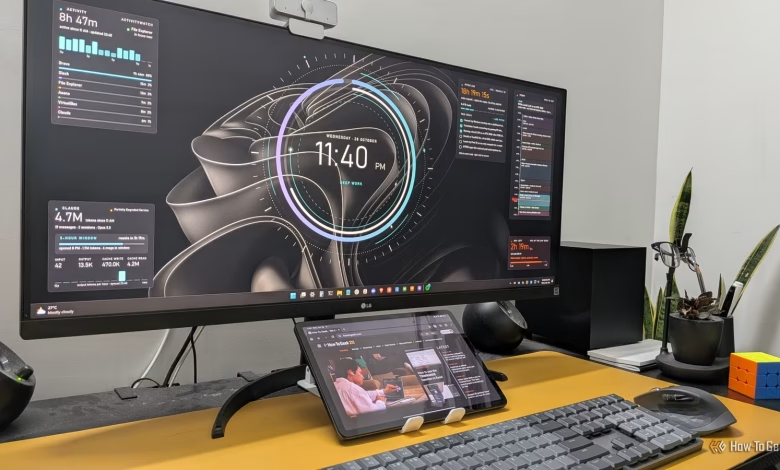
If you’re seeking inspiration for custom desktop widgets, here are a few I’ve implemented using Claude and Rainmeter:
- Today Widget: A visual timeline from 11 AM to 2 AM, using color-coded blocks to organize tasks and indicating the current time, along with a box displaying my ongoing and upcoming activities sourced from a local CalDAV file.
- Workday Countdown: A countdown timer that visually indicates how much time is left in my workday, changing colors from white to amber to red as the end of the day approaches.
- Pitch Checklist: An interactive checklist for article ideas due on Thursdays, with completed tasks archived for future reference.
- Activity Tracker: A graph displaying data from an ActivityWatch server, summarizing my active time on the PC.
- Claude Usage Widget: A monitor for my Claude Code usage, predicting when my current session will reset.
- Clock Widget: An animated clock focused largely on aesthetics, situated centrally on my desktop.
Custom Widget Creation Made Easy
Desktop widgets have never truly vanished from Windows, thanks to Rainmeter. The challenge was always in finding compatible widgets that displayed information aesthetically. However, with the advent of AI and vibe coding, creating customized widgets has never been simpler. You’re not limited to Claude; other coding agents like Codex and Antigravity can also assist effectively, provided you utilize a capable model.