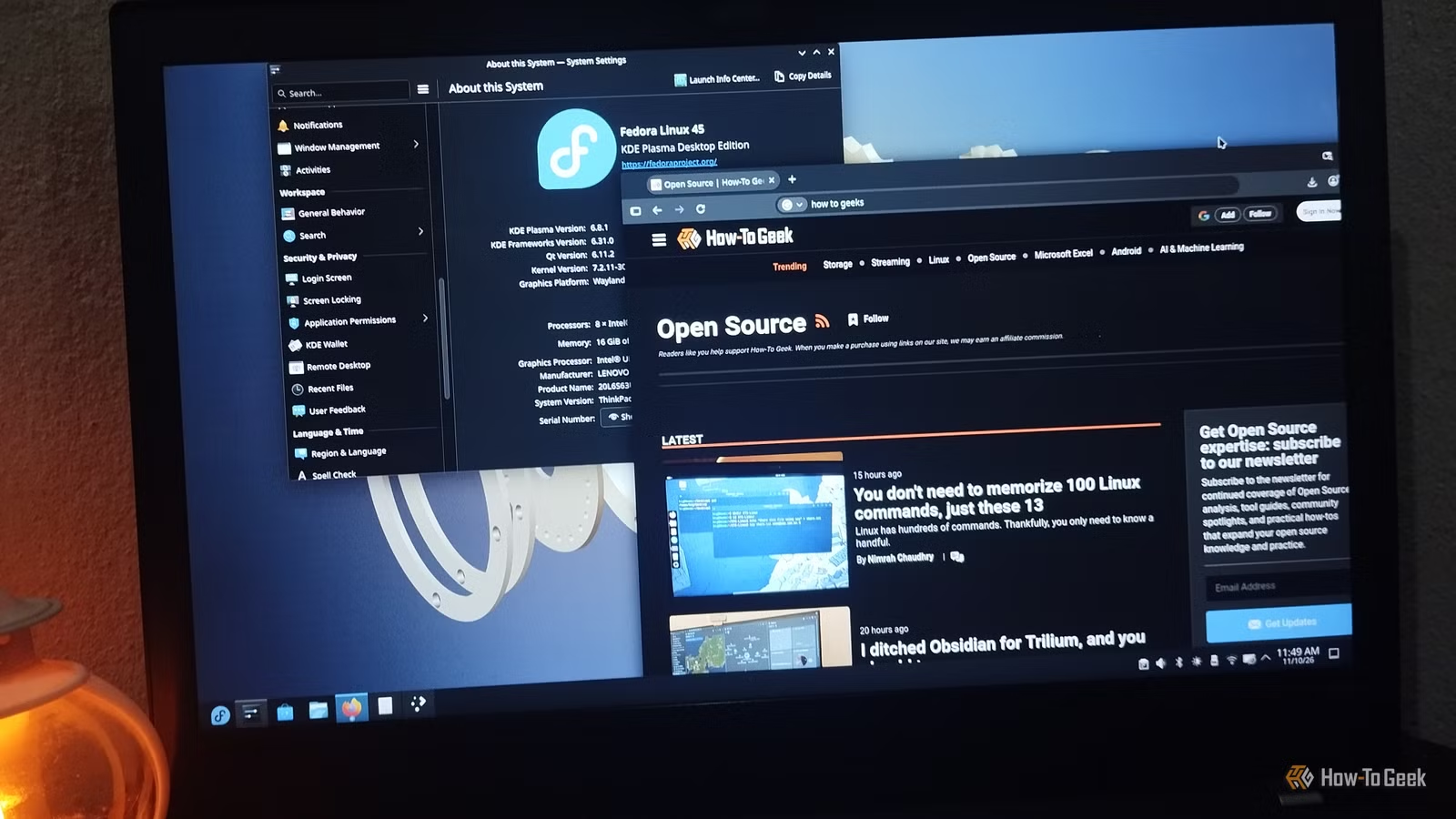
Fedora is a robust Linux distribution, but there’s much more you can do beyond a standard installation. Simple adjustments can enhance usability, provide access to more software, and improve overall system control.
In my exploration of Fedora 45’s KDE version, I identified eight enhancements that are worth implementing. These changes are straightforward and can be completed at your own pace. It might be beneficial to implement a few simultaneously to appreciate the improvements fully.
To get started, open your terminal, ensure you’re connected to the internet, and have your charger at hand. Most commands will be executed in the terminal.
Speed Up DNF5 Downloads
Increase DNF5’s Download Capacity
Fedora 45 utilizes DNF5 as its package manager, which is set to download only three packages simultaneously by default. By increasing this limit to ten, you can streamline the installation process for multiple packages.
This adjustment is made in a straightforward text configuration file, so no additional installations are needed. You can add the required line with the following command:
echo 'max_parallel_downloads=10' | sudo tee -a /etc/dnf/dnf.confI confirmed this adjustment with grep and then ran sudo dnf5 makecache to ensure DNF could refresh its package metadata without issues. While this won’t necessarily make your downloads ten times faster, it will allow DNF to fetch multiple packages concurrently and take better advantage of a fast connection.
Enable Flathub Repository
Access a Broader Flatpak Software Library
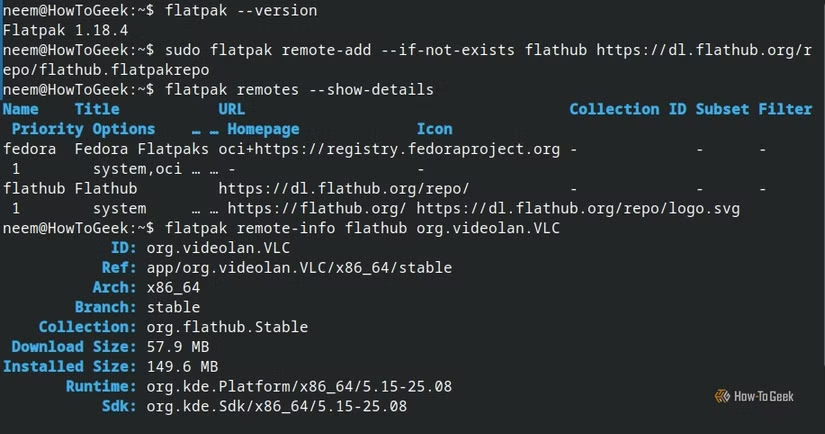
While Fedora comes with its own Flatpak repository, the Flathub source isn’t enabled by default. Since Flathub hosts one of the largest collections of Linux desktop applications, adding it will vastly expand your options.
You can check if Flathub is already listed in Discover under Settings. If it’s missing, use the following commands to add it:
sudo flatpak remote-add --if-not-exists flathub https://dl.flathub.org/repo/flathub.flatpakrepo
flatpak remotes --show-details
Once Flathub is configured, you can browse for applications through Discover or directly install them via the terminal.
Expand Multimedia Format Support
Fedora’s default repositories do not include every multimedia codec due to licensing restrictions. RPM Fusion fills this gap by offering additional software and codecs. It’s one of the first repositories to enable after a fresh installation.
To get started, activate both the Free and Nonfree RPM Fusion repositories:
sudo dnf5 install \
https://mirrors.rpmfusion.org/free/fedora/rpmfusion-free-release-$(rpm -E %fedora).noarch.rpm \
https://mirrors.rpmfusion.org/nonfree/fedora/rpmfusion-nonfree-release-$(rpm -E %fedora).noarch.rpm
Next, verify that the RPM Fusion repositories are active, then replace Fedora’s limited FFmpeg package with the complete version:
dnf5 repolist --enabled | grep -i rpmfusion
sudo dnf5 swap ffmpeg-free ffmpeg --allowerasing
Then, install the multimedia package group:
sudo dnf5 group install multimedia --setopt=install_weak_deps=False --exclude=PackageKit-gstreamer-pluginI executed these commands on my Fedora 45 installation and confirmed the additional packages were properly installed, enhancing multimedia capabilities across applications. This is a small yet significant step that prevents codec issues down the road.
Adjust Laptop Power Settings
Select an Appropriate Power Profile
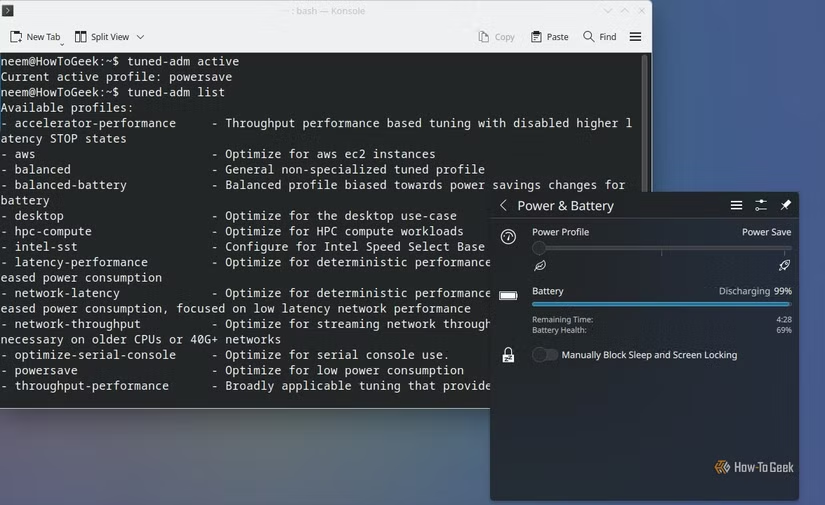
Your laptop doesn’t need to operate at maximum performance all the time, especially for light tasks like browsing or document editing. Fedora 45 KDE allows easy switching between different power profiles without having to use terminal commands.
Initially, my installation was set to the Balanced profile. To explore other options, I ran:
tuned-adm active
tuned-adm list
This revealed several profiles, including Power Saver, Balanced, and performance-centric options. You can easily switch between them using KDE’s Power and Battery widget in the system tray.
If you’re using Fedora on a laptop, it’s well worth checking out these profiles—opt for battery-saving modes when unplugged, and switch to a performance profile when needed.
Check for Firmware Updates
Conduct a Quick Hardware Review
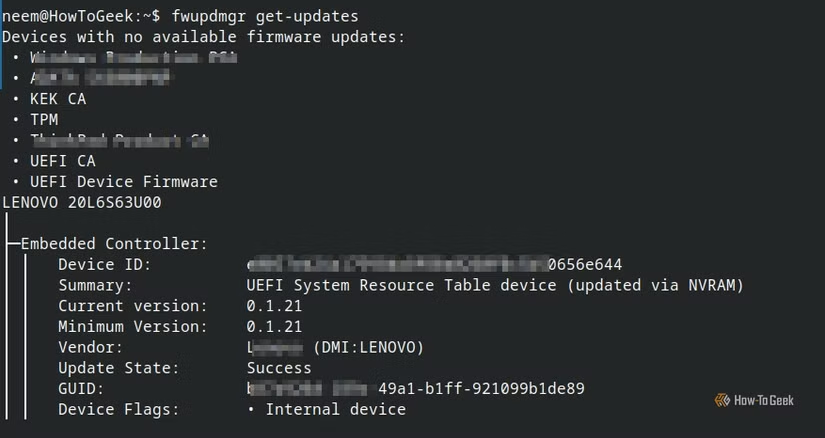
While it’s easy to remember software updates, firmware updates are equally important as they resolve hardware bugs, enhance compatibility, and address potential security risks.
Fedora includes fwupd, which allows you to check for firmware updates on supported devices. First, identify which devices are recognized and if any firmware updates are available:
sudo fwupdmgr get-devices
sudo fwupdmgr get-updates
These commands are used only for checking purposes and do not perform installations. If nothing appears, that’s expectable, as not all devices are supported. Many manufacturers supply updates through the Linux Vendor Firmware Service, which is what fwupd utilizes. When updates are available, execute fwupdmgr update while connected to power.
Discover KDE Plasma 6.8
Enhance Your Desktop and Unveil Useful Features
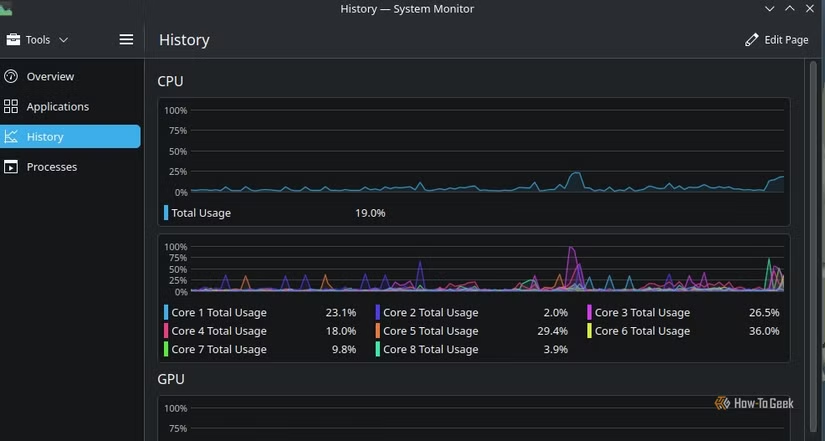
KDE recently marked its 30th anniversary with the launch of Plasma 6.8, introducing a range of improvements to the desktop experience. If you’re utilizing Fedora’s KDE version, this is a great opportunity to delve into the new features and customize your desktop.
Begin by altering your wallpaper, experimenting with colors, adjusting font sizes, and organizing your virtual desktops. You can also make use of tools like System Monitor to monitor resource consumption.
Among the updates in Plasma 6.8, you can toggle between light and dark modes directly from the system tray, eliminating the need to navigate through Global Themes. Utilize Meta + W to access Overview, and use the mouse wheel or Page Up/Down to switch between virtual desktops, or even have individual desktops per monitor.
The Digital Clock widget now allows multiple time zone displays, and applications leveraging the new Background Apps framework are visible in the system tray. Additionally, a built-in microphone volume test is available for audio checks before video calls.
Utilize Your GPU Effectively
Examine Intel Hardware Video Decoding
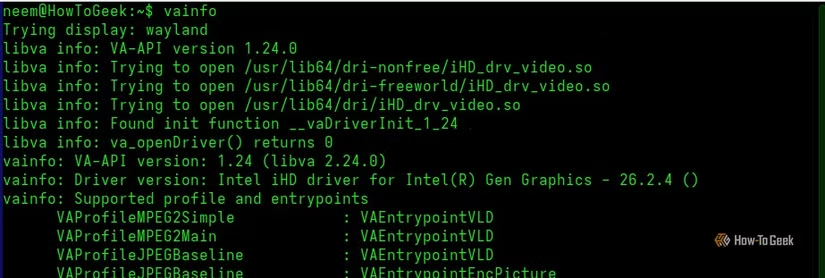
If your laptop features Intel integrated graphics, checking for hardware video decoding capabilities can be beneficial. This allows your GPU to handle compatible video formats, offloading work from the CPU.
Fedora’s VA-API utilities can help you find out which decoding profiles your graphics driver supports. Simply run:
vainfoI tested this with my Intel UHD Graphics 620. The Intel iHD driver loaded successfully, reporting support for MPEG-2, VP8, and VP9 encoding profiles, but H.264 and HEVC were not displayed.
Your results will vary based on your GPU model and driver, so not all formats will necessarily be supported.
Enhance Your Terminal Experience
Install Essential Command-Line Tools
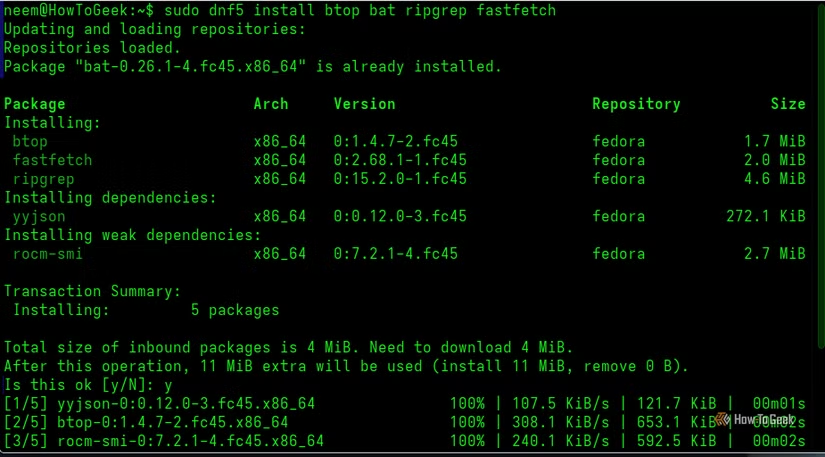
Fedora’s repositories are filled with utilities that simplify daily tasks. You can install four of my recommended tools at once:
sudo dnf5 install fastfetch btop bat ripgrepbtop is a visually appealing system monitor, fastfetch showcases your system information (ideal for screenshots), bat is a syntax-highlighted replacement for cat, and ripgrep enables super-fast file searching. A quick run of fastfetch is sure to bring a smile.
A Few Adjustments Go a Long Way
While Fedora 45 is fully functional out of the box, a short setup time can vastly improve your experience. I recommend prioritizing Flathub, RPM Fusion, and the power profile for laptops first, followed by exploring the other enhancements as desired.