When a Linux system encounters issues after an update—like failing to display the login screen or crashing during startup—it may seem daunting, but reinstalling the entire distribution isn’t necessary. Linux offers a variety of boot options that can assist in recovering a malfunctioning installation, troubleshooting startup failures, and regaining access to your system.
Familiarizing yourself with these boot options can save you substantial time in turbulent moments. Below are six key Linux boot options that could be beneficial:
Boot an Older Linux Kernel from GRUB
Rollback a Kernel Update That Disrupted Your System
Sometimes, kernel updates can create compatibility issues with hardware, drivers, network functionality, or file systems. Long-time Linux users likely have their own tales of kernel update disasters. If your system was operating smoothly before an update, booting from an older kernel is a good initial step.
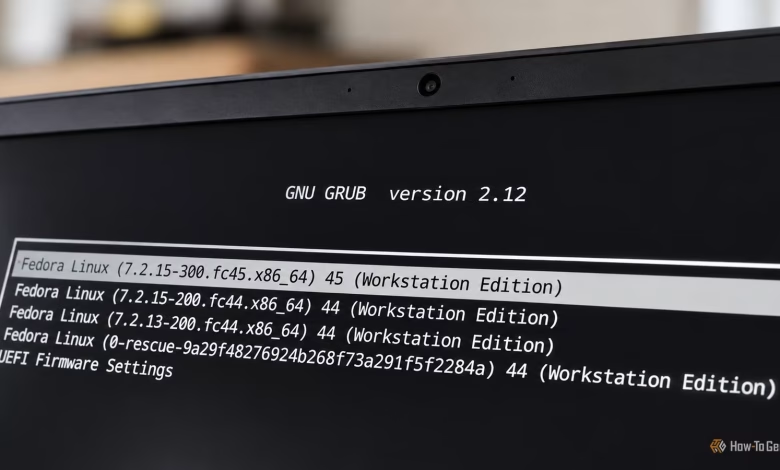
Most Linux distributions retain prior kernel versions during updates. You can select these through the GRUB bootloader by choosing “Advanced options” from the startup menu, revealing a list of installed kernels. Choose an older working version and press Enter to continue.
If GRUB doesn’t appear automatically, hold the Shift key during BIOS startup or repeatedly press Esc on UEFI systems; the specific key behavior can vary based on your bootloader settings. Once you’re at the desktop, you can investigate the recent update issues, check driver compatibility, or reinstall a functioning kernel. This is especially handy when a kernel update leaves your system unable to reach the login screen.
Boot Linux into Rescue Mode
Use Systemd Rescue Mode to Fix a Damaged Linux Installation
Rescue mode is beneficial when Linux can initiate its kernel but suffers issues during the regular boot process, providing a minimal environment with essential services and a shell to correct configuration files, eliminate problematic packages, and explore startup failures.
On systemd-based systems, you can access rescue mode by modifying the GRUB boot entry. Highlight your typical boot entry, press e, locate the line starting with linux or linuxefi, and add the parameter:
systemd.unit=rescue.target
Press Ctrl + X or F10 to continue. Depending on your setup, you may need to enter the root password to reach the recovery shell.
From here, you can check system logs, remove an erroneous package, or adjust a configuration file hampering the normal boot process. Use commands like journalctl -xb to examine errors from the current boot. The older single command can also activate single-user mode on many Linux systems, although using systemd.unit=rescue.target is clearer for systemd installations.
Boot Linux into Emergency Mode
Access an Emergency Root Shell When Rescue Mode Fails
When rescue mode fails to get your system operational, emergency mode may be necessary. This mode provides an even more basic environment than rescue mode, starting minimal services and giving you a root shell for debugging. To access emergency mode, edit your GRUB boot entry and add:
systemd.unit=emergency.target
In this mode, you can inspect /etc/fstab, look into failed mounts, and correct configuration issues. If the root filesystem is mounted as read-only, you might need to remount it with write permissions:
mount -o remount,rw /
Consider using this option when a standard recovery boot doesn’t succeed due to filesystem or mount errors. This lean environment can be helpful when standard startup dependencies prevent Linux from reaching a usable recovery state.
Disable a Problematic Systemd Service During Boot
Use the Systemd Mask Parameter to Bypass a Failing Service
A malfunctioning systemd service can obstruct Linux from reaching the login screen or cause delays during startup. This can occur after changes to network configurations, adding new drivers, or modifying automatically-running services. To mask a problematic service during the current boot, add the systemd.mask= parameter to your GRUB entry. For example, if NetworkManager is causing issues, append:
systemd.mask=NetworkManager.service
Replace NetworkManager.service with the specific service name in question. This action will prevent the specified unit from starting that boot.
This approach is particularly beneficial when you suspect a service is behind a botched startup but need to access your system to explore further. Once you have shell access, you can check logs with journalctl and decide on further actions like disabling or reconfiguring the service.
Masking NetworkManager disables its networking capabilities, so find an alternate way to connect to the internet if troubleshooting requires it.
Boot Linux Directly into a Bash Root Shell
Bypass Systemd with the init=/bin/bash Parameter
If systemd is preventing your system from booting, you can bypass it entirely by starting a shell directly. This is a more drastic recovery method but can be invaluable when normal recovery methods are unavailable. Modify your GRUB boot entry and append:
init=/bin/bash
With this adjustment, the Linux kernel will run Bash as PID 1 instead of the regular init system. You’ll land directly in a root shell without usual services or a login manager. Note that your root filesystem is typically mounted read-only. Before making changes, remount it with write permissions:
mount -o remount,rw /
You can now edit files, check configurations, and resolve issues blocking systemd from starting. Once done, flush changes and reboot the system:
sync
reboot -f
This option is best for scenarios where rescue and emergency modes cannot provide a usable environment. Since systemd is bypassed, familiarity with commands and services may be limited, and regular shutdown methods won’t work.
Fix Linux Boot Problems with nomodeset
Disable Early Graphics Mode Setting to Work Around Driver Issues
A graphics driver issue can sometimes leave you facing a black screen, even when Linux is booting correctly. This can be incredibly frustrating as information to identify the source often is minimal.
The nomodeset kernel parameter allows you to turn off kernel mode setting (KMS) during startup, preventing the kernel from switching to its normal graphic mode. To try this, edit your GRUB boot entry and append:
nomodeset
If the problem relates to initial graphics settings, this adjustment may bring you to a basic display or login environment. You can then further explore the graphics driver, undo a recent update, or reinstall necessary driver packages.
However, keep in mind that this will likely limit your display to a lower resolution and hardware graphics acceleration might not be available. Treat nomodeset as a temporary fix while investigating the underlying driver issue.
Create a Snapshot Before Updating Linux
If you frequently experiment with Linux updates or configurations, consider using a snapshot tool like Timeshift. It enables you to create snapshots of your system that can be restored if an update causes issues. You can set up automatic snapshots or create one before significant updates.
If your filesystem supports snapshots, check out tools like Snapper, especially for Btrfs-based installations. Just ensure your snapshots are adequately set up and saved on accessible storage in case of a system boot failure. A recent snapshot can significantly simplify troubleshooting and may avert a complete reinstallation. Taking a few minutes to create one before an update can save you time and frustration later.