Windows 11 Introduces a Streamlined Method to Disable the Sticky Keys Notification

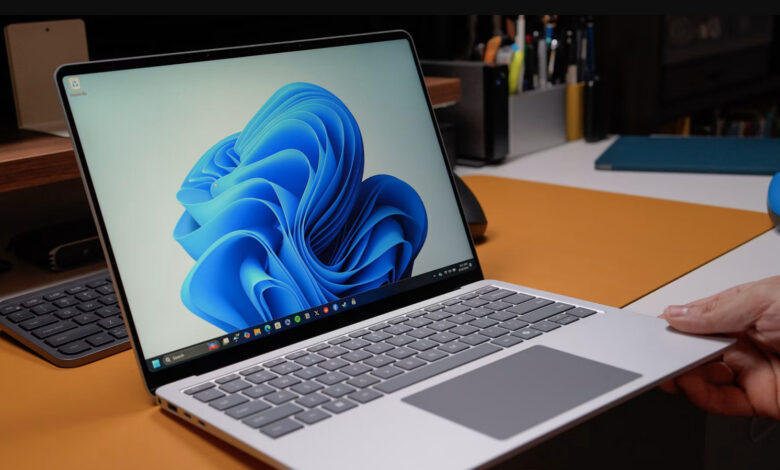
A new checkbox offers an easy way to disable the feature.
Microsoft is set to enhance the user experience by simplifying the process of disabling the Sticky Keys pop-up notification. This prompt appears when the Shift key is pressed five times in quick succession, offering users the option to enable multi-key shortcuts with a single key press.
While Sticky Keys serve an important role as an accessibility feature, not every user finds them necessary. The persistent pop-up can be particularly bothersome for those who do not utilize Sticky Keys, especially gamers who frequently use the Shift key for actions like sprinting and walking.
We’re adding the ability to permanently turn off the prompt to enable sticky keys from the pop up itself.
— Jen Gentleman 🌺 (@JenMsft) November 7, 2026
The forthcoming solution is quite straightforward. The pop-up will now include a checkbox labeled “never enable Sticky Keys with this shortcut.” Selecting this option will eliminate the pop-up for good.
However, there’s a catch—the checkbox feature is currently exclusive to users in the Windows Insider program, as it is still in beta testing. Given the demand for this feature, it is expected to be rolled out to all Windows 11 users eventually.
In the meantime, there is an alternative way to disable Sticky Keys. Users can go to “Settings,” navigate to “Accessibility,” followed by “Keyboard,” and ensure that “Sticky Keys” is turned off. Additionally, the “Keyboard shortcut for Sticky Keys” should also be disabled.
Interestingly, the Sticky Keys feature has been around for over 30 years, having first debuted with Windows 95.