Unlocking Hidden Potential: 5 Surprising Features of Your Android Phone’s Hotspot You Might Overlook

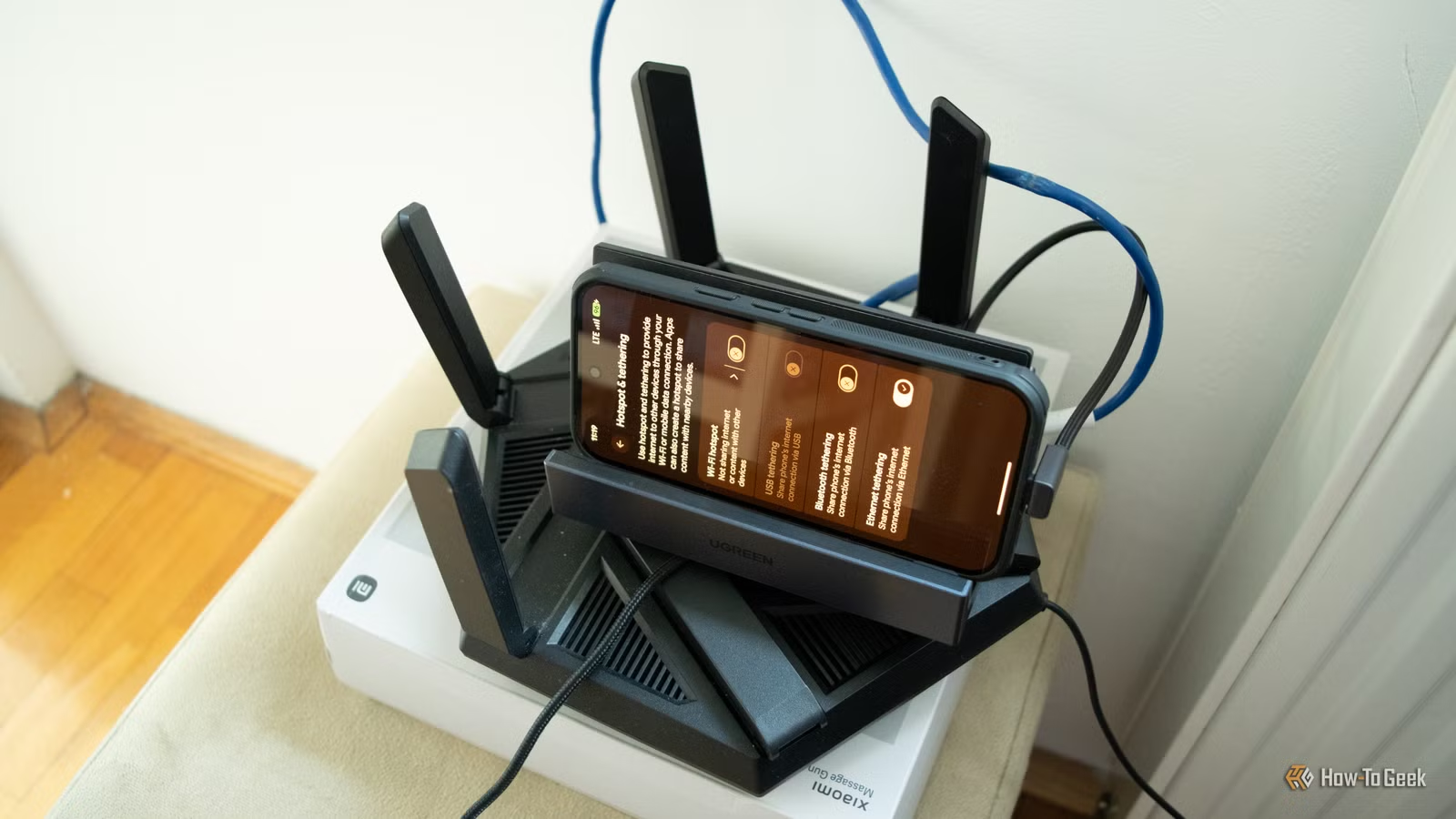
All Android smartphones have the capability to function as mobile hotspots, typically used to share internet access with laptops, other phones, or non-Wi-Fi computers via USB or Ethernet tethering.
However, the mobile hotspot feature can be utilized for much more than just sharing internet. It can transform your phone into a home internet troubleshooter, a Wi-Fi extender, an offline router for multiple devices, and beyond. It can even serve as a modem for your main router, allowing all devices in your home to get online.
Your Phone as a Portable Travel Router
Conveniently Equipped with a SIM Slot, Functional Without Power
Why purchase a dedicated travel router when your phone’s mobile hotspot can accomplish the same task? This is especially useful for older devices, freeing up your primary phone for other uses. Simply activate the mobile hotspot and insert a SIM with a mobile data plan if you’re traveling, and you can connect all your devices to the internet. If you have any devices that lack Wi-Fi, remember to bring a USB-C to Ethernet adapter.
You can also utilize the hotel or public Wi-Fi instead of mobile data, enabling your phone to distribute the internet connection to several devices. If the public Wi-Fi signal weakens, switching back to mobile data can help you maintain a strong connection—something that many travel routers may not support. Just keep in mind that if you use a VPN on your phone, it generally won’t secure the devices connected to the hotspot; each device will need its own VPN.
Having a phone as a travel router is particularly beneficial on road trips, where you can provide Wi-Fi to all devices in your car, including ones that do not support SIM cards.
It’s advisable to keep your phone connected to a charger or power bank to prevent rapid battery drain while using the hotspot feature, which can also cause the phone to heat up. Ensure it’s placed in a cool area and consider setting a charge limit if your phone offers that feature. Moreover, as your phone is battery-powered, you can maintain internet access via mobile data even without an external power source, something most travel routers cannot do without a power bank.
Note that certain US versions of Android phones, such as the Pixel 10 and 11, do not support physical SIM cards. This is important to consider when planning to use mobile data, as not all carriers have eSIM support.
Your Phone as a Modem for Your Main Router
Both Wired and Wireless Capabilities
Your phone can also function as a modem in emergencies. Connecting it to your main router through Ethernet or USB tethering allows you to share the internet connection with all devices, both wired and wireless. Some routers even support WISP (Wireless Internet Service Provider) mode, which allows them to connect to your phone’s hotspot wirelessly.
This solution often surpasses using the phone alone as a hotspot, as many Android devices limit connections to about ten devices at once. Although you can link multiple wired devices to your phone using a USB-C to Ethernet adapter and a network switch, connecting the phone directly to the router is typically more straightforward.
Consult a guide to learn more about this setup. However, be aware that not all router models are compatible with smartphones acting as modems; some may face compatibility issues, so testing is advisable before relying on it.
Using Your Android Phone as a Wi-Fi Repeater
Potential to Create a Permanent Hotspot
While using a dedicated Wi-Fi repeater is often preferable for enhancing weak signals in your home, most Android devices can also be turned into one. To do this, connect your phone to the existing Wi-Fi network, activate the mobile hotspot feature, and set a new SSID and password for the phone’s network.
It’s crucial to create a different SSID from your main Wi-Fi network to prevent devices from frequently switching between the phone and router, which can disrupt connections. Additionally, using the 2.4GHz band, if possible, is advisable for the phone’s network, as it provides better coverage compared to 5GHz.
Your phone can also serve as a constant mobile hotspot in locations without internet access, like garages or vacation homes, supporting smart home devices or security cameras. For this purpose, always keep your phone plugged in, enable any charging limits, and ensure it is stored in a cool environment to prevent overheating. Turn off the setting that disables the hotspot when there are no connections to improve reliability.
Create a Local Area Network (LAN) Without Internet
Niche Usage, but Highly Functional
Constructing an offline LAN with your phone can be useful in specific scenarios, such as when camping or in remote locations without internet access.
This setup allows you to connect devices for file transfers using apps like LocalSend, or for streaming media locally. However, be mindful that the performance may not match that of a dedicated router, especially for high-bandwidth activities like video streaming or gaming.
It’s essential to test your phone’s hotspot capabilities before use, as some devices might isolate clients from each other or require a SIM card or mobile data to activate the hotspot function.
Troubleshooting Home Internet Issues
Using Your Mobile Hotspot to Diagnose Connectivity Problems
Your mobile hotspot can also aid in diagnosing issues with your home internet. If a wired device faces connectivity problems, like sluggish speeds, connect it to your phone and check if the issue persists. USB tethering is generally the best method for this diagnosis, eliminating the Ethernet cable from the equation.
If you find that the problem continues, it’s likely that the issue is with the device itself. Conversely, if the connection improves, the root of the issue may lie with your router, Ethernet cable, or Internet Service Provider (ISP). Be sure to run a quick speed test on your phone’s mobile data to ensure it’s functioning properly before testing other devices.
If multiple devices are experiencing connectivity issues, connecting the phone to your router via USB or Ethernet can help you identify whether the problem originates from your router or ISP. If the connection stabilizes when the phone is connected, it may be time to contact your ISP. However, if issues persist, the router might be at fault, provided that your router is compatible with smartphone modems.
As demonstrated, the mobile hotspot feature in Android phones extends beyond merely serving as internet access for a single device. When connected to your router, your phone can act as a full-fledged modem, supplying internet to all devices. It can also function as a travel router, Wi-Fi repeater, offline LAN, or always-connected hotspot for devices such as security cameras. Moreover, it serves as an effective troubleshooting tool for pinpointing the source of home internet problems. Just be aware that some use cases, like an always-on hotspot, may monopolize the phone, making these features best suited for spare devices. Additionally, be conscious of data limitations that may affect even “unlimited” plans during hotspot usage.