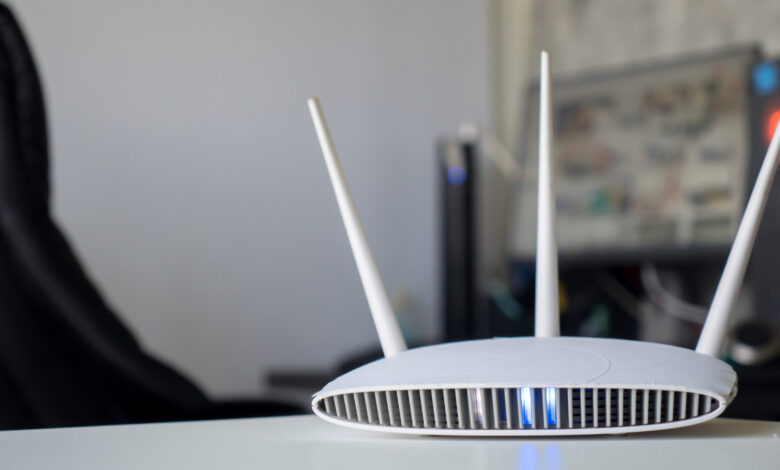
The colors of your router’s lights can often indicate positive status.
The front section of a Netgear router, similar to many other routers, features various lights and symbols. While some symbols, like the power indicator, are easy to understand, the meanings of the lights can be confusing. They come in different colors and can blink or stay steady. For those who haven’t consulted the manual, interpreting the lights’ meanings can be challenging.
Knowing what the indicators on your Netgear router represent is crucial for troubleshooting and ensuring that everything operates smoothly. Although some lights are more significant than others, each one is valuable. Whether you’re using a standard router or a mesh Wi-Fi system, understanding your Netgear device’s signals can be quite beneficial.
The Key Lights on Your Netgear Router
These lights are vital to monitor, as they provide critical information about power and internet connectivity.
Power Indicator
This symbol indicates your router’s power and firmware status. If the light is off, it means the router is not powered on.
- Solid green or white: The router is active and ready for use.
- Solid amber: The router is in the process of booting up.
- Blinking amber: Firmware is being updated or the reset button has been pressed.
- Blinking white: There is a firmware corruption.
- Blinking white and amber: The router is in access point mode, limiting some functionalities.
If you encounter issues, try restarting the router. If it remains unresponsive, a factory reset may be necessary.
Internet Indicator
The circular icon indicates the connection status:
- Off: There’s no connection to a modem; check the Ethernet cable.
- Solid green or white: The internet connection is established.
- Solid amber: An Ethernet connection to the modem is detected.
- Blinking white: The port is engaged in data transfer.
Wi-Fi Indicator
This light indicates Wi-Fi activity:
- Off: The router’s Wi-Fi function is disabled.
- Solid white: The Wi-Fi function is operational.
- Blinking white: Wi-Fi data is being transmitted.
Additional Indicators on Your Netgear Router

Image Credit
Additional lights on your router serve specific troubleshooting purposes or indicate connections of extra devices.
Wi-Fi Band Indicators
Modern routers typically feature indicators for the 2.4GHz and 5GHz bands, with newer models also showing a 6GHz light. The indicators convey similar meanings regardless of the Wi-Fi band in use.
- Off: The band is inactive.
- Solid white: The band is active.
- Blinking white: Data is being sent or received on this band.
USB Indicators
Each USB port on the router is equipped with an indicator:
- Off: No device is connected or it’s safe to remove a device.
- Blinking: A device is attempting to connect.
- Solid green or white: A device is successfully connected and ready for use.
Ethernet Indicators
These indicators reflect the status of Ethernet ports:
- Off: No device is connected.
- Solid: A connected device is powered on.
- Blinking: Data transmission is occurring.
WPS Indicator
This indicator is for Wi-Fi Protected Setup connections:
- Off: No WPS connection is active.
- Blinking: A WPS connection is forming.
- Solid: A WPS connection has been successfully established.
Interpreting Lights on a Netgear Orbi Mesh System
The lights on the Netgear Orbi Wi-Fi mesh system are simpler than those on traditional routers and show essential statuses differently. The front features a light for connection status, while the back includes a light for power and firmware details.
Front LED Indicators
- Solid blue: The connection between router and satellite is strong.
- Solid amber: The connection is adequate but could be better.
- Solid magenta: No backhaul connection or internet access.
- No light: The device is not powered on.
Back LED Indicator
- Solid green: Both router and satellite are powered.
- Solid amber: The device is rebooting.
- Pulsing amber: Firmware is being updated or the device is resetting.
- Pulsing red: Possible hardware issues or connectivity loss.
- No light: The Orbi is not receiving power.